
Intuit GoPayment has announced support for using a Receipt Printer and Cash Drawer.
ATTENTION: Apparently, Intuit has removed this feature from GoPayment. Please stay tuned for an email print-queue workaround.
Currently, the only supported printer is the Star Micronics TSP 650 BTi printer, which connects by Bluetooth. Any Cash Drawer that connects to this or other printers using an kick-cable connection should work fine. Contrary to what you may read, the Cash Drawer uses a cable that looks like a phone cable, but IT IS NOT! It carries a specific wiring that is compatible between the printer and the drawer.
- Connect the Cash Drawer to the Printer
- Go to your iPad’s Settings area.
- Select bluetooth, and the iPad should find the Star printer.
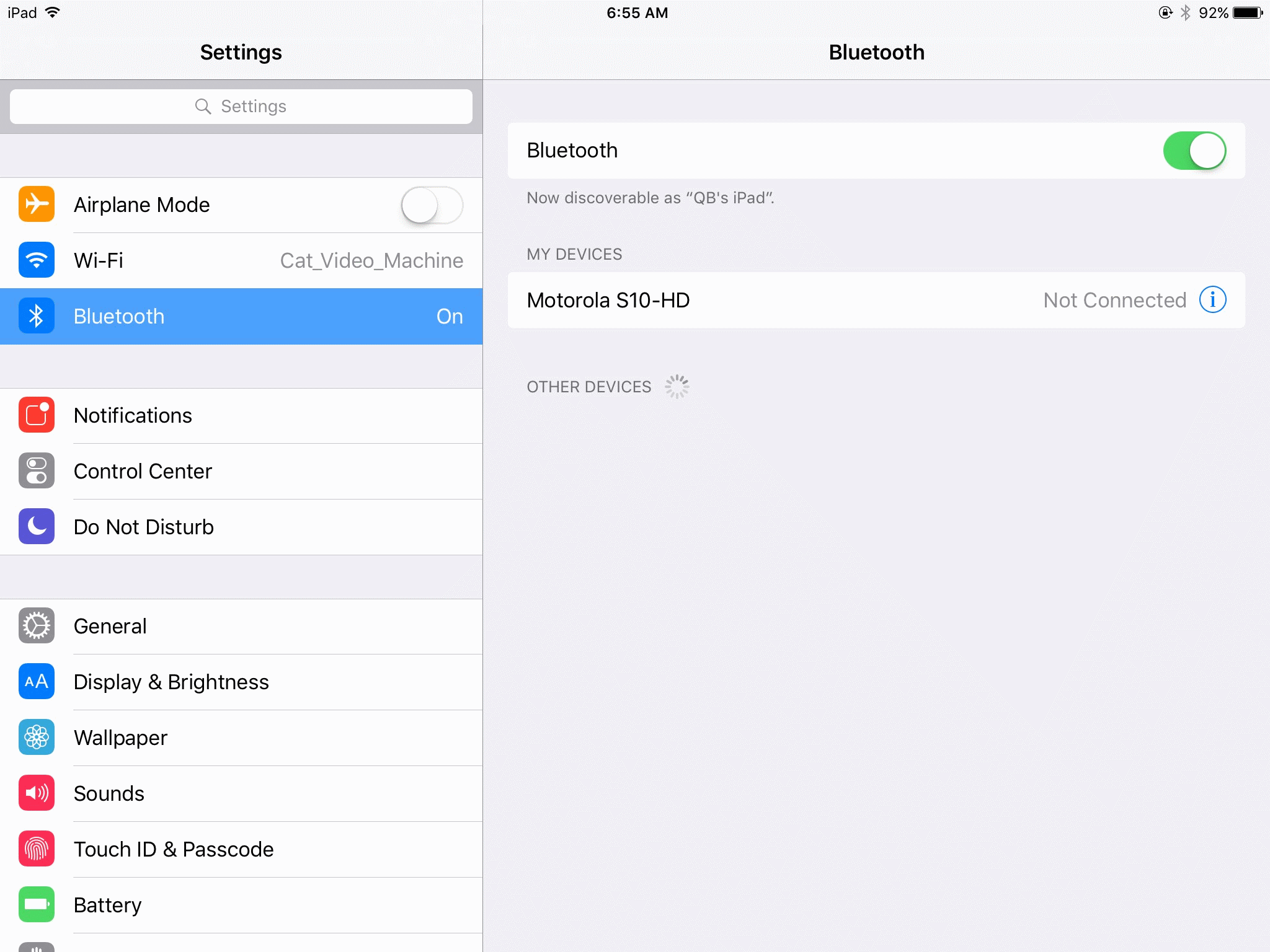
- You then Pair them with the printer’s PIN Number (See printer documentation).
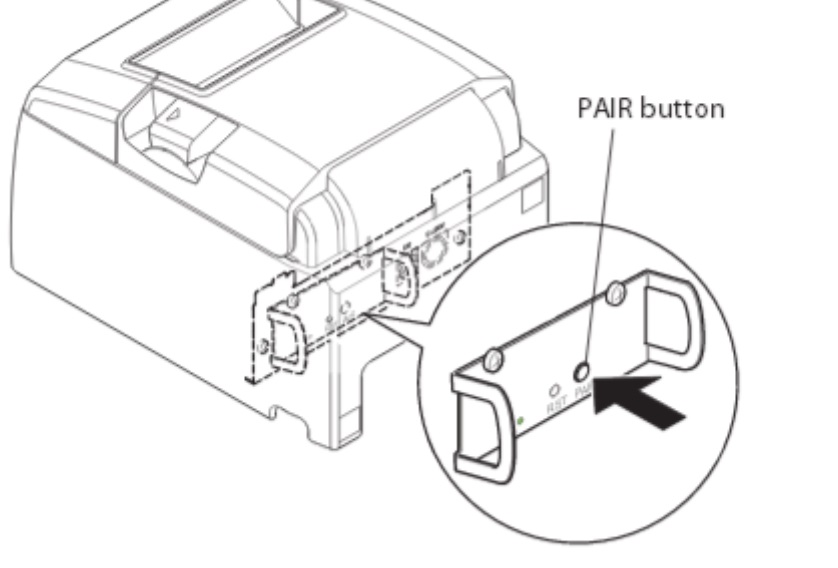
- On the printer there is a Pair button on the underside near where the cables connect.
- Inside the GoPayment App:
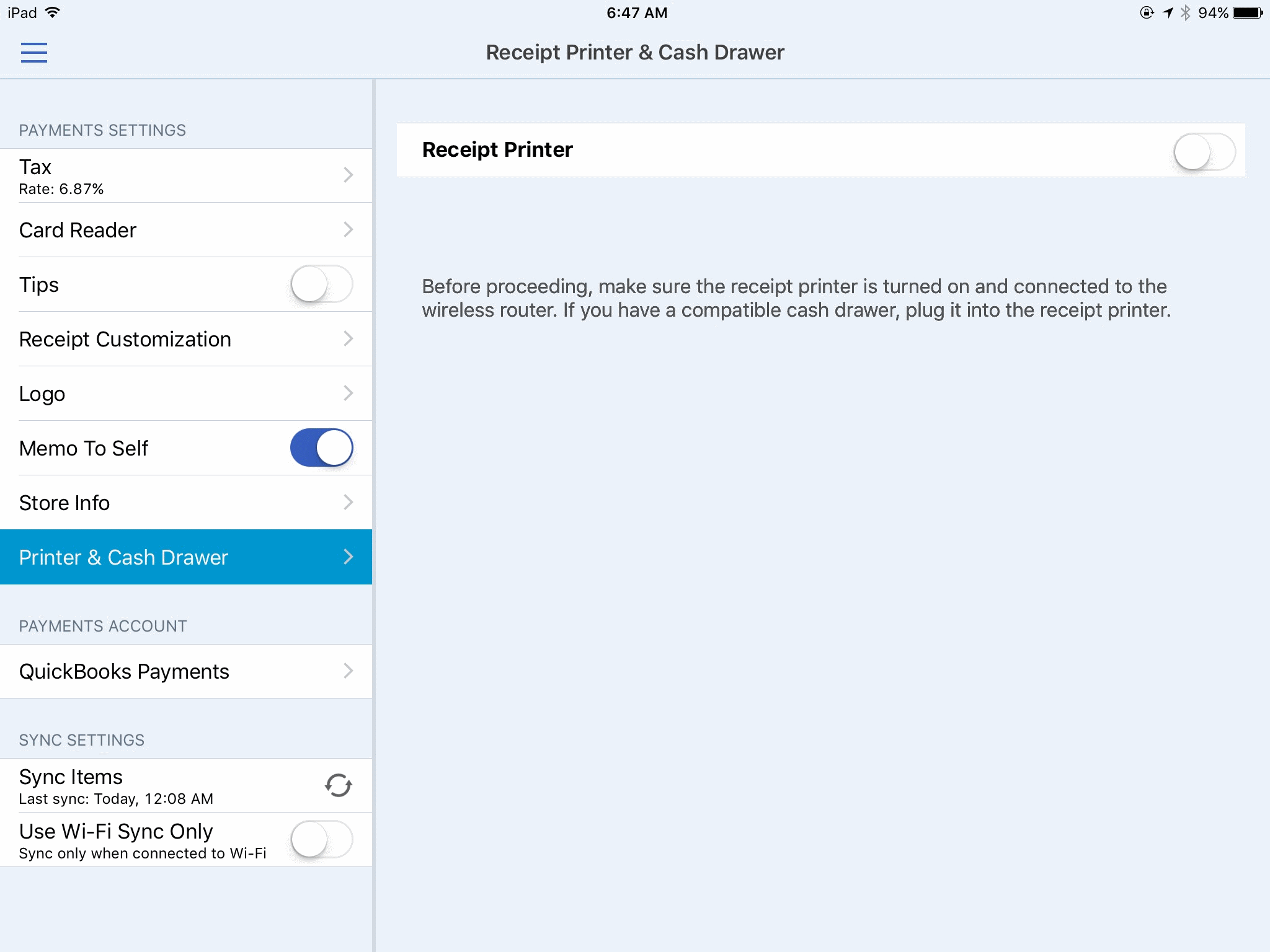
- Tap the menu
- Tap Settings
- Tap Printer and Cash Drawer
- Turn on Receipt Printer and Cash Drawer.
- You should now be able to test print.
Note: The bottom of the receipt will have a barcode that can be scanned for locating the receipt in the Transaction History.
Did they take this feature away?