
QuickBooks POS Updates —such as maintenance releases, enhancements, and QuickBooks POS update help files—can be quickly and easily downloaded and installed, ensuring that you have the most up-to-date features and capabilities available.
You can have QuickBooks POS automatically download QuickBooks POS updates files (recommended), be notified when an update is available but download it yourself, or not be notified at all and manually check for updates yourself.
If you have multiple networked QuickBooks POS workstations, you can configure QuickBooks POS update so that all workstations can update from a shared download file.
What’s important about QuickBooks POS updates?
- An update should be installed on your QuickBooks POS Server Workstation first. All other workstations on your network must exit Point of Sale during the update to the Server Workstation.
- Point of Sale will automatically back up your company data before updating the Server Workstation.
- We recommend installing QuickBooks POS updates while your store is closed, when you have time to complete the installation and familiarize yourself with program enhancements. Updating multiple workstations or a large data file may take some time.
- (Multi-Store) Each workstation at each store must install an update to ensure compatibility within a store as well as between stores. All stores should follow the same update procedures and schedule.
QuickBooks POS Update includes these steps:
- Set your updater preferences.
From the Help menu, select Software Updates > Updater Preferences and select how you want to be notified of available updates: 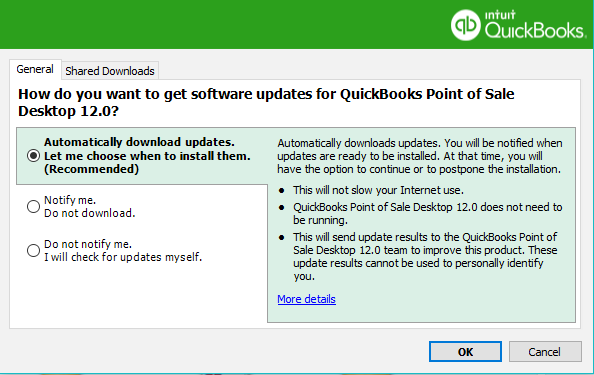
- Download only. Let me choose when to install. (Recommended). Point of Sale will download updates in the background anytime you are connected to the Internet and let you know when an update is ready to install.
- Notify me. Do not download. Point of Sale will check for updates and notify you when one is available to download. But you choose when to download and install.
- Do not notify me. I will check for updates myself. Point of Sale will not check for updates at all. You can manually check for and download updates at your discretion.
If you have multiple networked workstations:
Consider updating all workstations from a shared download. With this option, only one workstation needs to be connected to the Internet to download updates. Once downloaded, the QuickBooks POS Update is available to all workstations. To learn more or to enable this option, select the Shared Download tab on the Updater Preferences window.
Important: Each workstation must select the shared download preference to use this feature.
- If QuickBooks POS updates are not downloaded automatically, select Software Updates > Check for Updates from the Help menu at the Server Workstation.
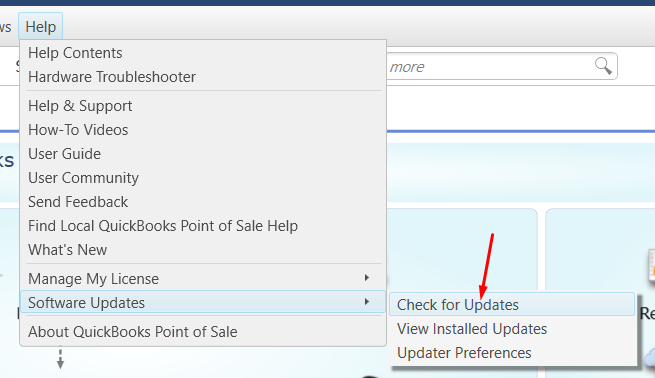
Point of Sale connects to the update site and checks for available updates. If a QuickBooks POS Update is available, information about what is included and an estimate of how long it will take to download it is displayed.
- Select Update Now (on automatic downloads, select OK when notified).
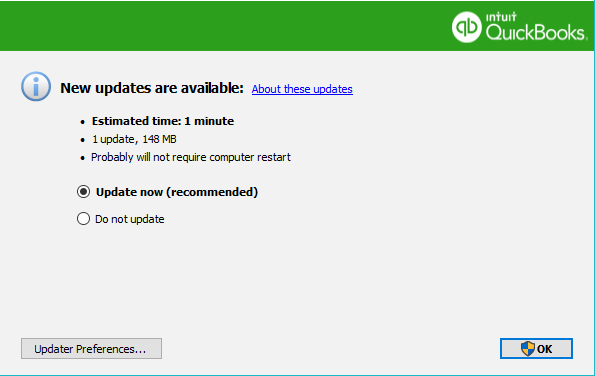
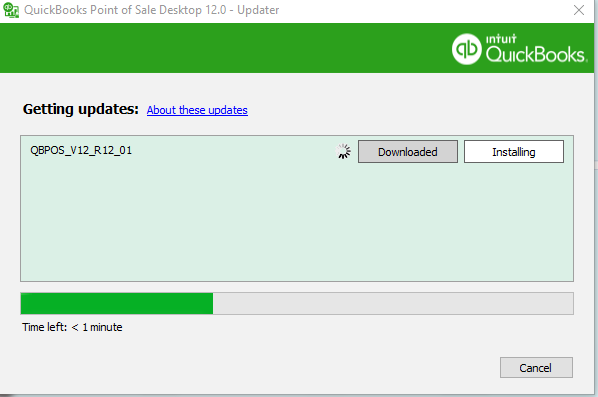
Or, select Remind Me Later to delay a download/installation until a later time.
- Follow the on-screen prompts to install the update.
- Restart Point of Sale after the QuickBooks POS update is installed.
- If applicable, install the update to additional workstations.
To review the QuickBooks POS update history on a workstation, select Software Updates > View Installed Updates from the Help menu.

Notes:
- A QuickBooks POS update does not upgrade Point of Sale to a new version or unlock the features of a program level other than what you have licensed (e.g., Basic to Pro).
- FAQ and troubleshooting information can be found in the help topics available from the Updater Preferences window. Select any blue help link or button, choose Home and then choose the Frequently Asked Questions or Troubleshooting links.
- If you have modified your Point of Sale lists, reports, or customized printed documents and tags, installing an update will not overwrite your modified layouts to add any new fields or options included in the update. You may need to further modify your layouts to add them or, in the case of reports, use the Revert option to reset to the default layouts and then re-memorize.
- For information about what data may be read from your computer during software updates (such as your current version and licensing information), please read Privacy Policy by selecting Privacy Statement from the Help menu.