Today we will talk about on how to delete a department in QuickBooks Point of Sale.
Here’s how:
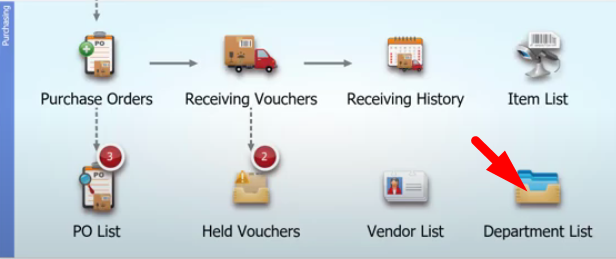
- On the main screen, click on the “Department List” icon.
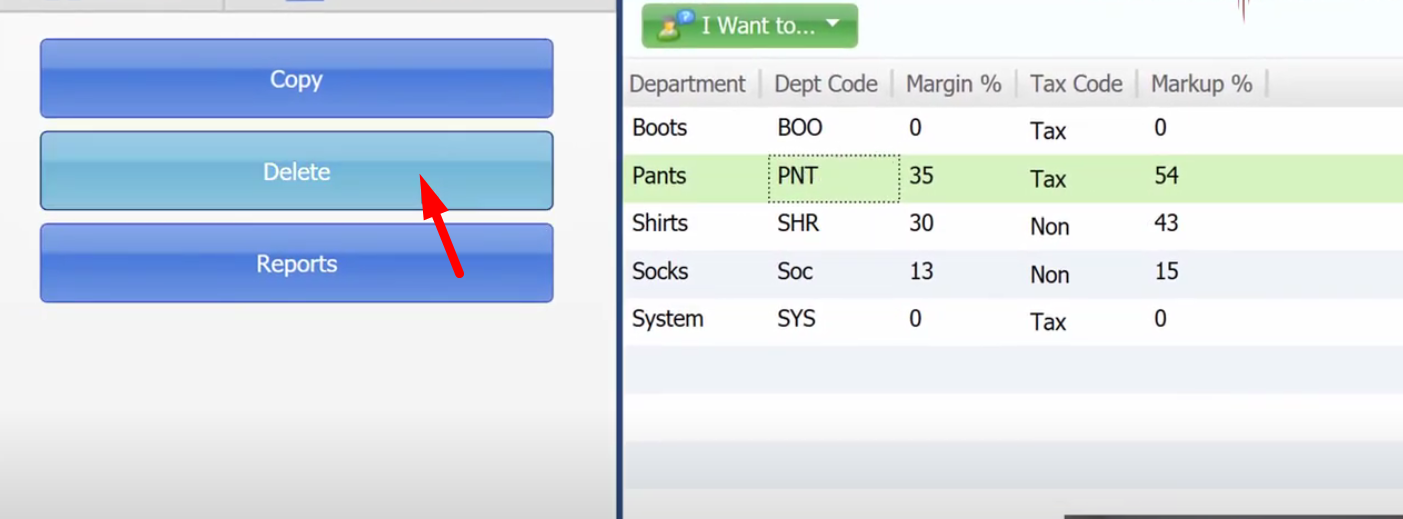
- Next is choosing a department that you would want to delete and click on the “Delete” button on the left column of the screen.
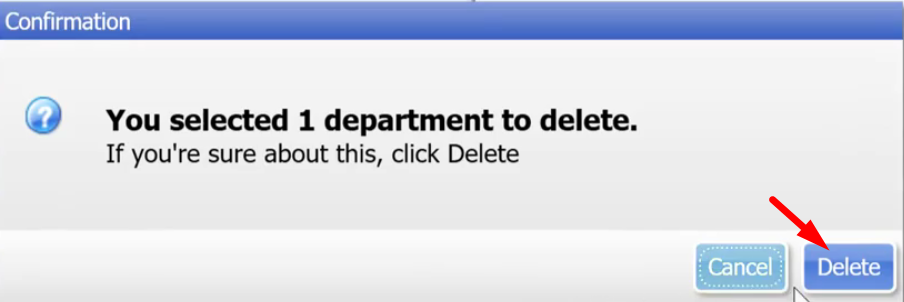
- A dialogue box will pop up and click on the “Delete” button.
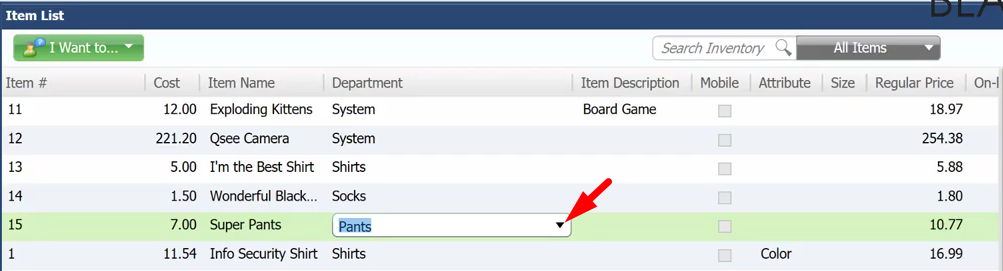
- Be sure that if you delete a department, don’t forget about all the items that were previously assigned to that department because this can cause troubles in your reports. You can go over the items by going to the “Items List” and change the department of the item. Select the item and click on the drop down button and click on the new department you want the item to go to.