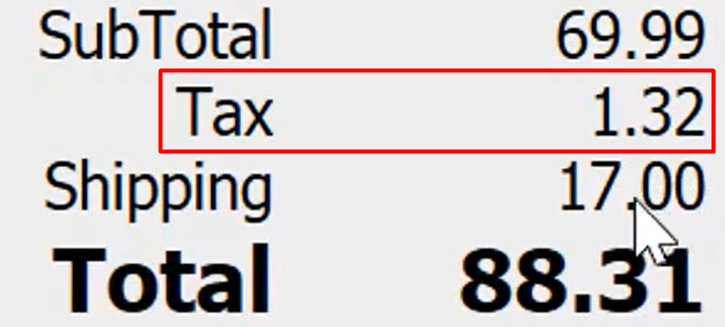
Today we are going to talk about charging tax on the shipping fee. This has to do with the location that you are shipping to, you need to know your local rules for the place you are shipping to on whether or not you need to charge tax on shipping.
Let’s begin:
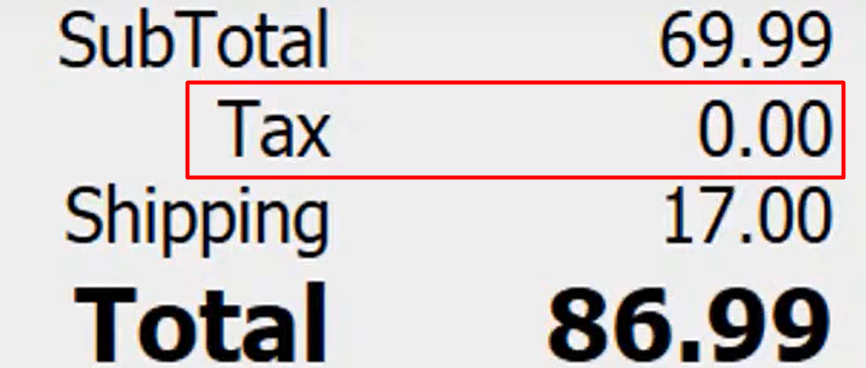
First example, if you’re shipping out to a location with no tax in shipping fee.
- Go to “Make a Sale”.
- Add an item on the Sales Receipt screen. (for example, Big Dumb Boots)
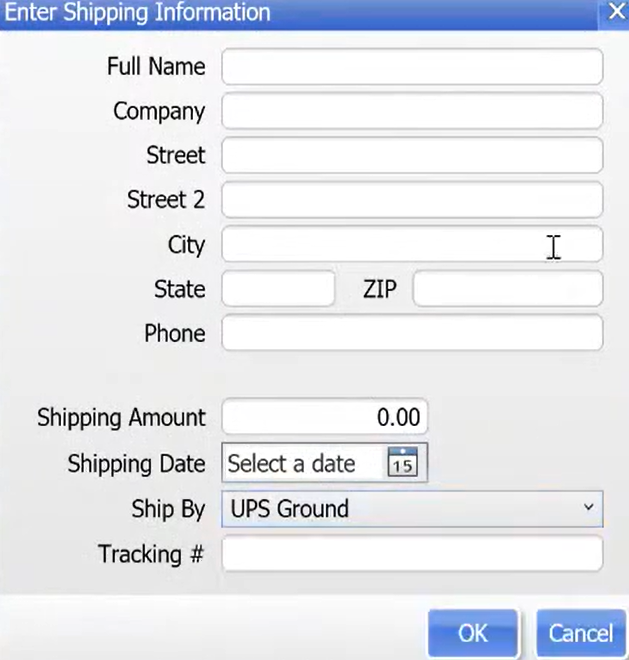
- Go to “I Want To” menu then select “Ship Items”.
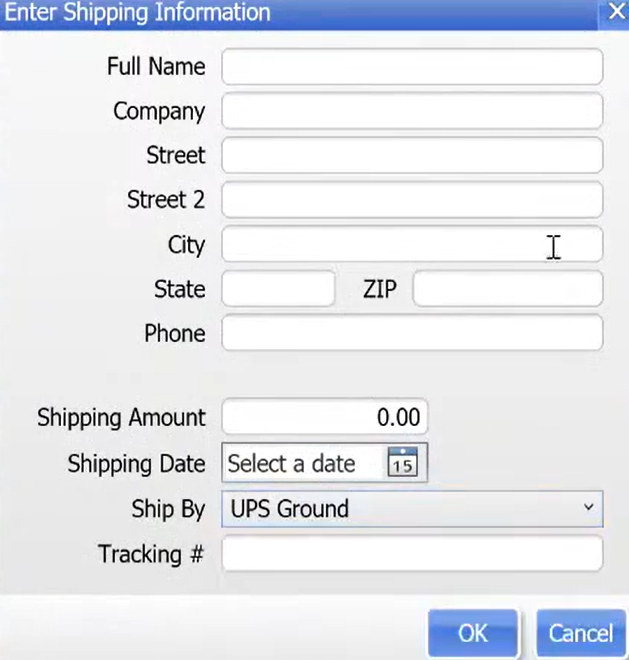
- Fill in every information. Then select “Ok”.
- You will see that there is no tax charge on your shipping fee.
Now, for example, if we will ship an item to a location where there is tax charge like in Northlake.
- First, on your “File” menu, go to “Preferences” then select “Company”.
- On your Company preferences, find “Work Orders” then select “Sales Tax”.
- On your Set up Sales Tax look for the “Northlake”.

- On the right side of Northlake, select “Edit Tax Location”.
- Mark check on the “Shipping to this location is taxable using the tax code”, then on the drop down choose “Tax – Tax”. Then select “Ok”.

- Select “Save”.
- Now, go back to “Make a Sale”.
- Choose an item. (for example, Big Dumb Boots)
- Go to “I Want To” menu then select “Ship Items”.
- Fill in every information. Then select “Ok”.
- You will see on your bill that you already have a tax for your shipping fee.