
Today we are going to talk about finding inventory items that you don’t use anymore and you want it to clean up or clear up your item list.
Let’s begin:
- On your “Reports” menu go to “Items”, then click “Item List”.
- On your Report Center “Item Detail” tab, select “Modify

- Modify a Report screen will appear, select “Add or Remove Columns”. Unchecked “Create Subtotals for this field”, then choose “Item #”. Click “Save” and click “Run”.

- Adding an Item # will give you an easy way to look up items and not have to search by name.
- After you add the Item # column go back again to modify a report, then select “Filter Data”.
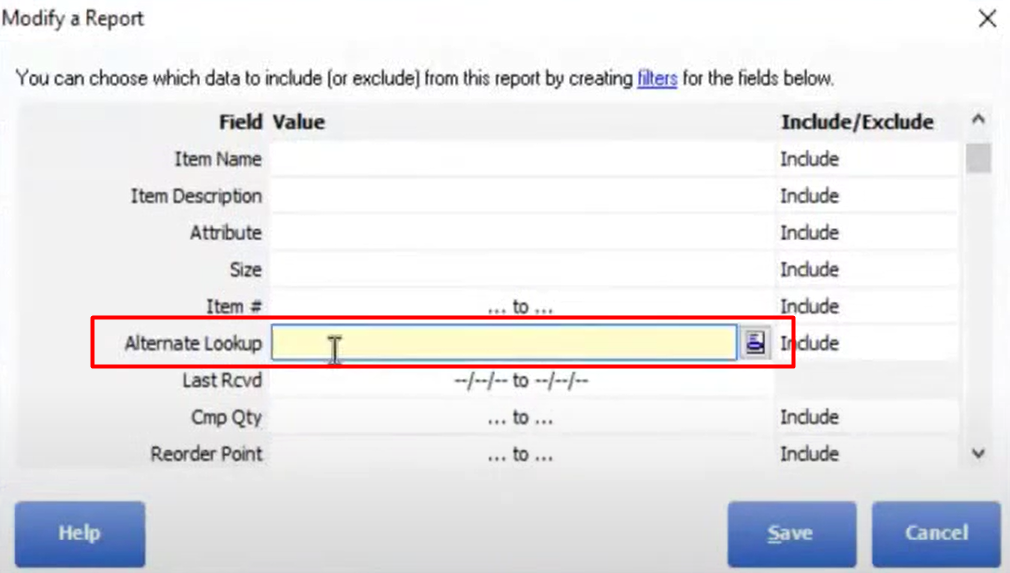
- Now the first filter that we will setup is “Alternate Lookup”, find “Alternate Lookup” then type in the first time your vendor delivered to you until the last time he delivered. (For example, 01/01/2010 and 01/01/2018)
- The second filter that we will setup is “1 QTY”, find “1 QTY” then type in “0” to “0”.
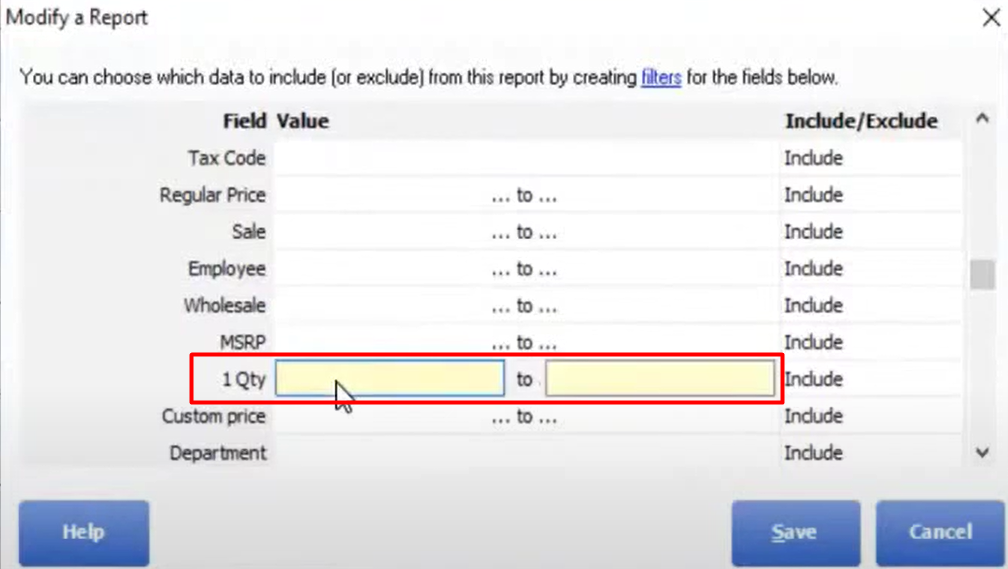
- Zero “0” because we need to look at items that is out of stock.
- Select “Save” then click “Run”.
- Now the first filter that we will setup is “Alternate Lookup”, find “Alternate Lookup” then type in the first time your vendor delivered to you until the last time he delivered. (For example, 01/01/2010 and 01/01/2018)
- On your Item Detail tab, it will show you all your items you filter with “0” quantities. This are the items you need to delete to clear up your item list.
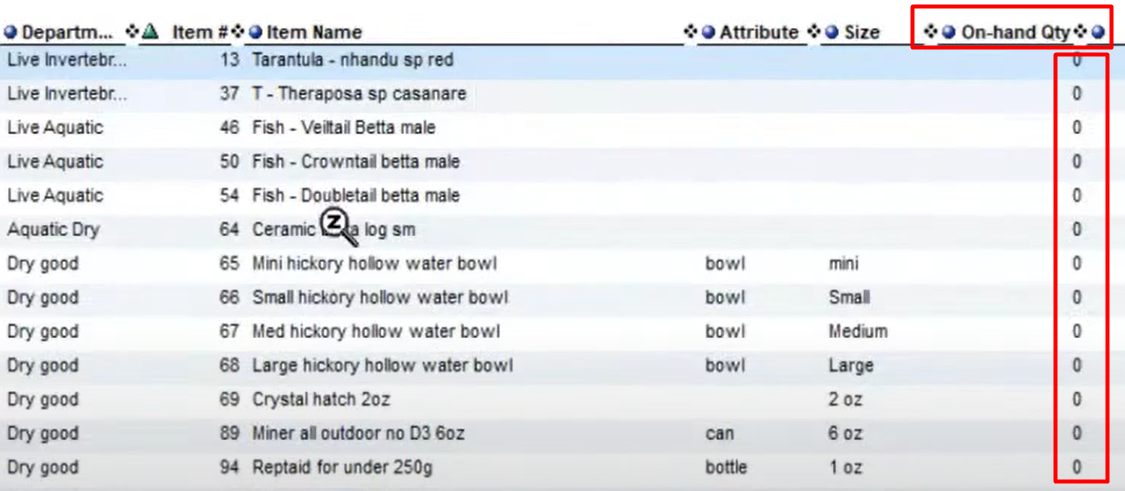
- You can Print the report or you can put this report in excel for you to have a copy so that you can delete it one by one to your Item List.
