
This is very helpful when your customer in line has forgotten an item and would want to get some more products and you would want to check out the next customer in line. Today we will talk about how to hold a receipt, why to hold the receipt and how to unhold a receipt.
Here’s how:
- First, click the “Put on Hold”.

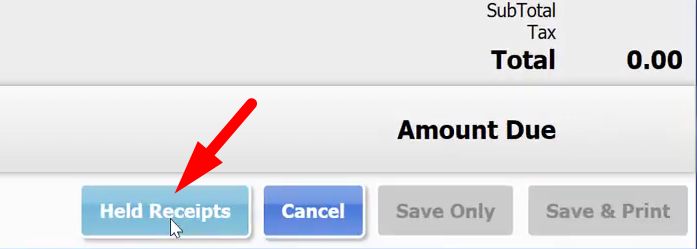
Once you’ve put the first customers receipt on hold, you can now check out the following receipts of the next customers. - If you want to print and go back to the receipts that are on hold. You can click on “Held Receipts”.
- You can also find the held receipts on the Main Screen by clicking on the “Held Receipts” icon and select on “View”.

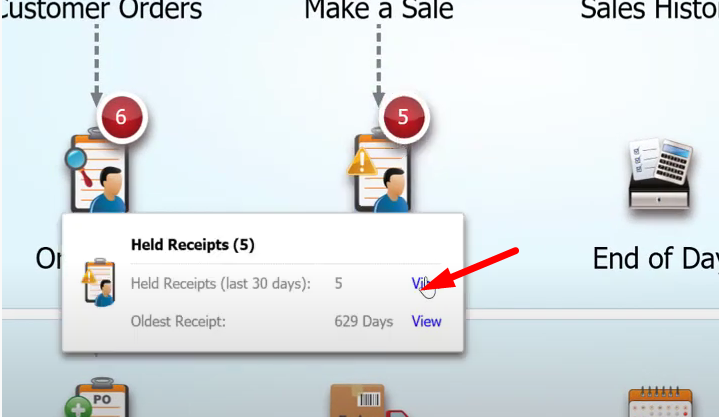
- You can also find the held receipts on the Main Screen by clicking on the “Held Receipts” icon and select on “View”.
- After selecting on “Held Receipts”, you’d be able to see the receipts that have not been checked out.
In case that you have not saved the name of the customer, you can click on the Details pane to see the products of the customers.
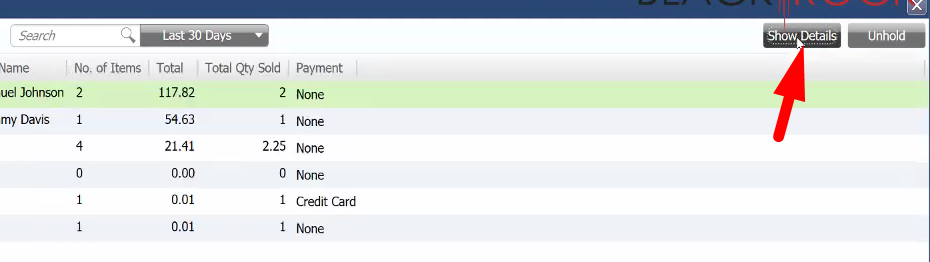
- Now that you have selected which receipt you would like to check out, you can click on “Unhold” and add the other products that they have selected.

- Once you’re done adding/removing items from their purchase order, you may now check out their order.