
Today we’re going to learn how to activate the PIN Pad Device in QuickBooks Point of Sale.
Here’s how:
- Plug the PIN Pad to the USB port of the computer. When plugged, the PIN Pad will show this message on its screen.

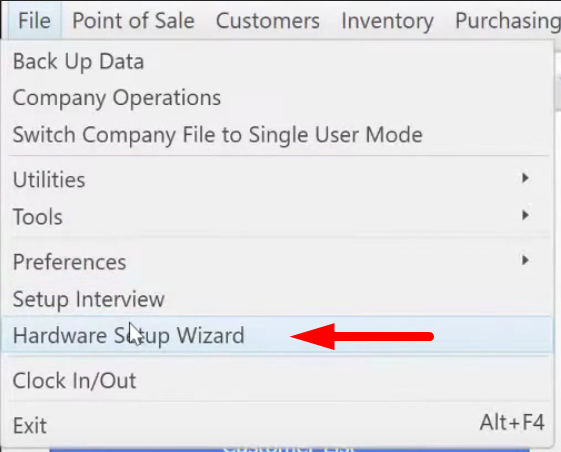
- Then go to “File” menu and click on Hardware Setup Wizard.
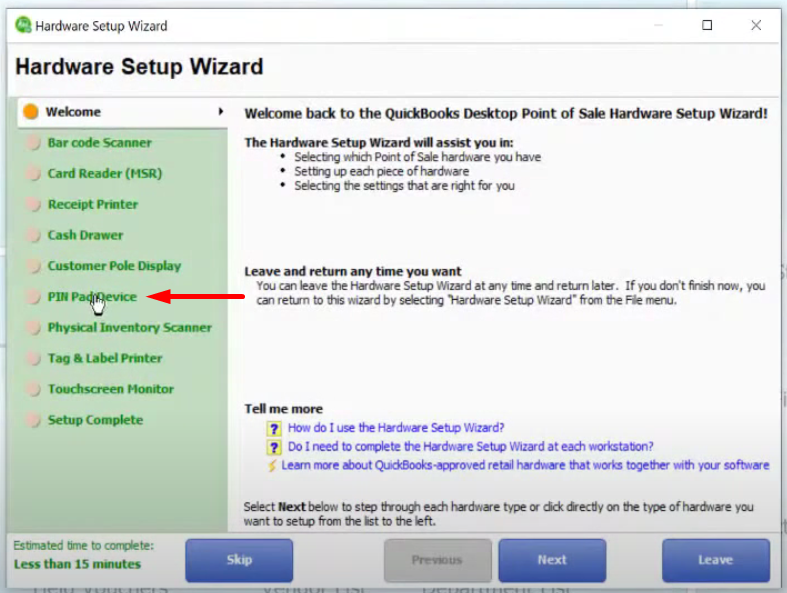
- On the Hardware Setup Wizard screen, click on “Pin Pad Device” section
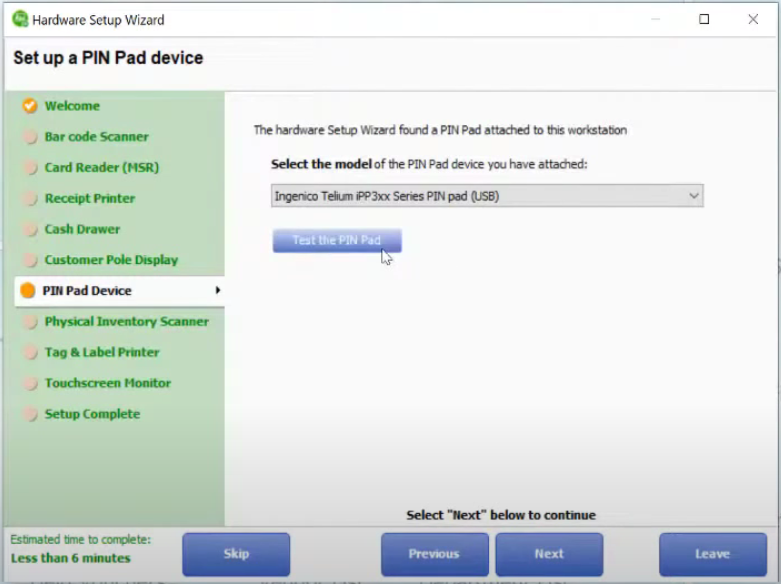
- Select the model “Ingenico Telium iPP 3xx Series PIN pad (USB)” and click “Test the PIN Pad”.
- Then click on “Begin Test”, wait until a message pops up on the PIN Pad asking to swipe or insert a card.
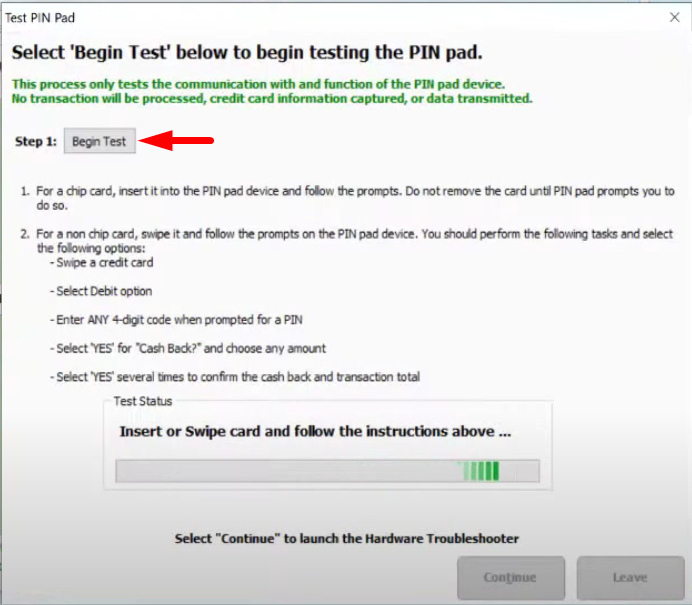

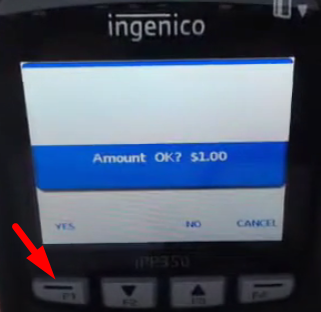
- Insert the card and wait for a test message asking if $1 dollar is the correct amount. Press on the “Yes” button.
- Wait until the test has been successfully done and click “Close”. It will also appear on the PIN Pad screen.


- You now have your PIN Pad set up in QuickBooks Point of Sale.
Are you aware of the issues with the Ingenico Lane 5000 pin pads? Any troublleshooting tips?