Today we are going to show you how to receive your items from purchase order.
Let’s begin:
- Go to “Receiving Vouchers”.
- On the blue buttons select “Receive from PO”.
- Choose the item you have receive, if only part of it arrived select “Select items to Receive” (like for example you ordered 10 quantity of the item and 4 of them just arrived).

- Type in the quantity you ordered on purchase order number 3 (For example, your order 4 quantity). Select “Continue”.

- Note: You can set certain settings so that you could automatically create a bill in QuickBooks accounting that could monitor your account from your vendor if your items you ordered are already paid or if not or when it’s net due.
- On the blue buttons select “Billing Info”.
Enter Billing Info screen will appear.
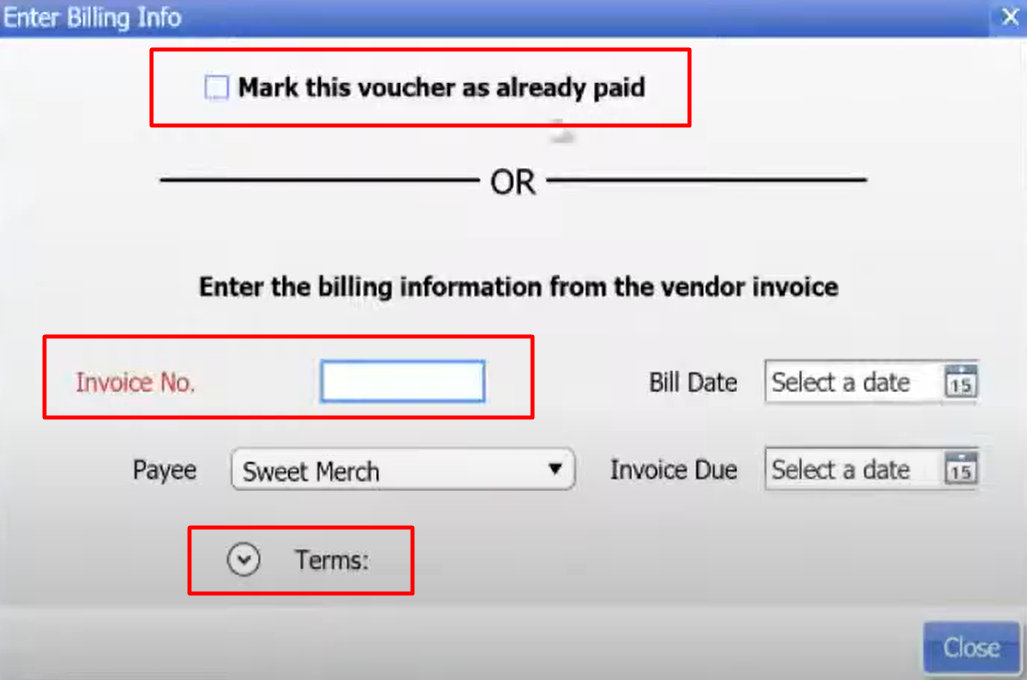
- Check “Mark this Voucher as already paid” if you are already paid from your vendor.
- Type in your invoice number to define in QuickBooks accounting what is your item and where it came from.
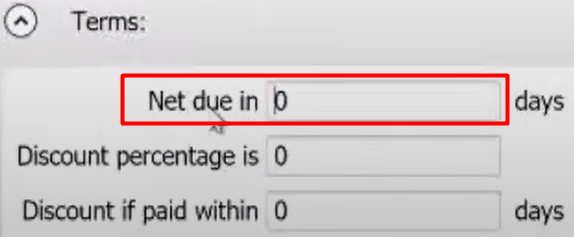
- Type in your net due so that you can see on your QuickBooks accounting when your bills are due.
- Select “Close”.
- On the blue buttons select “Billing Info”.
- Select “Save Only”
- Confirmation screen will appear. Select “Close”.
We have now received the item from purchase order to inventory.
Now let’s check our inventory.
- Go to “Item List”.
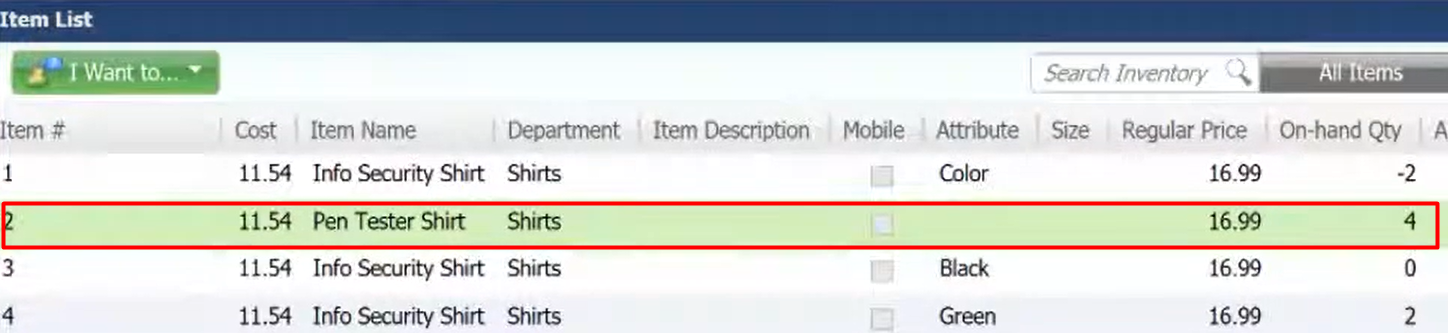
- 4 quantity of Pen Tester Shirt are now on our Inventory and ready to sell.