
Today we are going to talk about receiving an inventory with multiple units of measure.
Let’s begin:
- On your Homepage, go to “Receiving Vouchers”.
- Choose a vendor where you ordered the item. (For example, Knives Unlimited)
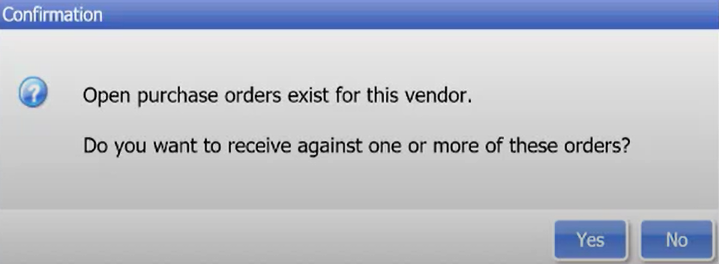
- A confirmation screen will appear, Select “Yes”.
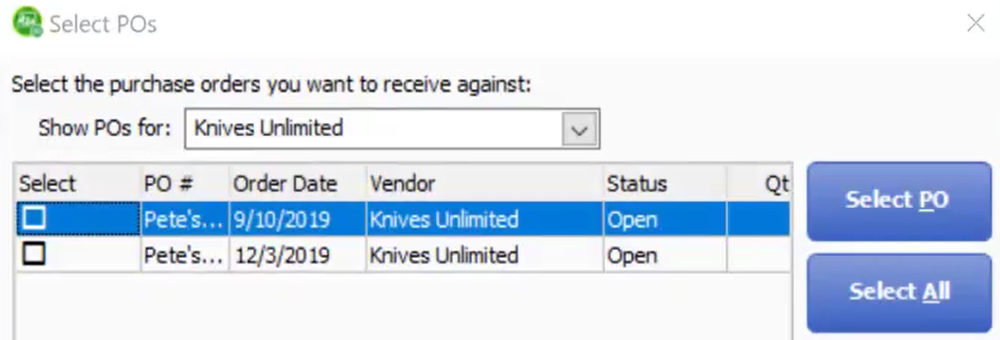
- Choose the item you want to receive. Then select “Receive All Due”.
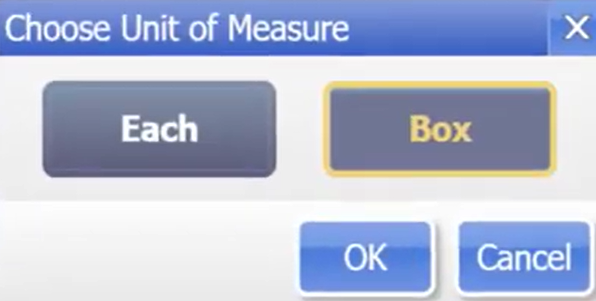
- You will see that your Unit of Measure is Box.

- You can change your Units of Measure by clicking “Units”.

- Choose “Each” or “Box” depends on how you want to measure your items. Then select “Ok”.
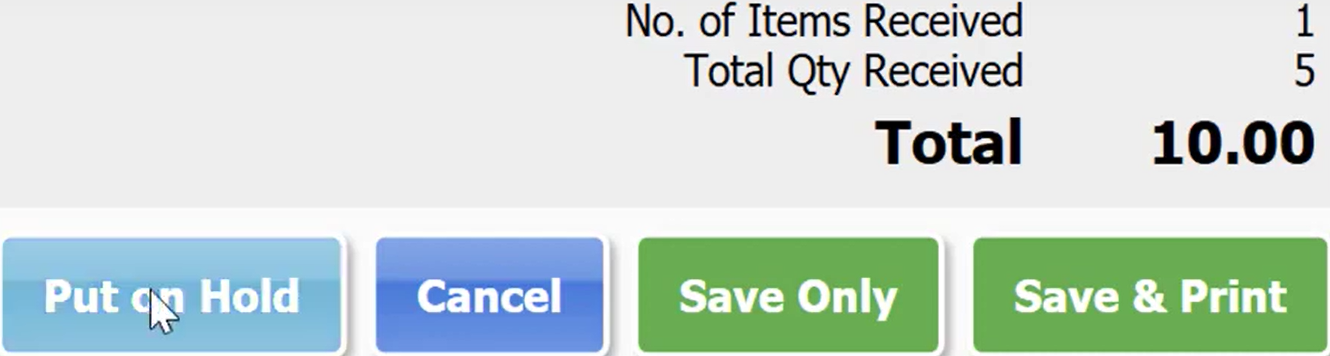
- This is now your Billing Info. Select “Save Only” if you don’t want to print your voucher.
- Confirmation screen will appear, select “No”.
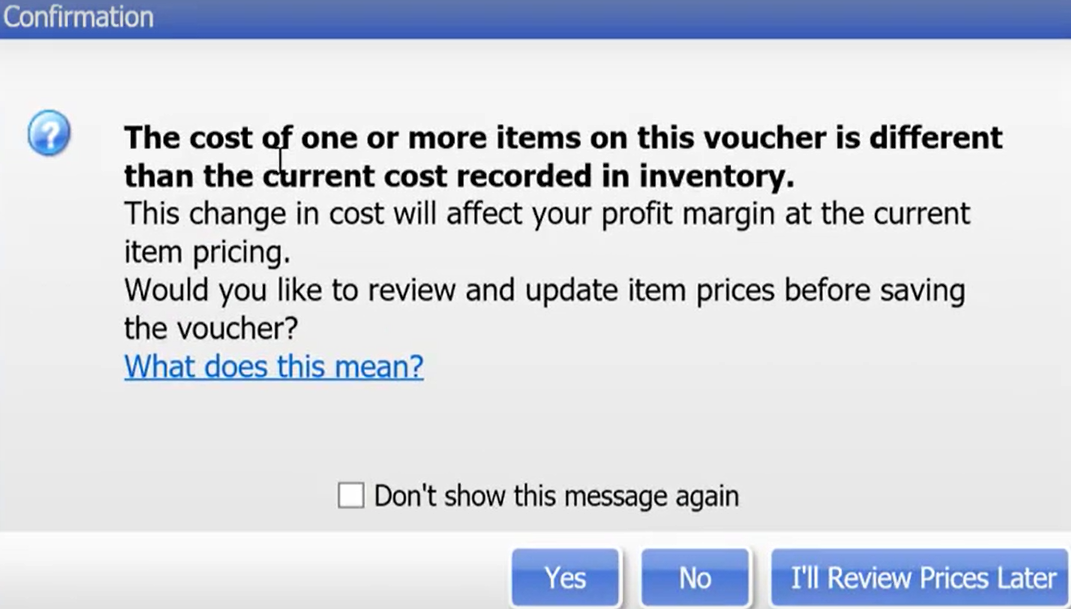
Now you have received the item in inventory and you want to check it:
- On your Homepage, select “Item List”.
- Select “Knives Unlimited” (as our example).
- Select “Item Detail”.
- Inventory Item Detail will appear.
- All your costing on your inventory will be done automatically by the system.
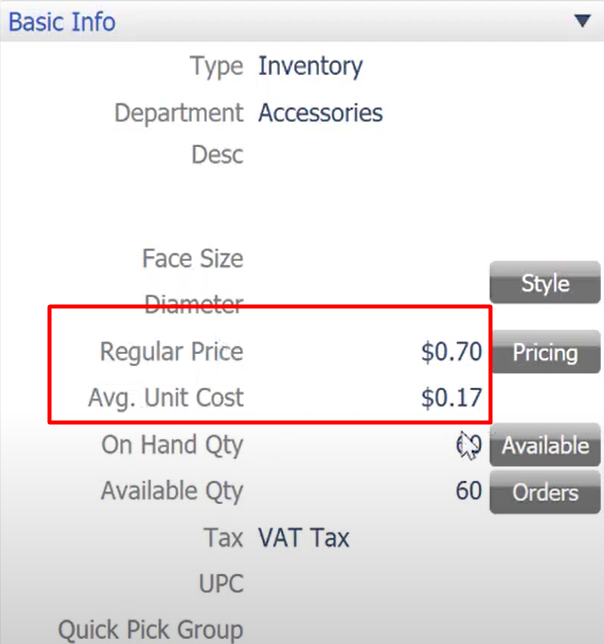
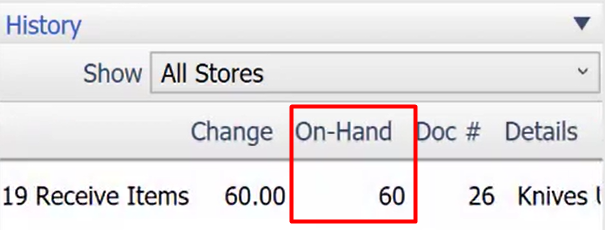
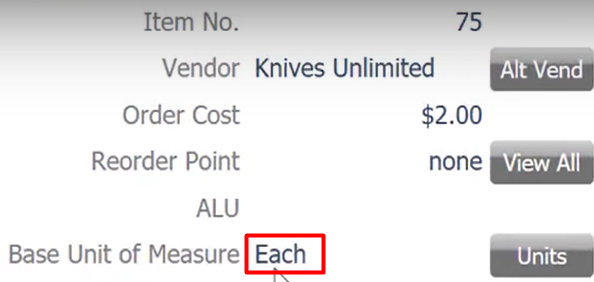
- On your History section it shows here that your items that you receive has 60 pcs on hand. And you ordered 5 boxes with 12 pcs on it, so basically your unit of measure in your inventory is “EACH”.
- All your costing on your inventory will be done automatically by the system.