https://www.youtube.com/watch?v=7lgXIgEa3p4
To customize list columns:
-
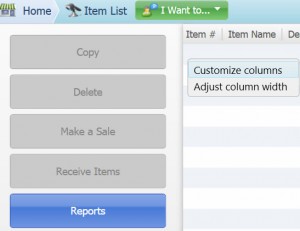
Right-click on any list column header.
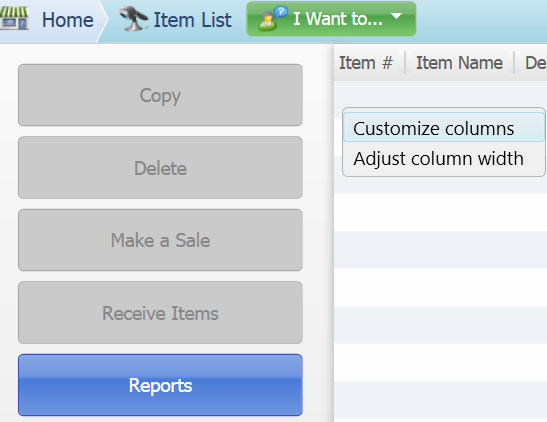
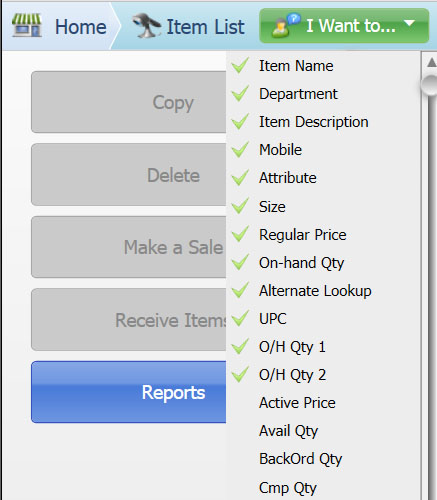
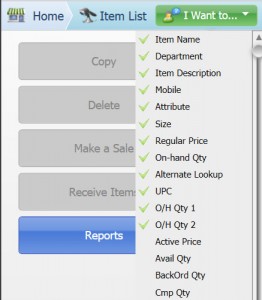
A list of available columns is displayed. The columns already shown in the list are at the top of the list with checkmarks. The remainder of the list is the available columns in alphabetical order.
-
Scroll through the list and click the columns you wish to add (or click an existing column to remove it).
-
When done, click anywhere outside the list to close it.
-
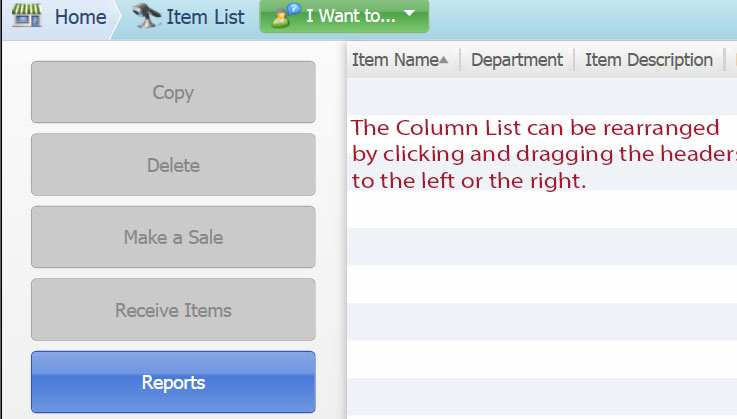
In the list, drag column headers to put them in to the position you prefer and/or drag header divider lines to re-size the column width.