
Today we’re going to talk about on how we do inventory count with single or multiple cases or boxes full.
Let’s begin:
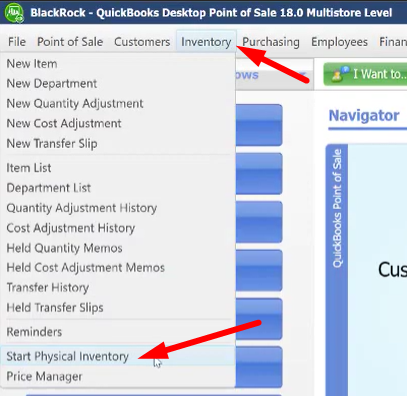
- From your QuickBooks Desktop Point of Sale go to “Inventory” then click “Start Physical Inventory”
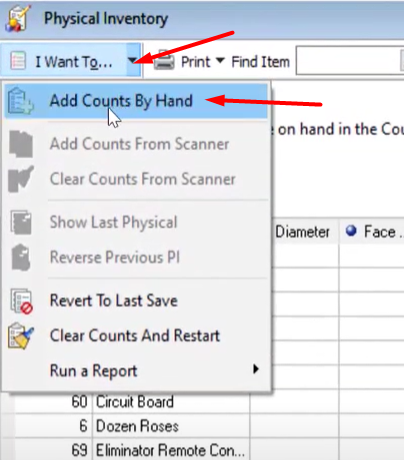
- On your Physical Inventory screen click on the “Add Counts by Hand”.
- After that, this will appear on your screen
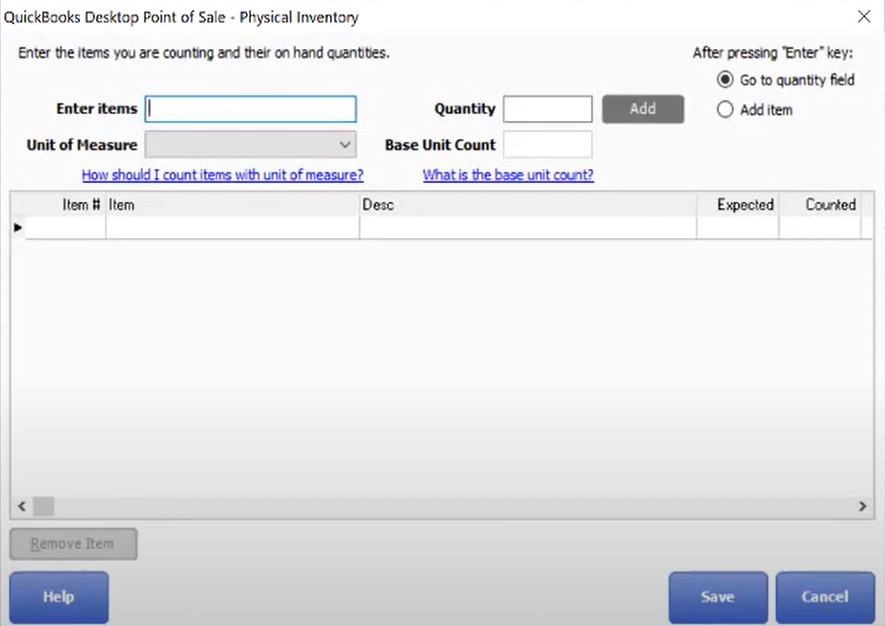
- Enter Items – you put here the item number from the Physical Inventory screen on the item you want to measure.
- Unit of Measure – you can choose here “Each” or “Box”.
- Quantity – you put here the number of boxes on a certain item.
- After you fill in, click “ADD” on the right side of the Quantity. And then it will automatically measure or count your item.
- Then click “SAVE”.