
Today we are going to talk about time clock in point of sale and how to clock in and clock out.
Let’s begin:
If you don’t have your Log in/out menu and you want to clock in already:
- On your Homepage, Select Clock In/Out.
- Choose your username, then select “Clock in”.

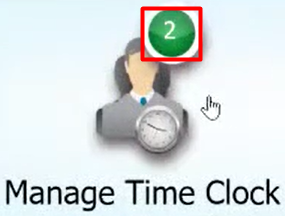
- You will notice a number on your Manage Time Clock icon, this shows the number of employees that Clock In.
- If you’re going on a break or leave work, go to “Clock In/Out” then choose your username then click “Clock Out”.
Another way of Clocking in and Clock Out, turn on the log in menu.
- On your “File” menu go to “Preferences”, then select “Company”.
- On the left side of the screen, select “General” then mark “Require users to log in”.

- When you turn the Log in On, you will automatically have a Log in menu on your homepage.

- When you turn the Log in On, you will automatically have a Log in menu on your homepage.
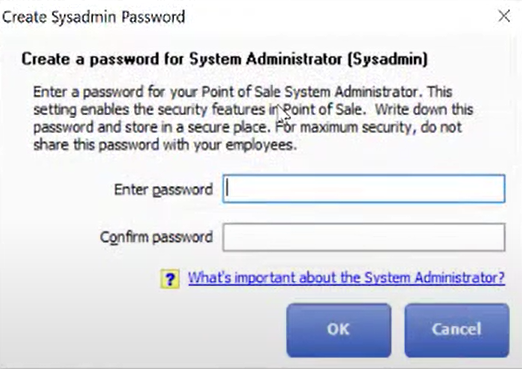
- Fill in your password then select “Ok”.
- Select “Save”.
- Note: when people get to work or when they go to use the computer they will need to Log in as themselves.
- Choose your username, then select “Log In”.

- When you select log in, “Confirmation” screen will appear. It will notify you to Clock in now. Select “Yes”.

- You are now Log in to the system and at the same time you are already Clock in.
Additional Information: QuickBooks point of sale time clock allows you to track your employees’ hours and payroll.