
To get the most out of your QuickBooks POS Point of Sale system, we recommend you customize your interface to better reflect your company’s needs. When it’s time to ring up a customer, this will allow you to do so efficiently.
QuickBooks POS Customizations
After you have completed the setup interview in QuickBooks POS, consider the following ideas.
Customize “I Want To” Buttons
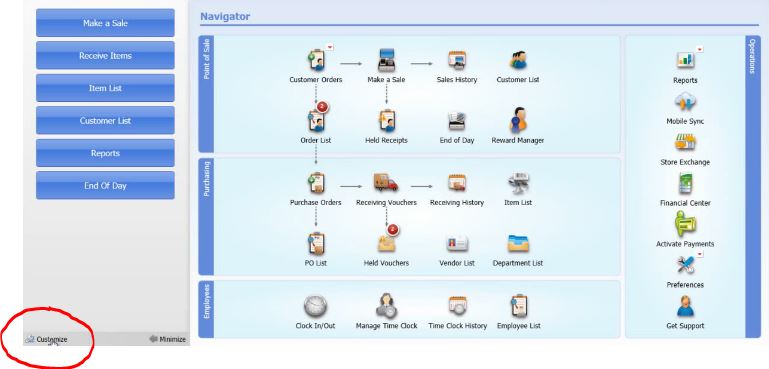 Customize QuickBooks POS ButtonsOnly display the buttons that you and your staff absolutely need to complete the job. Look for the Customize link in the lower left hand corner. Use the customize buttons popup to move the desired buttons from Available Tasks to Selected Tasks. You can always click Restore Default if you make a mistake.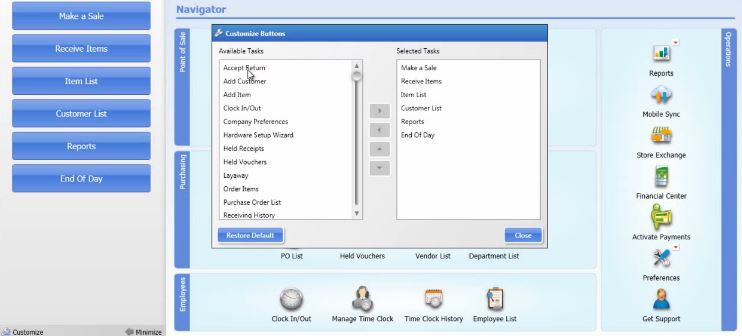
Customize Columns And Lists
Customize your Point of Sale display to hide unnecessary columns and eliminate scrolling to the left or right. Right click the field label and select Customize. You can then pick and choose the columns you want displayed in the table. Change the order of columns by dragging and dropping column labels. Make them wider or narrower by grabbing the vertical dividing line at the top of each column, similar to working with Microsoft Excel. Note: These customizations don’t affect reports, but it is possible to customize reports separately.
Hide Unused Tools
To remove options from the Tools list, click File > Preferences > Company > General. Under Select Features to Use, choose options you want to display. Note: Multi-store users must log in as the administrator at the primary location to make these changes.
Customize Company Preferences
Customize Company PreferencesIt’s important to configure preferences that reflect the way your company will use QuickBooks POS. Click File > Preferences > Company. Decide if you want to require users to log in; create customer layaways; create customer work orders; track employee hours, etc. Anything you don’t need should be deselected to keep your Point of Sale interface simple. 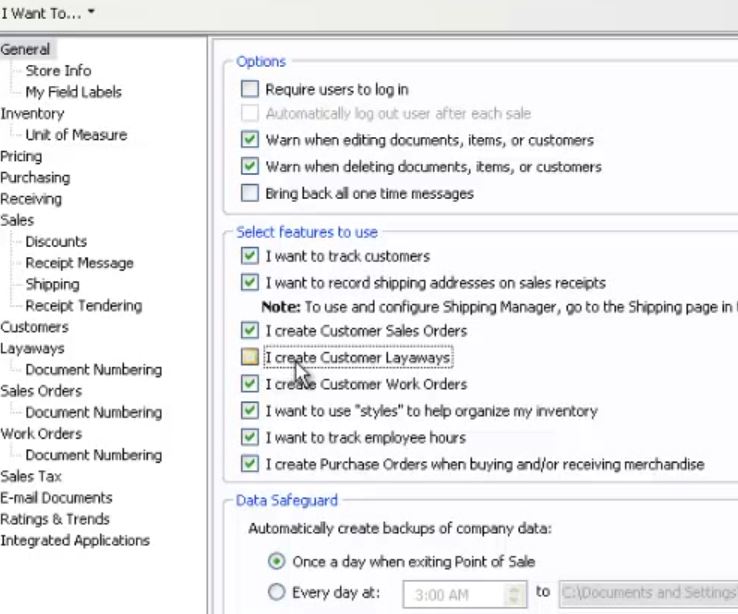
Update Workstation Preferences
Click File > Preferences > Workstation to customize security settings, hardware (such as an inventory scanner, code reader, customer facing display), print settings and automatic updates.
Customize Workstation Preferences
For example, open a Customer List and open the Customer Detail display. Right click or click “Customize”. 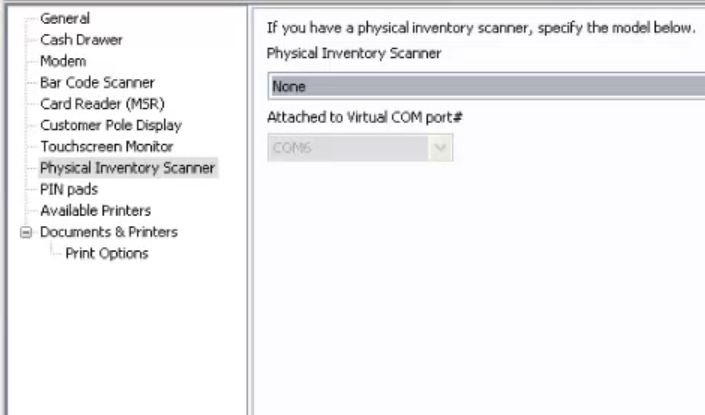
Add Custom Fields
Custom name your product variation fields in a way that makes sense for your business.