
My cash drawer will not open. What could cause this?
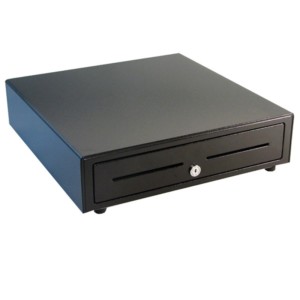 Use the procedure below to troubleshoot your cash drawer, or use the Hardware Troubleshooter wizard , available from the Help menu. To function in Point of sale, a cash drawer must be connected through a working 40-column receipt printer.
- Are both your cash drawer and receipt printer on the Point of Sale compatible hardware list?
Note: The QuickBooks POS Cash Drawer sold by Intuit works only with compatible Star receipt printers.
- If YES, continue with the following steps.
- If NO, has your cash drawer/printer worked with Point of Sale in the past? If it has, try the following steps to restore operation. If not, obtain and install compatible hardware.
- Are the cash drawer and printer cables connected tightly?
Note: Use only the manufacturer’s cable included with the cash drawer for this connection. Using any other cable, including phone cords, may result in irreparable damage to your receipt printer.
- If YES, continue with the following steps.
- If NO, correct the connections and then test the cash drawer again.
- Is the receipt printer printing normally? Try re-printing a saved receipt from your sales history to test.
- If YES, continue with the next step.
- If NO, troubleshoot the printer first. Fixing the printer operation will most likely correct the cash drawer issue as well.
- Does the receipt printer specified in your cash drawer setup exactly match the receipt printer specified for printing receipts in workstation preferences?
Edit –> Preferences –> Workstation –> Cash Drawer: Make sure the receipt printer specified here matches the one specified on your Documents & Printers page for printing sales receipts. 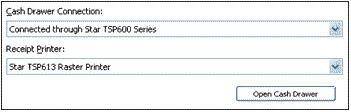 Edit –> Preferences –> Workstation –> Documents & Printers
- If YES, continue with the next step.
- If NO, change your selections to match your receipt printer, and then select the Open Cash Drawer button to test the operation. Continue with the following steps if necessary.
- Are your company sales preferences set to open the cash drawer for the payment type you are taking?
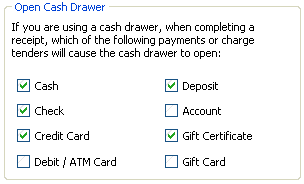
- Is the QuickBooks POS cash drawer locked? Use your key to open it, if necessary.
- Is something inside the cash drawer preventing it from opening? Try gently shaking the cash drawer to dislodge the obstruction.
All troubleshooting steps not helping?
Find a new cash drawer: