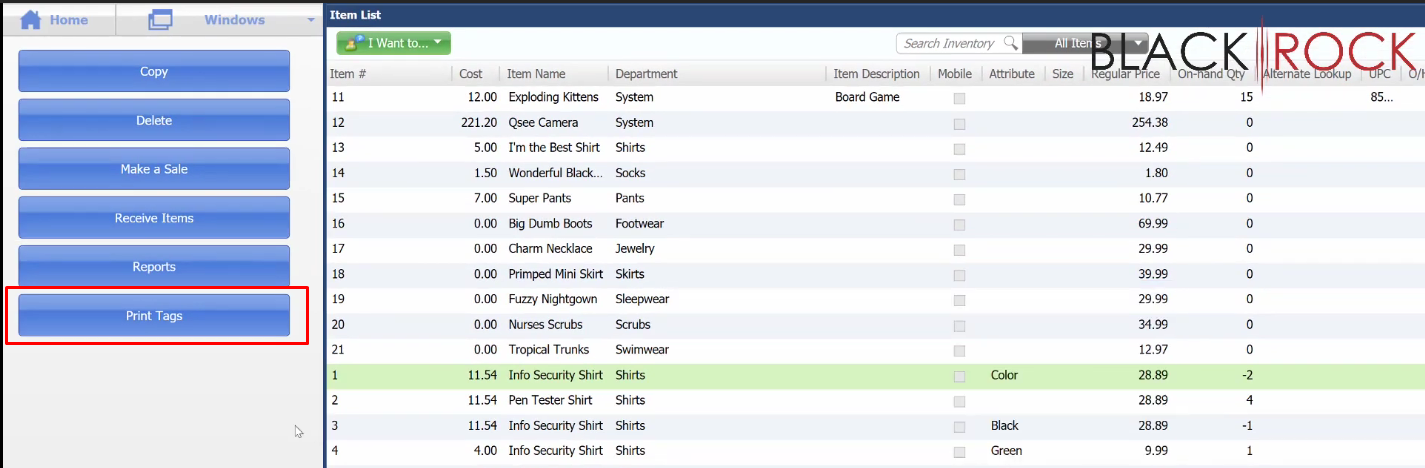
There is one best way to print tags in QuickBooks Point of Sale. Instead of going to the “I want to” menu just to print tags. You could add a button on the left side of the screen of your Item List in QuickBooks Point of Sale.
Here’s how:
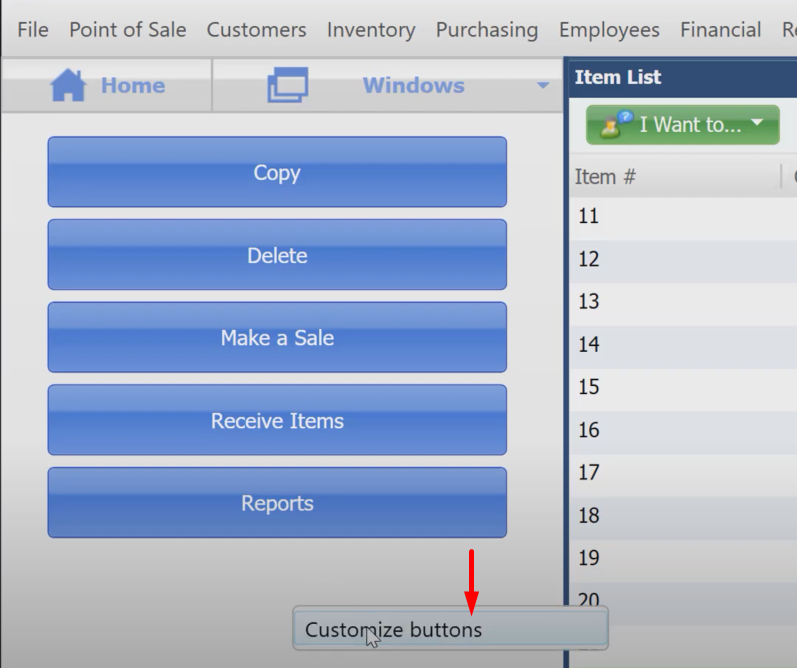
- On the Item list, right-click on this area and select “Customize Buttons”.
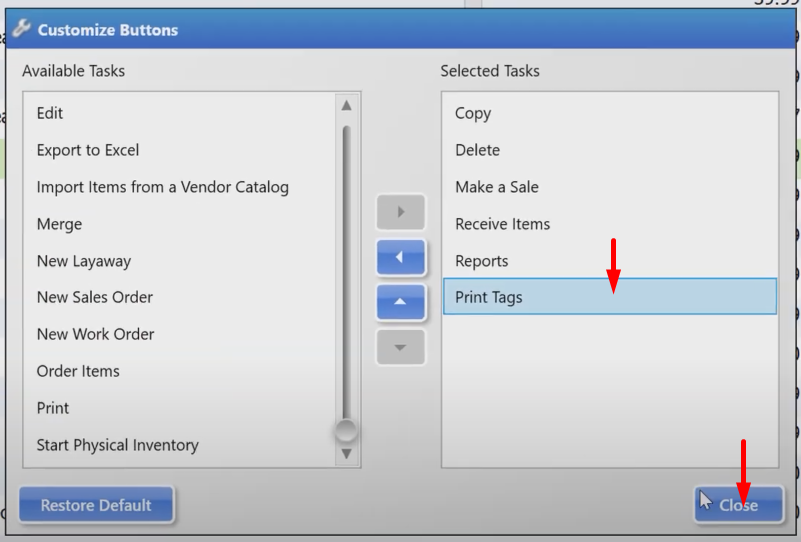
- Add the “Print Tags” to the selected tasks by clicking on the right arrow button. Click “Close” after adding the button.

- The button now has been added, for easier access in printing tags immediately.