
Today in QuickBooks point of sale we are going to talk about charging tax on a receipt only within certain price thresholds.
Let’s begin:
- From the main screen Click on the “File”, “Preferences”, then click “Company”.

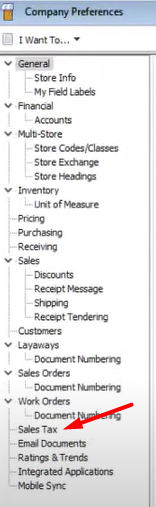
- From Company Preferences click on the “Sales Tax”.
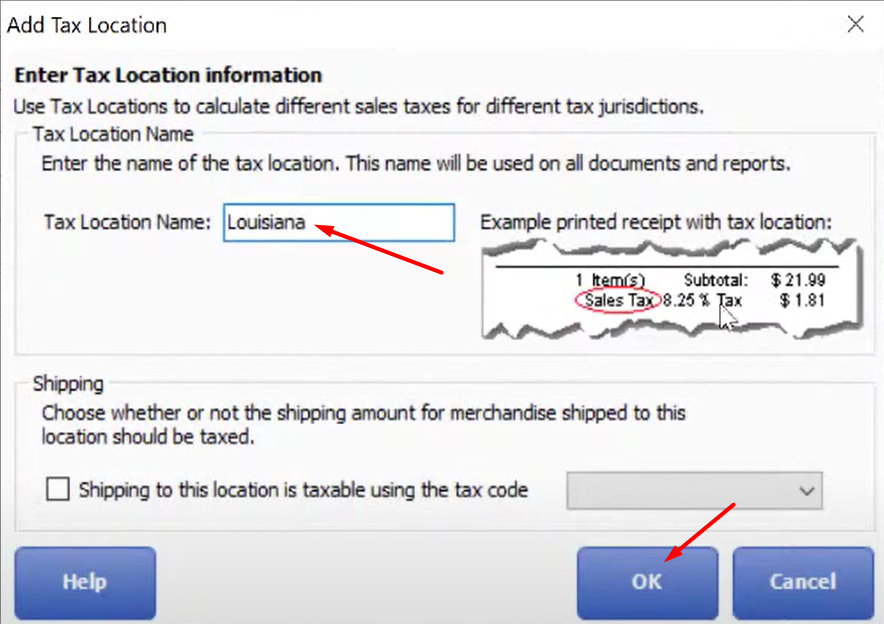
- Fill out the “Tax Location Name”. Then click “OK”.
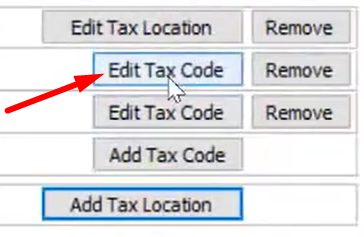
- After you click “OK” your new Tax Location Name will appear on your screen. On the right side of your screen click “Edit Tax Code”.
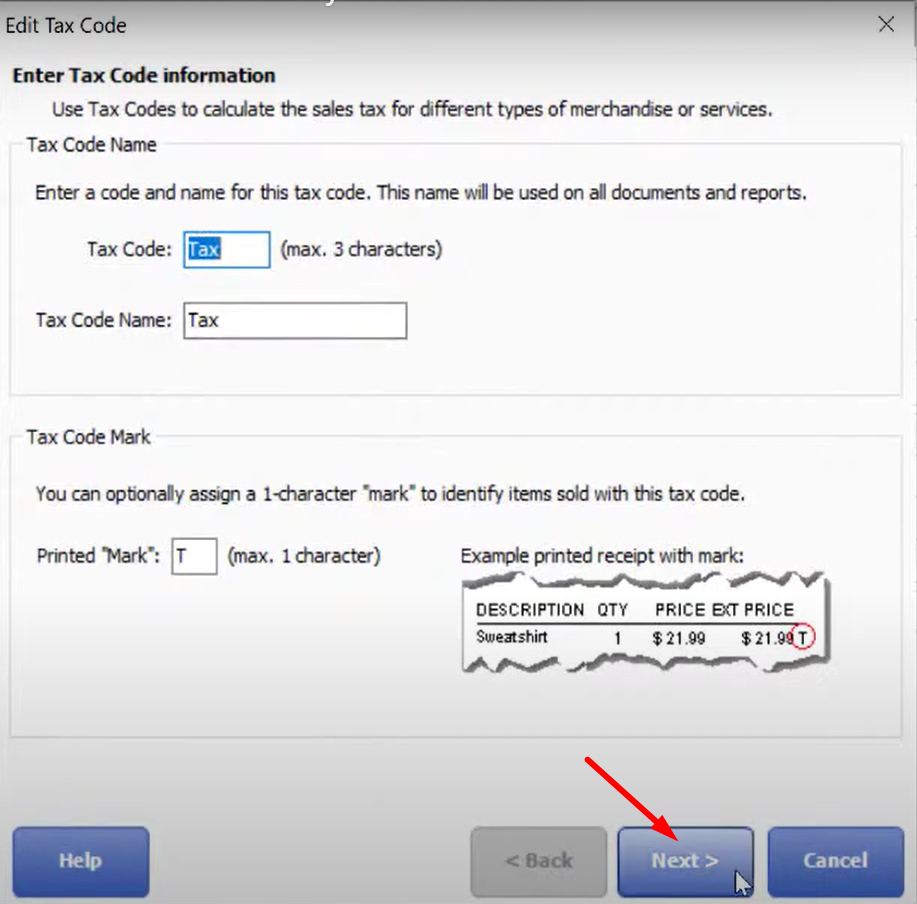
- From your “Edit Tax Code” screen leave your “Enter Tax Code Information” as Default. Click “Next”.
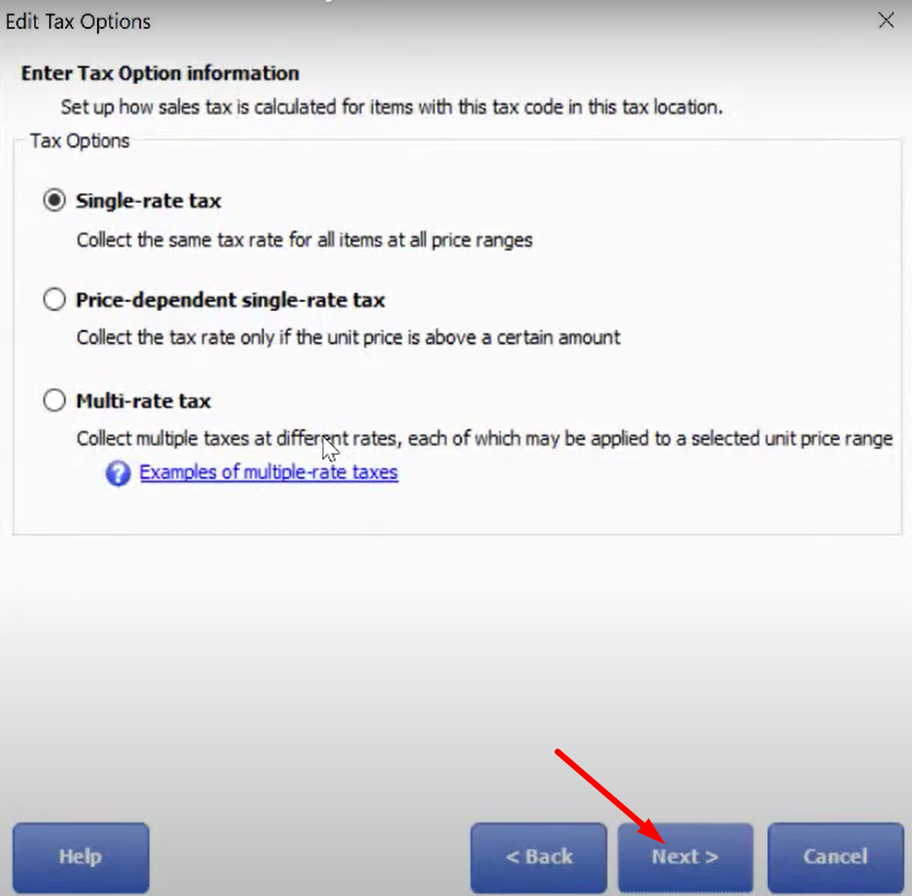
- Under “Enter Tax Option Information” click “Next”.
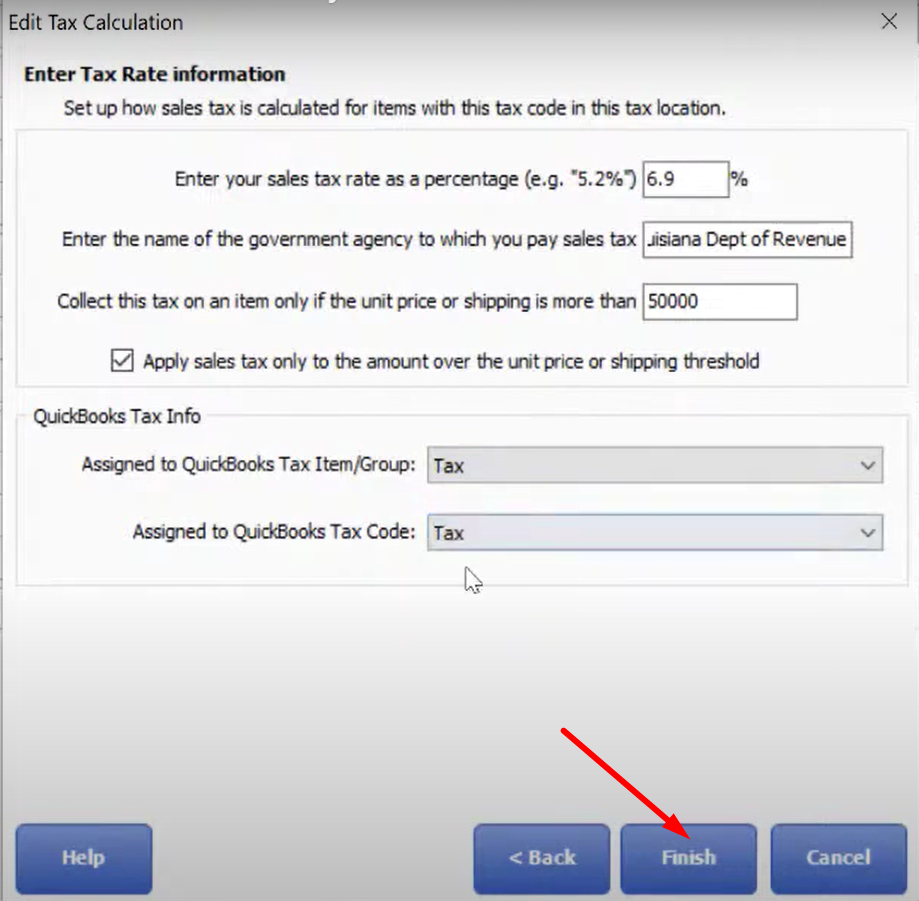
- Under your “Enter Tax Rate Information” fill in the necessary information base on the tax rate on your location, the department on which you pay sales tax, and the amount of tax you collect on the item in the given price. “CHECK” Apply sales tax. Assigned “TAX” in QuickBooks Tax Info. Then click “FINISH”.
- Under “Enter Tax Option Information” click “Next”.
- Click “SAVE” on the lower right corner.
I know this if off topic but I’m looking into
starting my own weblog and was curious what all
is needed to get setup? I’m assuming having a blog like yours would cost a pretty penny?
I’m not very web smart so I’m not 100% positive. Any suggestions or advice would be
greatly appreciated. Thanks
If some one needs to be updated with hottest technologies after that he must be go to see this site and be up to date everyday.