
Today we are going to talk about alternate vendor and receiving inventory.
Let’s begin:
- On your Home screen, go to “Item List”.
- Select “8GB Computer Memory” as our example.
- Then select “Edit” on the upper right corner of the screen.
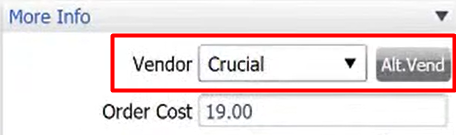
- On your Edit Inventory Item screen, go to “More Info” section you will see that “Crucial” is our main vendor or main supplier of 8GB Computer Memory. Now, select “Alternate Vendor”.
- You will now see the different vendors who can supply us an 8GB Computer Memory.
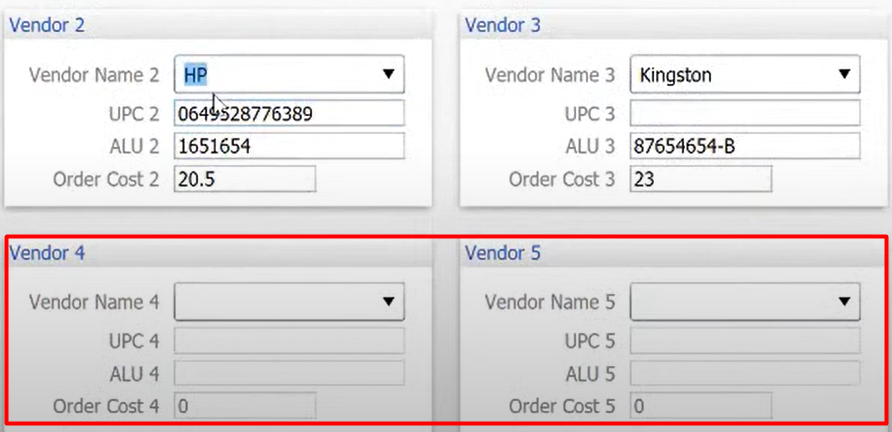
- On the Vendor 4 and 5, you will notice that it’s a blank section this is where you can create a new vendor that can supply you the item.
- For example, the vendor Sweet Merch is now supplying 8GB Computer Memory for $25, you can add the vendor here.
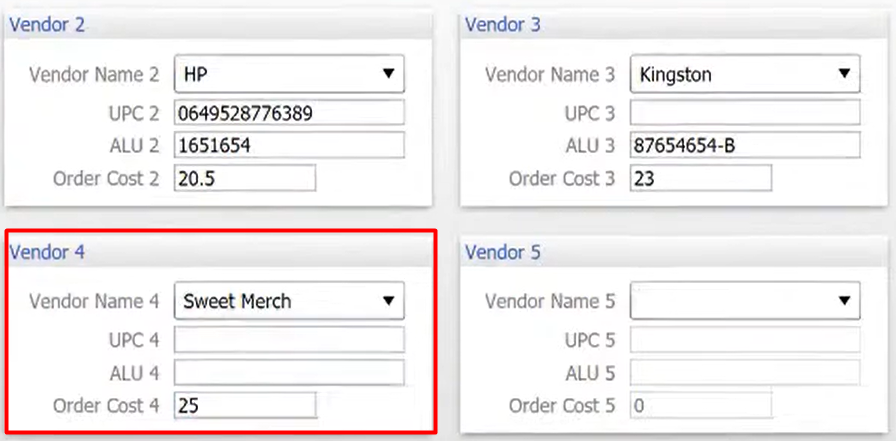
- Select “Save”.
For instance, they delivered 8GB Computer Memory into your store so you need to receive it in Inventory.
- On your Home screen, go to “Receiving Voucher”.
- On the search area, search the Vendor that sends you the item. (For example, Sweet Merch)

- Then search here the item that the vendor delivered to you. (8GB Computer Memory)

- Upon searching the item name, you will already notice the price of $25 that we just created in Alternate Vendor under 8Gb Computer Memory item.

- Upon searching the item name, you will already notice the price of $25 that we just created in Alternate Vendor under 8Gb Computer Memory item.
- Enter the quantity of the item to be received.
- Then after your done receiving the item, select “Save Only”.