
Today we are going to talk about creating a receipt where you can leave a note.
Let’s begin:
- Go to “Make a Sale”.
- On your sales receipt screen, choose a product.
- Go to “I want to” menu then select “Add/Edit Receipt Notes”.
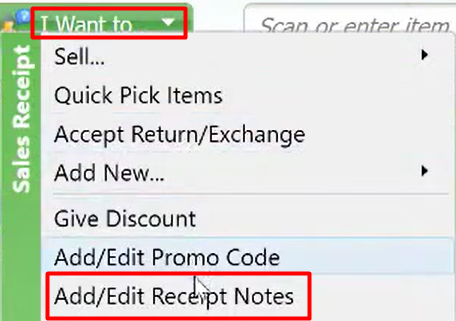
- Receipt Notes will appear on your screen. You can now create a not for your receipt. Then select “Save”.

- After you click save, the notes will automatically appear on the lower part of the screen on your Sales Receipt field. (This is an example picture of the notes in the field)

Note: if you’re always doing a note you can add a blue button on the left side of the screen so that it will be easier for you to find.
- Select “Cash”.

- Select “Save”.
If you want to check the notes or for instance a customer called because there is a problem on the item so the boss checked the history of the sales then he will see a note pertaining to the item the customer is calling about:
- Go to “Sales History”
- Select the item your customer is calling about.
- Select “Show Details”.
- You’ll see here the notes your employee made.
