
Today we’re going to talk about on how to sell inventory with multiple units of measure.
Let’s begin:
Let’s state an example. For example, your customer wants to buy 1 box of highlighter.
- Go to “Make a Sale”.

- On your “Scan or enter item information” search on the “Highlighter” item.
- Click “Units” on the right side of the screen.

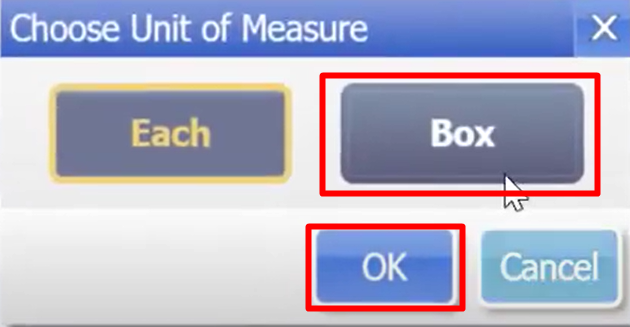
- Select “Box” then click “Ok”.
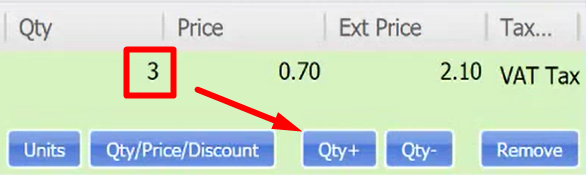
- Change the “Quantity” to “1” because the customer is ordering 1 box.
- Put the “Sales Receipt” screen on hold. Go back to “Home” then click “Item list”.
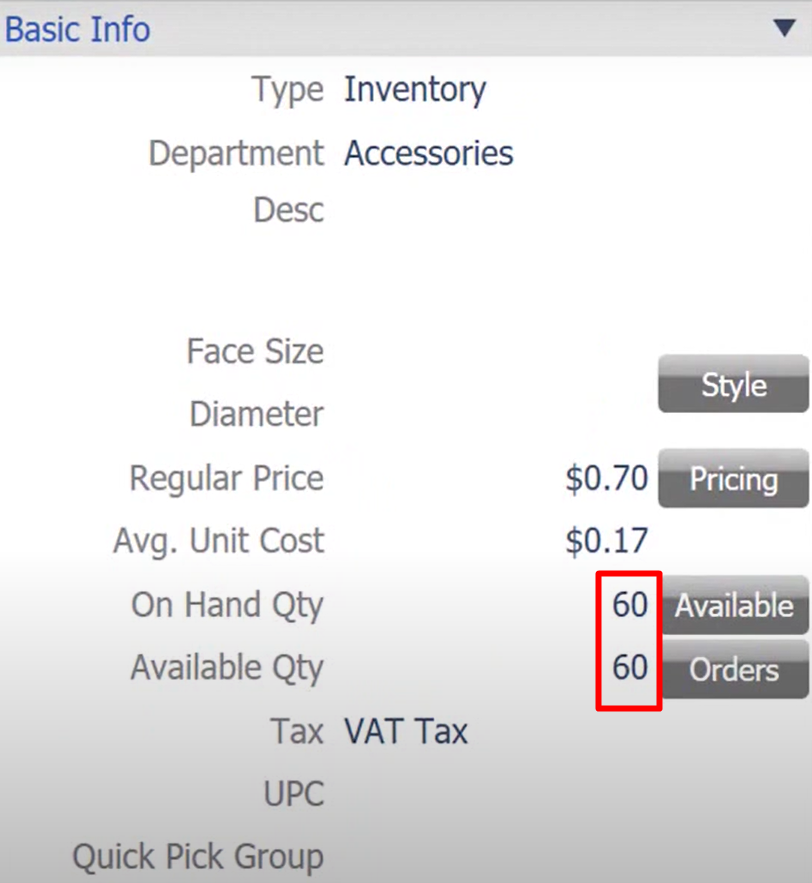
- Search the “Highlighter” item. As you can see on the Basic info that we have is 60 On Hand Quantity and Available Quantity.
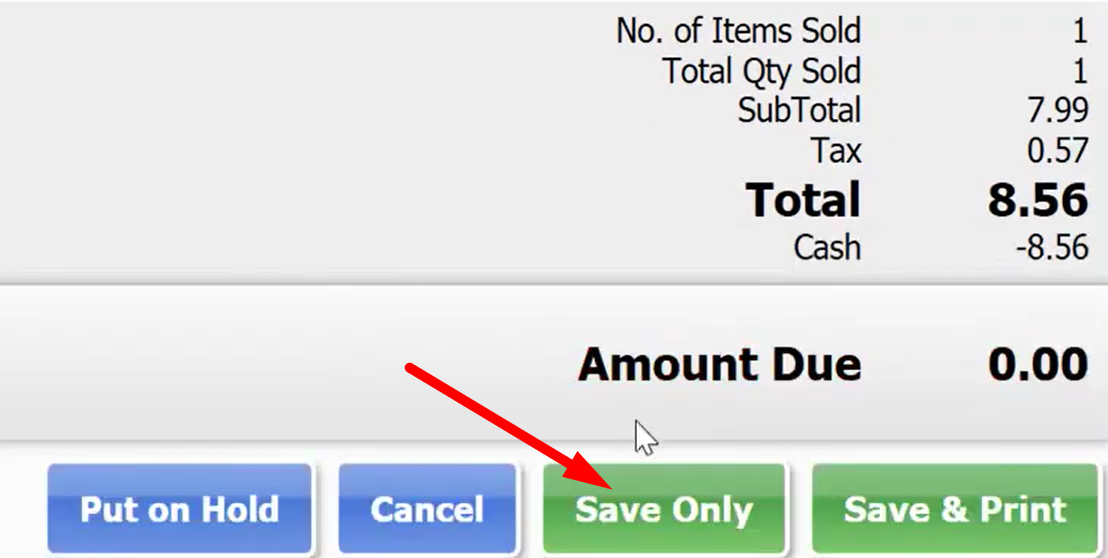
- Go back to “Make a sale”. Then on your “Sales Receipt” screen go to “Held Receipt” then click “Save Only”. Then you’re done.
- Let’s check your item inventory. Go back to “Item List” click “Highlighter”.
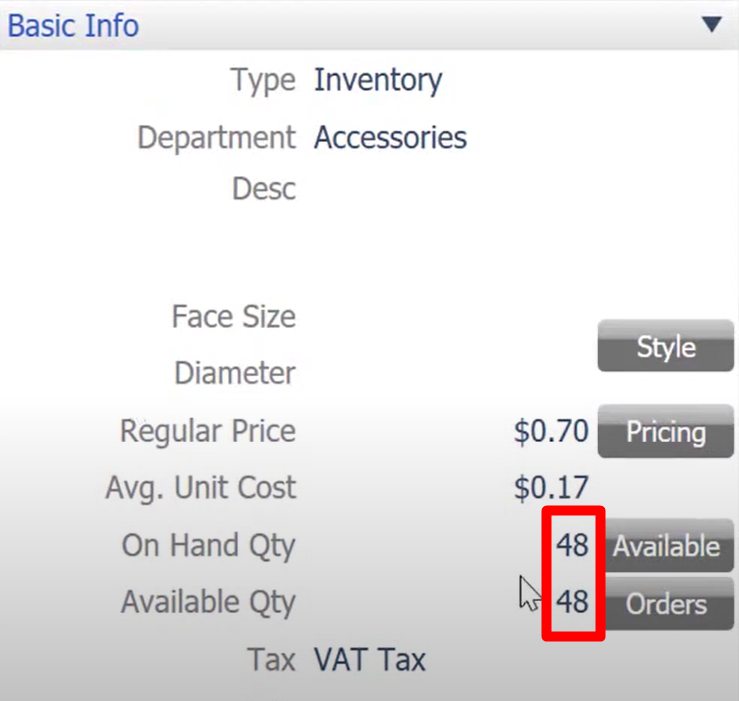
- So, as you can see here it deducted from 60 to 48 quantities already. Which means 1 box is consisting of 12 pieces.
- You don’t have to count the quantities inside the box because QuickBooks Point-of-sale is the one who will do it for you.