
Today we are going to talk about selling off a partial work order.
Let’s begin:
- On your homepage, go to “Order List” then select “View” in Open Work Orders.

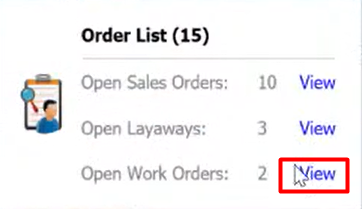
- Let’s use “John Doe” as an example. Double click on John Doe.

- We are now at the Work Order of John Doe.

- The one that I box are the items John Doe is ordering.
- So, for instance, John Doe walks into your store and he wants to pay first the Hockey Jersey.
- On your Work order screen, go to “I want to” menu then select “Sell Items”.
- Type in the quantity John Doe wants to order.

- Select “Continue”.
- You will automatically go to “Sales Receipt”.

- You have the total of the Hockey Jersey.
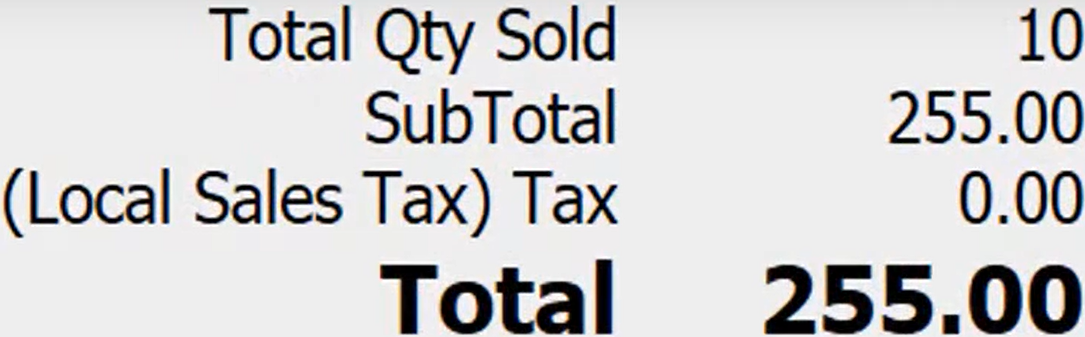
- Select “Cash” then select “Save”.
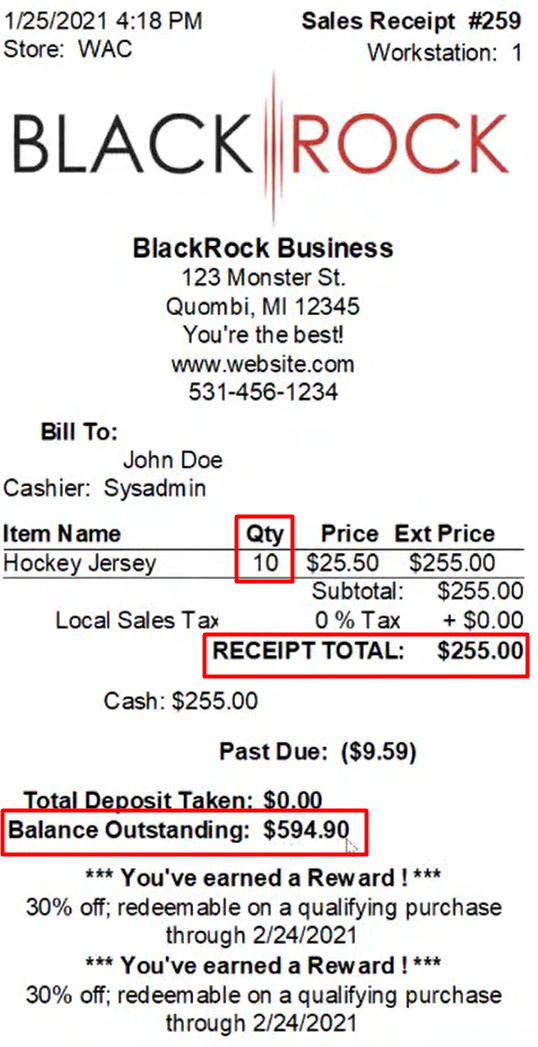
- Select “Save and Print”.
- John Doe can now walk out of the store with his 10 pcs of Hockey Jersey. But he has still an Outstanding Balance of $594.90 on his Big Dumb Boots.
- Now let’s go back to the Work Order of John Doe.

- You will see that you already sold 10 Hockey Jersey to John Doe, and you only owe him a 10pcs of Big Dumb Boots.
- You will also see the Balance Due of John Doe, which he needs to settle before he can get the Big Dumb Boots.
