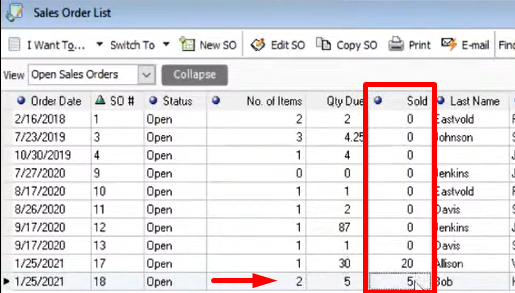
Today we’re going to learn how to sell a part of a sales order. This is where a customer orders numerous items and wants to pay in full but wants to take the items that are in stock and come back for the remaining items that he/she ordered.
Here’s how:
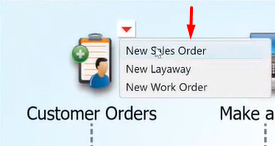
- Let’s create a sales order by clicking on “Customer Orders” then select “New Sales Order”.
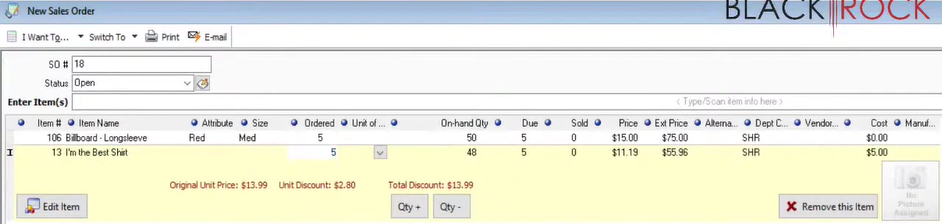
- After creating the Sales Order, click on “Save Only”. This will automatically close the Sales Order window.
- Re-open the sales order at the “Order List” on the home screen of QuickBooks Point of Sale.

- Select the Sales Order that you created by double-clicking it. On the sales order window, click on “I want to” then select “Take Deposit/Payment” since the customer wants to pay it full and will take the items that are in stock and available to purchase at once.

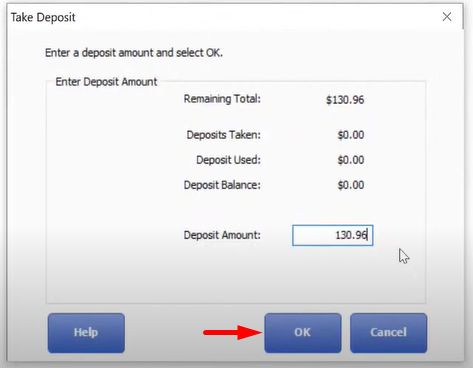
- Input the deposot/payemtn and click “Ok”.
- Specify what mode of payment the customer will be using. Click on “Accept Payment” and then “Save”.
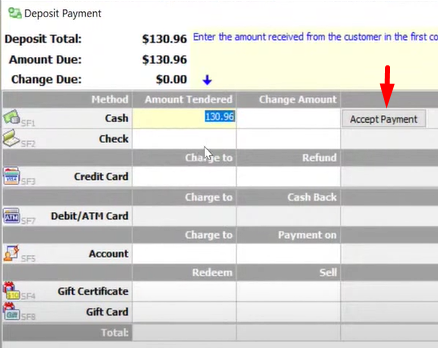
- Now that the Sales Order has been fully paid. We’re going to check out the item that the customer wants to take home by clicking “I want to” then select “Sell Item(s)”.

- Then select the item that the customer wants to take home or check out. Don’t forget to include the quantity that the customer is going to check-out. Then click “Continue”.
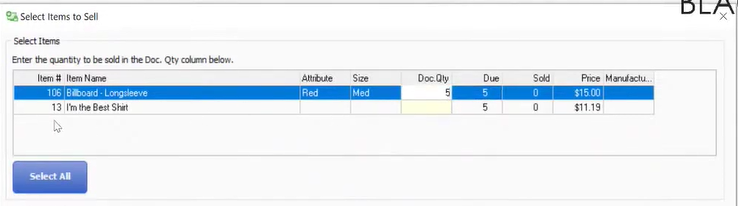
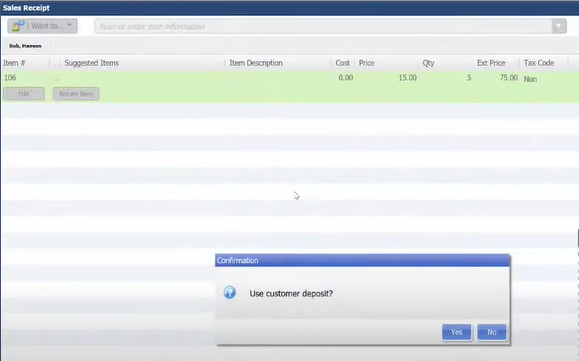
- QuickBooks Point of Sale will now direct you to the Make a Sale screen and will immediately ask you if you’re going to use the customer deposit. Click the “Yes” button to deduct the amount of the items to be checked out to the deposit/payment. Once you have verified the transaction, click on “Save and Print” or “Save Only”.
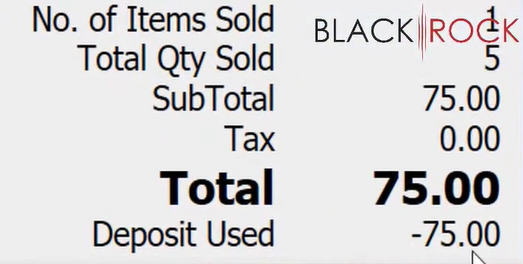
- Head back to the sales order on the “Order List” menu. You can see that the item has already been deducted to the Sales Order.