
Today we are going to show you how you can pair the little EMV chip reader with your phone or tablet mobile device.
Let’s begin:
Setting up Bluetooth credit card reader in your Android:
- Insert the credit card to the go payment Bluetooth credit card reader.
- On your Android phone go to Bluetooth.

- Press and Hold the button in your Bluetooth card reader for three second and you’ll see the green light, which indicates that your EMV chip reader is ready to pair.
- On your android phone click “Scan Devices”.
- Find the identification name of your EMV chip reader on the Available devices on your Bluetooth settings, then click it.
- Bluetooth pairing request will appear, select “Ok”.
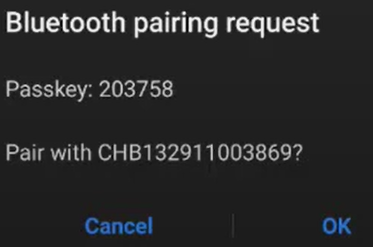
- Then it will show up in your list of paired devices.
Let’s begin using credit card in GoPayment app:
- Go to “GoPayment” app.
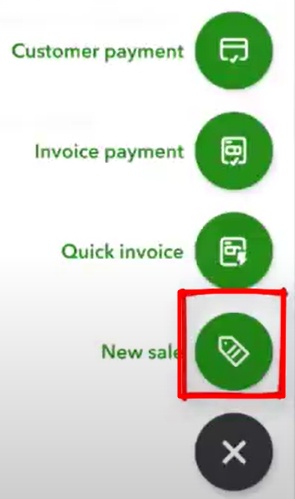
- On your GoPayment app select “+” on the screen.

- Select “New Sale”.
- Type in the amount you will pay. Then click “Review Order”.

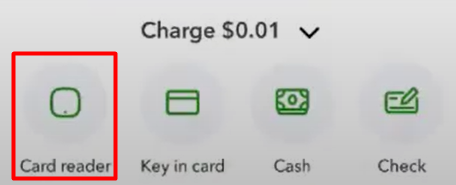
- Select “Charge”.

- Select “Card Reader”.
- You can now pay your bills.