
Today we are going to talk about on how to look at what your discounted price will be in the discount price manager.
Let’s begin:
- On your Home screen, go to “Inventory” menu then select “Price Manager”.
- On your Price manager screen, select “View all Discounts and Coupons”.

- On your Discount Pricing screen, you will see your manual and automatic discount. So, for example, you want to view the price discount of “10% off coupon for newspaper” double click on it.

- Edit discount screen will appear, select “Next” then select again “Next”.
- On this section in your Edit Discount screen, you can view and compare the regular price to the discounted price.
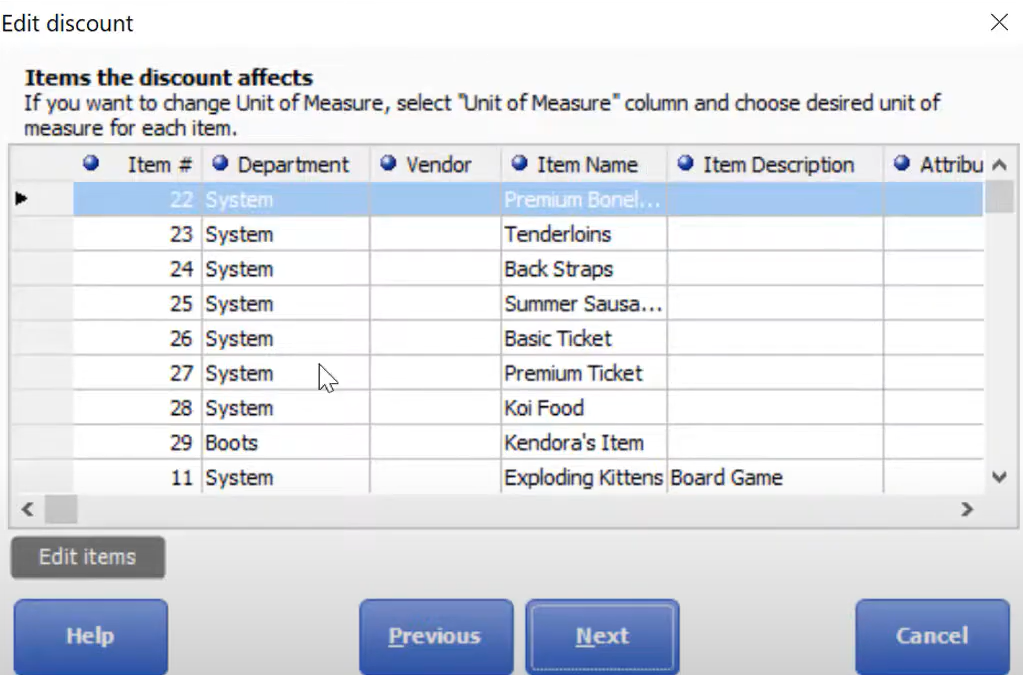
- You can customize the columns so that you can only see the importantly columns on your screen.

- You can customize the columns so that you can only see the importantly columns on your screen.
- After you customize the columns, you will easily see the Regular price and the Discounted Regular price.
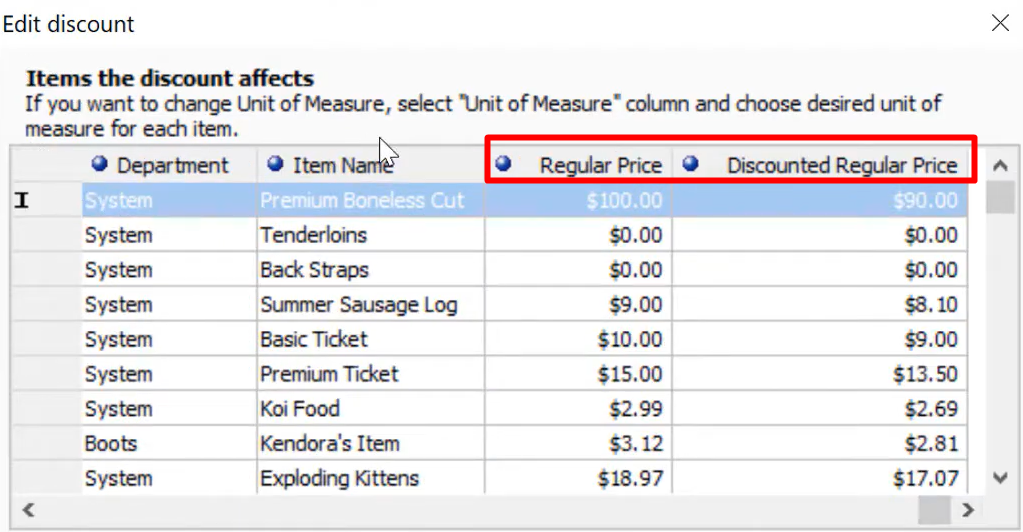
- From here, you can easily compare the regular price to the discounted price.
- You can also see here if your profitable or not.
- Select “Next” then select “Finish”.