
Today we will talk about how to manipulate or modify your memorize report and then save it again as the same memorized report.
Let’s begin:
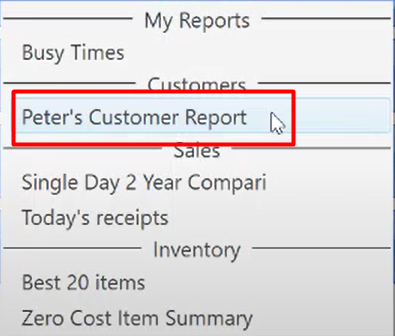
- On your Homepage, go to “Reports” and “Memorized Reports”, then select a report you want to run (for example, you choose Peter’s Customer Report).
- On your Customer Report screen, go to “Modify” menu.

- Modify a Report screen will appear.
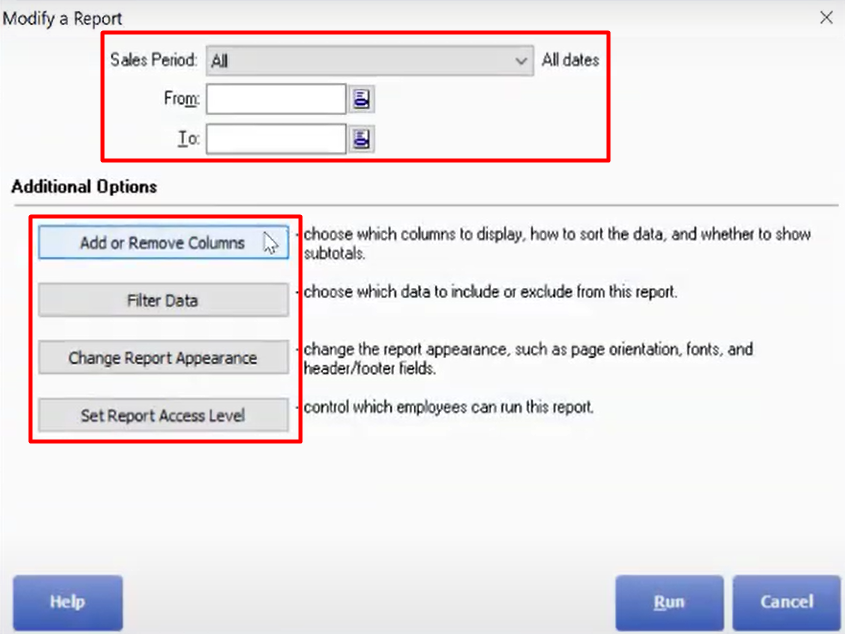
- You can Add or Remove Columns, Filter Data, Change Report Appearance, and Set Report Access Level. The description on every tab is already on the screen to guide you.
- After you Modify a Report click “Run”.
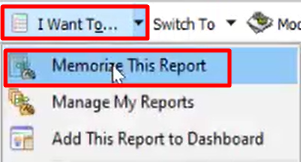
- On your “I want to” menu, select “Memorize this Report”.
- Memorize Report screen will appear.
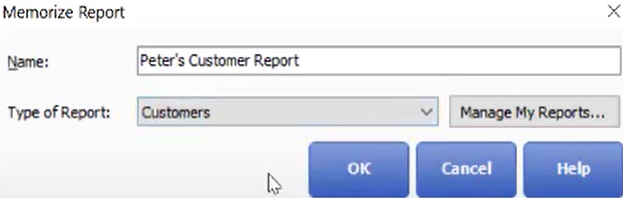
- You can change the name if you want to.
- On the Type of Report section make sure you choose “Customer”, to save it on the exact same location on your memorized report.
- Select “Ok”. You have now memorized and saved as the same report with your new revision.