
Today we are going to show you how to make multiple stores in one POS.
Let’s begin:
- On your “File” menu, select “Company Operations”.
- Select “Create new company” then select “Next”.

- BlackRock Sandbox is your existing company or your currently using company in your POS.
- Enter the name you want for your company. Then select “Create”.

- Change all the information, because all the information stated here are all from the previous store.
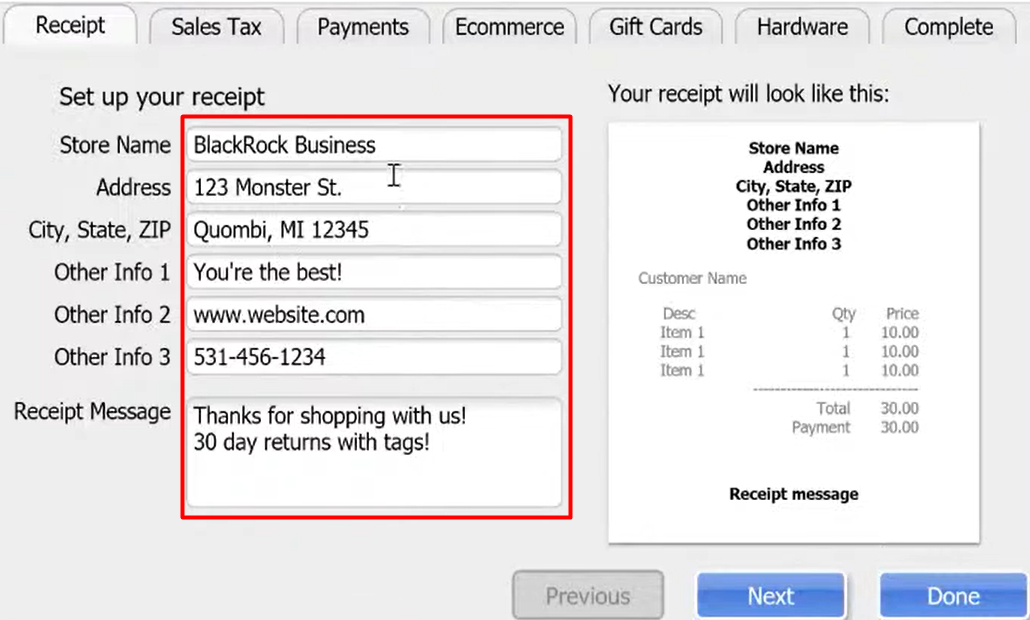
- Modify your Sales tax information.

- Modify your Payments information.

- In short, modify all your tabs for your new company or store.

- Modify your Sales tax information.
- Select “Done” if your done modifying all the tabs.
- You have added another company in your POS. You can now work with multiple stores in your POS.
If you want to switch to another store.
- Go to “File” menu, then select “Company Operations”.
- Choose the company you want to operate.
