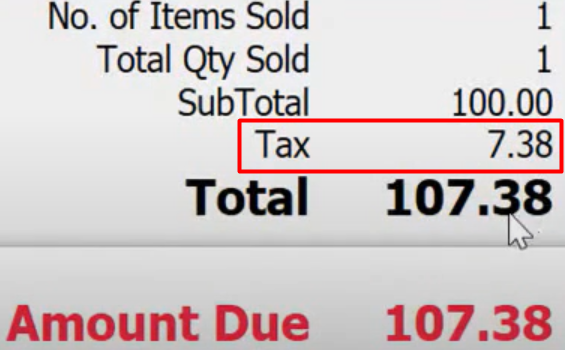
Today we’re going to show you how to make a Single-rate tax to a Multiple-rate tax.
Let’s begin:
- On your “File” menu go to “Preferences”, then click “Company”.
- On your Company preferences select “Sales Tax”.
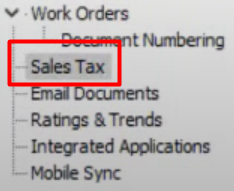
- This is your Single-rate tax.
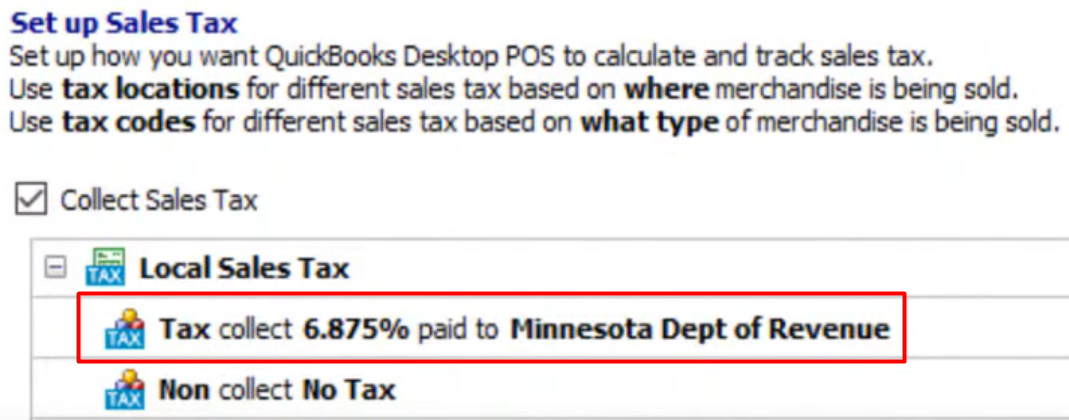
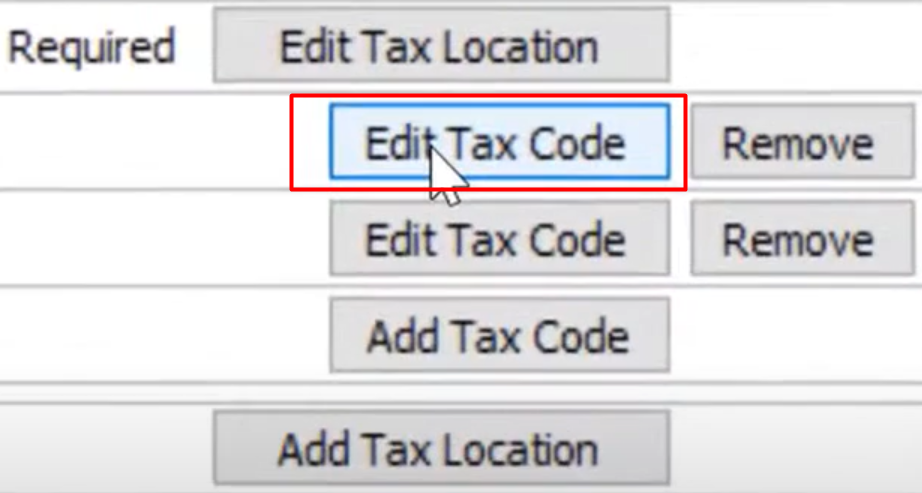
- Now if you will make your Single-rate tax to Multiple-rate tax, select “Edit Tax Code” on the left side of the screen.
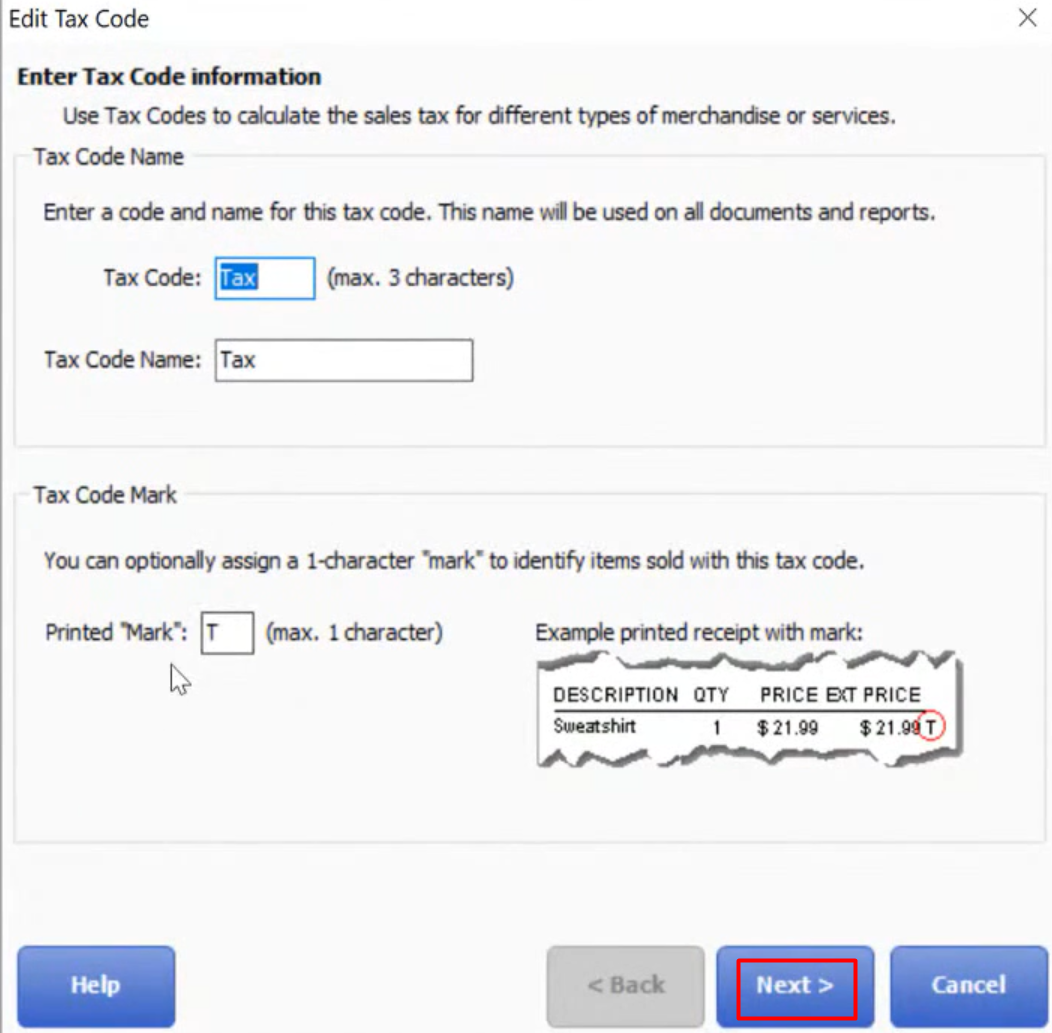
- Select “Next”.
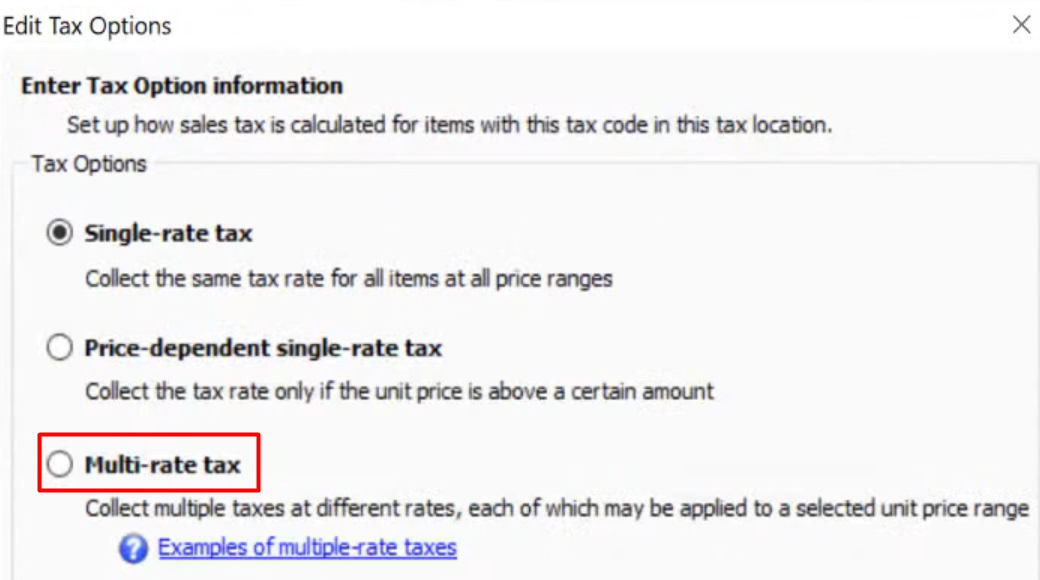
- Select Multi-rate tax, then click “Next”.
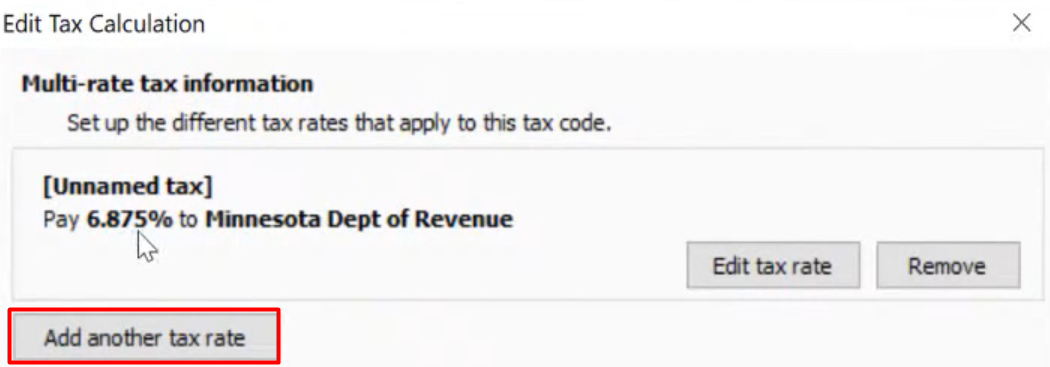
- Select “Add another tax rate”.
- Fill in the boxes.
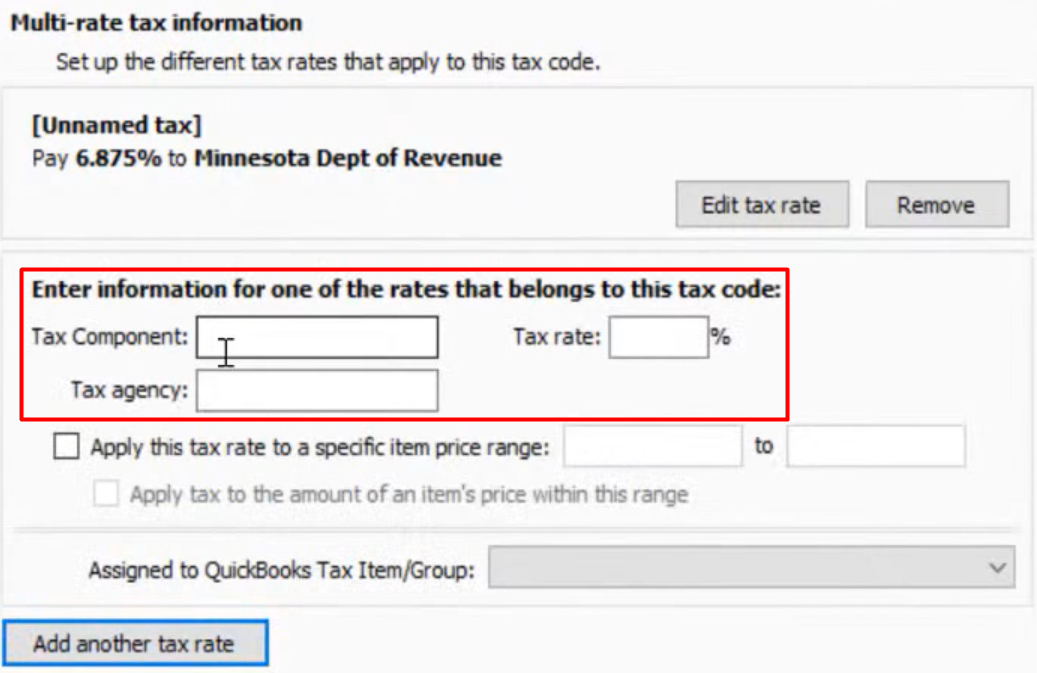
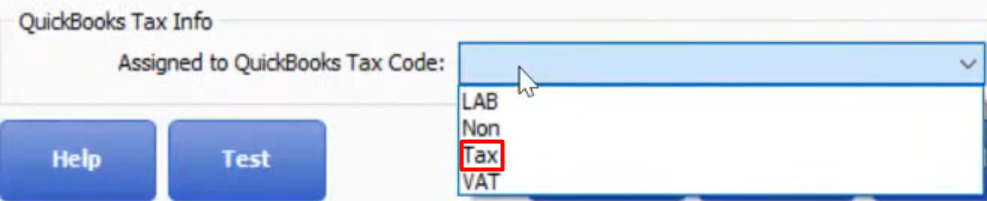
- On the QuickBooks Tax Info section choose “Tax”.
- Select “Finish”.
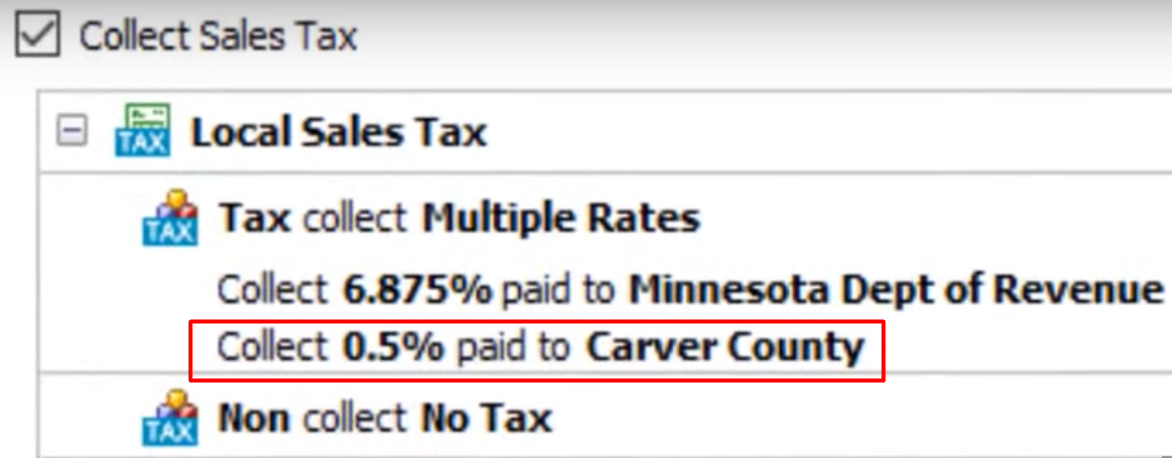
- Your new tax rate is now added to your Local Sales Tax field.
Now let’s use the Multi-rate tax in making a sale.
- Go to “Make a Sale”.
- Choose an item.
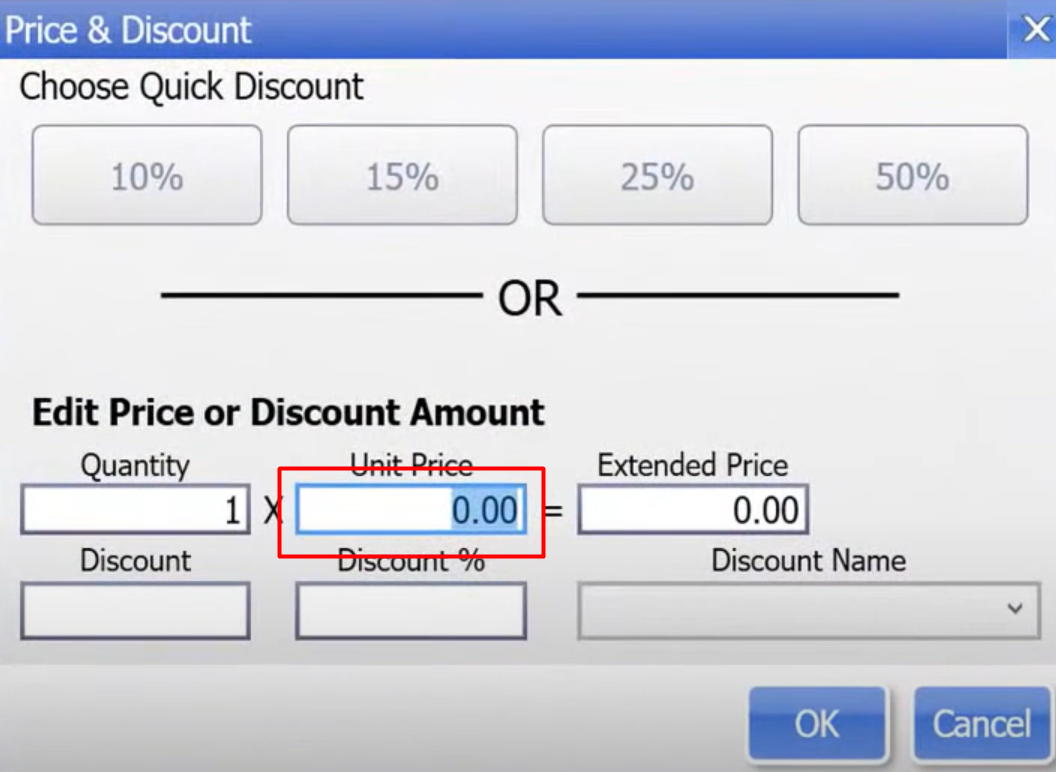
- On your “Price and Discount” screen type “100” as an example in unit price. Then select “Ok”.
- Your Tax is now added to the Total Amount.