Today we will talk about on how to set up a wholesale price level in QuickBooks Point of Sale.
Let’s begin:
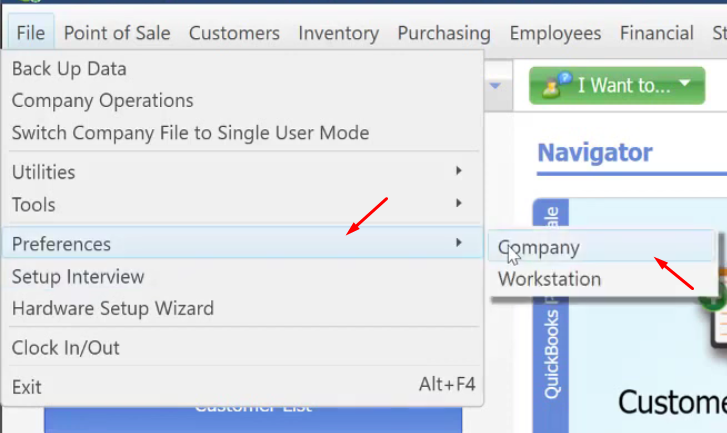
- Click on the “File” menu, select on the “Preferences”. Next, click on “Company”.
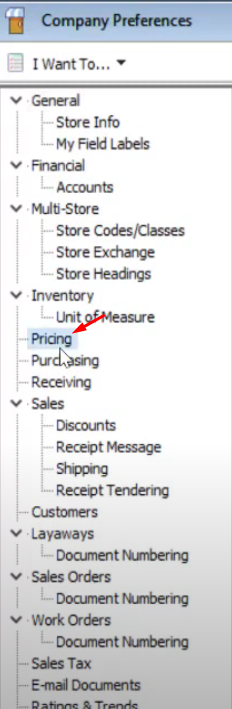
- On the left column, select on “Pricing”.
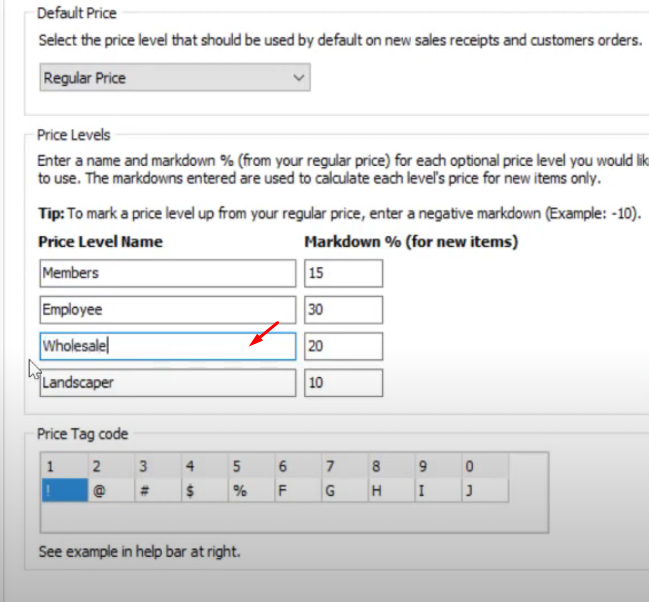
- On the new window, enter a new price level. Label the new price level as “Wholesale” and also enter the markdown percent for your wholesale items.
- Click on the “Save” button.

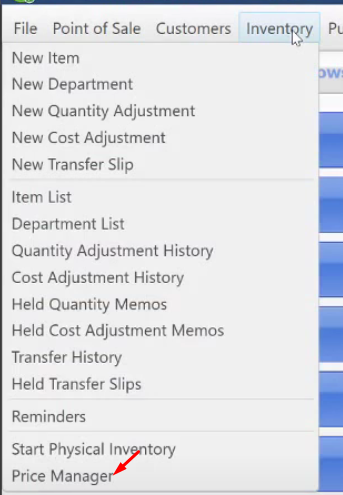
- Go back to the main screen and click on the “Inventory” menu. Select on “Price Manager”.
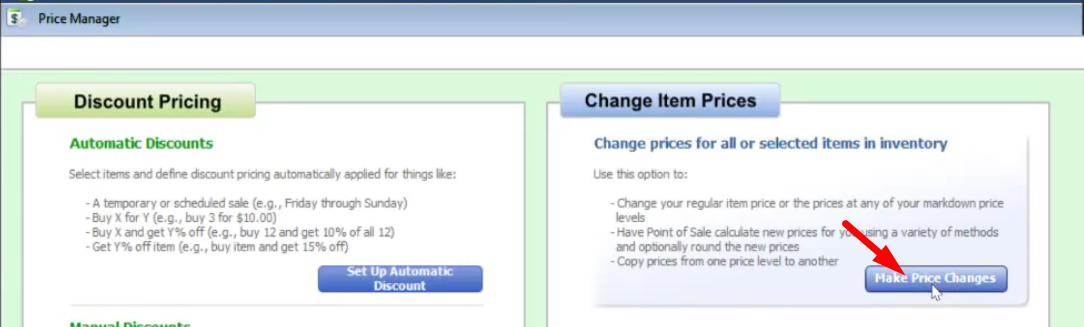
- Click on the “Make Price Changes” button.
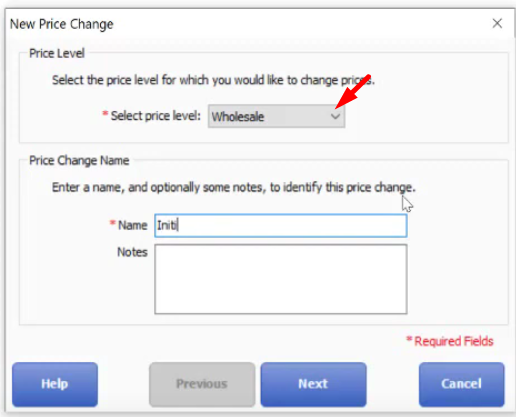
- Select a price level. Click on the drop down button and select the “Wholesale” price level.
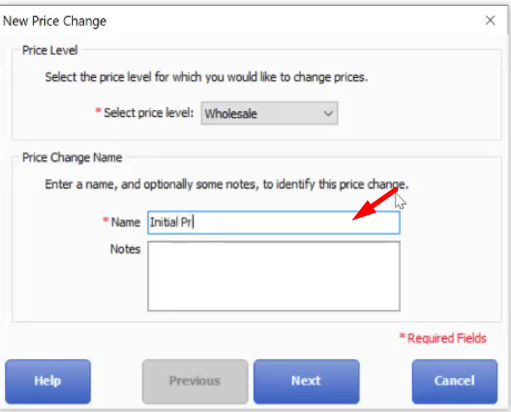
- Enter a name for the new price change. Click on “Next”.
- On the new window, tick on “All Items” and click on “Next”.
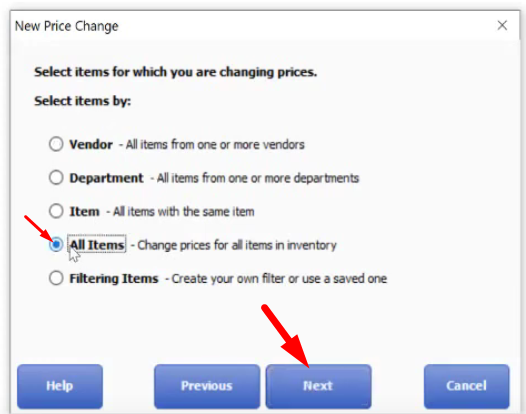
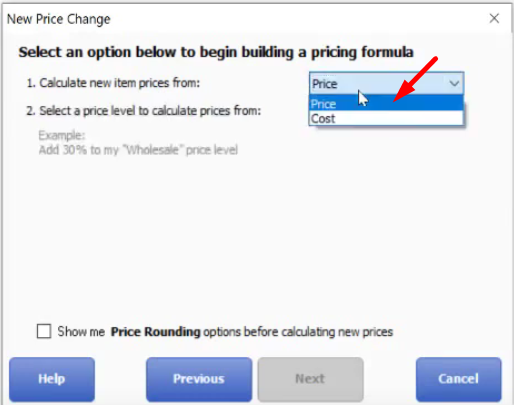
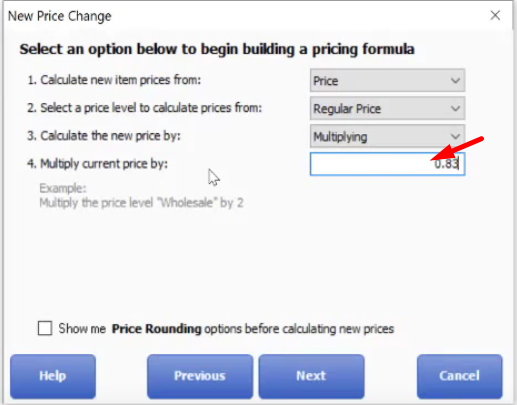
- On the new window, calculate the new item prices from prices. Click on the drop down button select on “Price”.
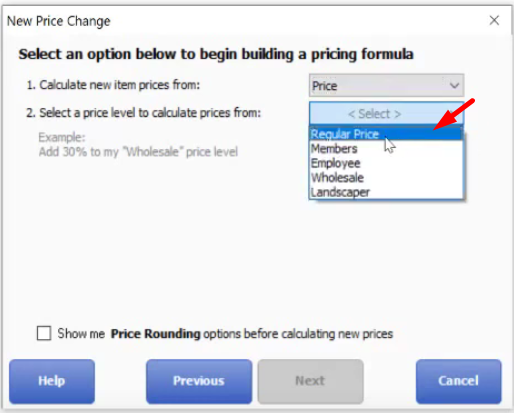
- Next click on the drop down button select “Regular Price”.
- Calculate the new price by multiplying. Click on the drop down button and select “Multiplying”.
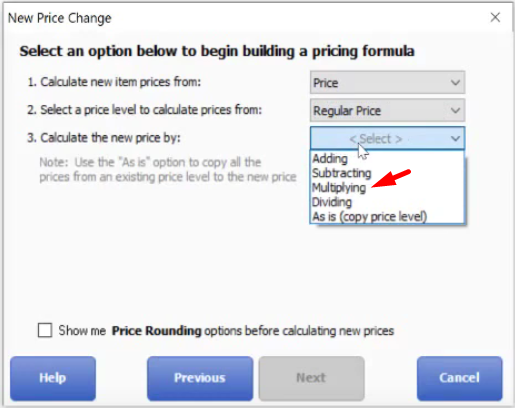
- Enter the value that you want the price to be multiplied to. Then click on “Next”.
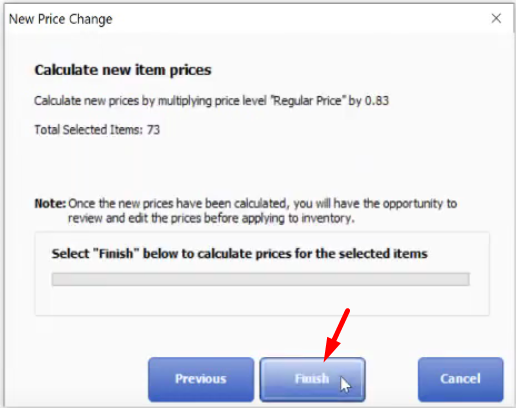
- Click on “Finish”.
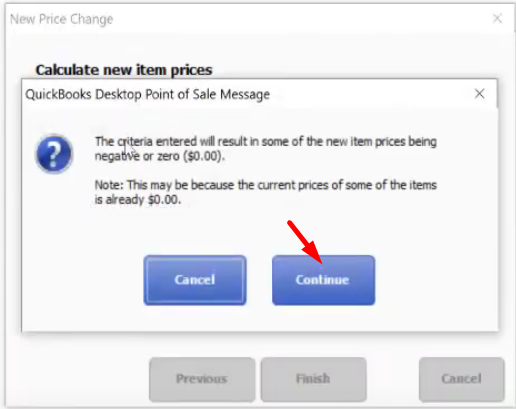
- A dialogue box will pop up, click on “Continue”.
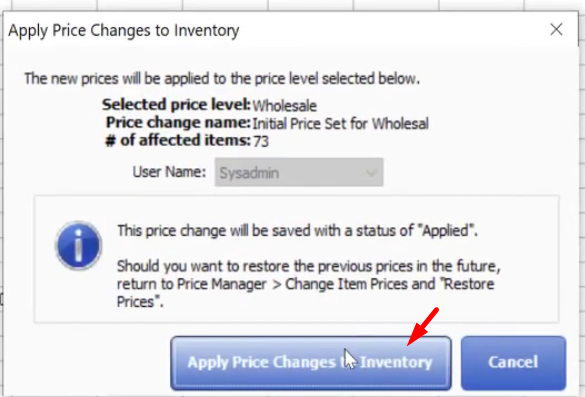
- Next click on “Apply Price Changes to Inventory”.
- Go back to the main screen, click on the “Customer List” icon.
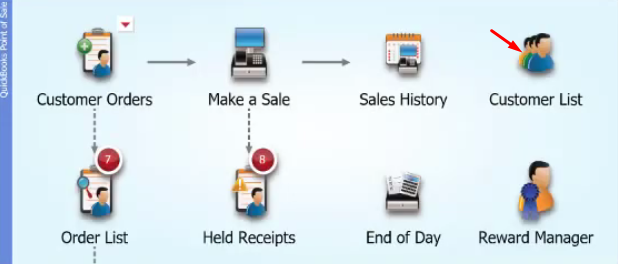
- Select on the customer that you want to add to the wholesale list. Highlight the customer and click on “Edit” that is located on the upper right of the screen.
- On the new window, click on “Edit Discount”.
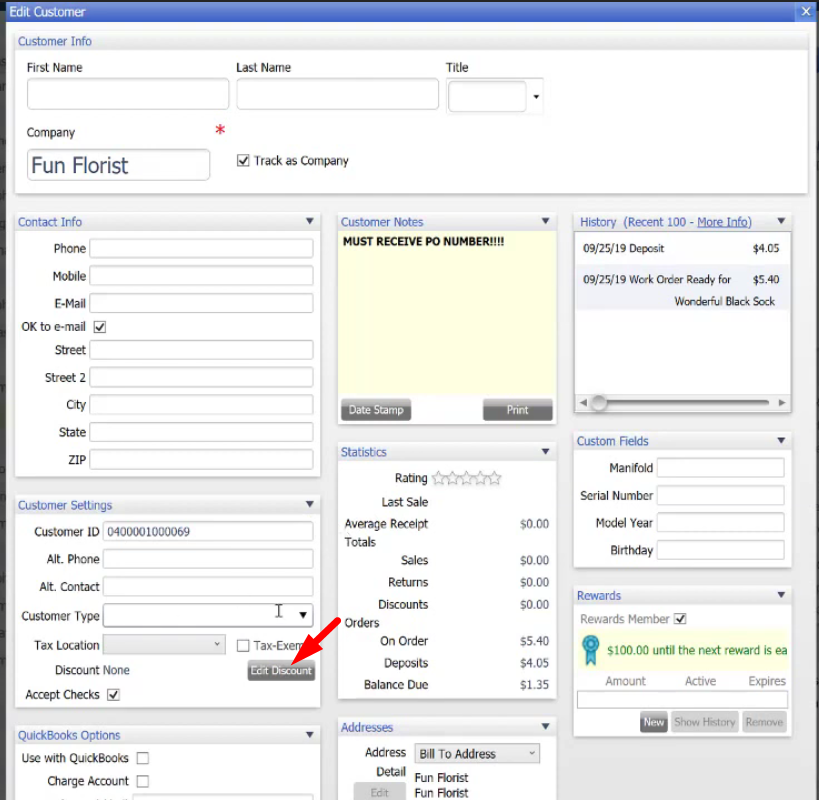
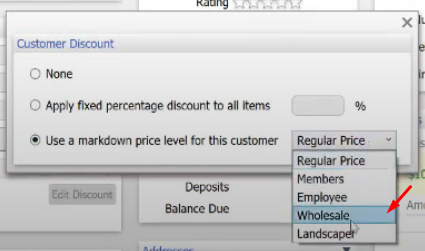
- Tick on “Use a markdown price level for this customer” and select “Wholesale”. Next click on “Save”.