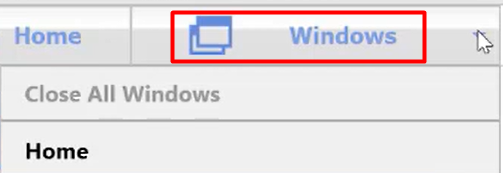
Today we are going to talk about switching windows in QuickBooks point of sale.
Let’s begin:
- Tips: on your Home screen or if you open a document your Window menu and Window button is always located here.

- Window switcher is a place in your point of sale wherein all your unfinished task is going.
So, what’s the use of this Window Switcher? Let me show you.
- Go to “Make a Sale”.
- On your Sales Receipt screen, choose an item.
- Now, while making a sale you want to quickly go and check a different screen. Like for example, you want to check something in Sales History.
- Select “home” button.

- On your Home screen, select “Sales History”.
- After your done in Sales History, you wan to go back to what you are doing in “Make a Sale” window.
- Just select “Window” menu or “Window” button.

- Select the task that you are currently doing in Make a Sale.
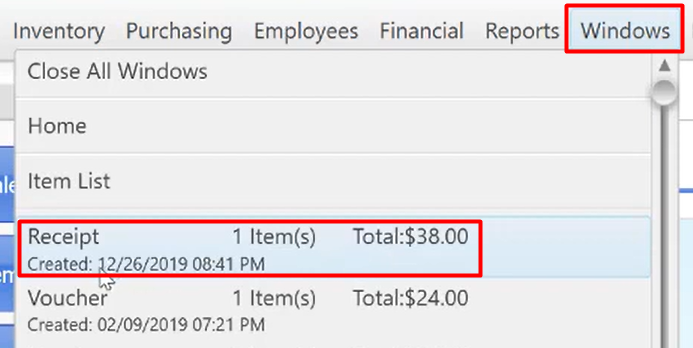
- Your now back on what you are doing in your sales receipt screen.
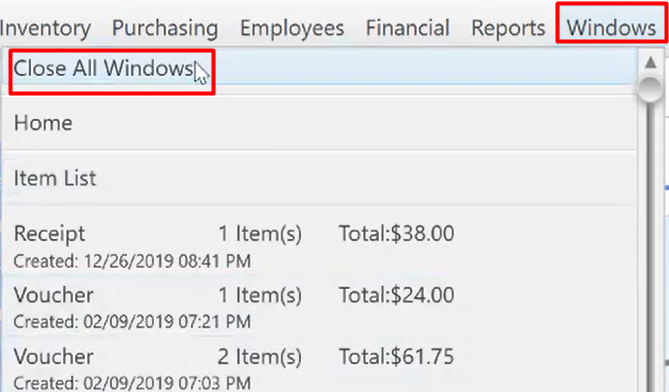
- Additional Information: If you leave a task or window over and over again you will end up with a lot of windows open on your Windows switcher or menu. This will eat a lot of memory in your computer which in fact will make your machine or computer slow. So, you might want to delete them all.
- Select “Window” menu or button. Then select “Close All Windows”.
- Confirmation screen will appear, select “Yes”.
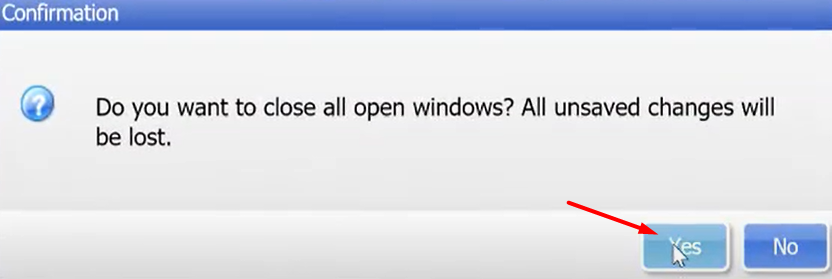
- You have now cleared all the open window on your window switcher.