
Today we are going to talk about on how to edit a receiving voucher that’s already saved.
Let’s begin:
- On your Homepage select “Receiving Vouchers”.
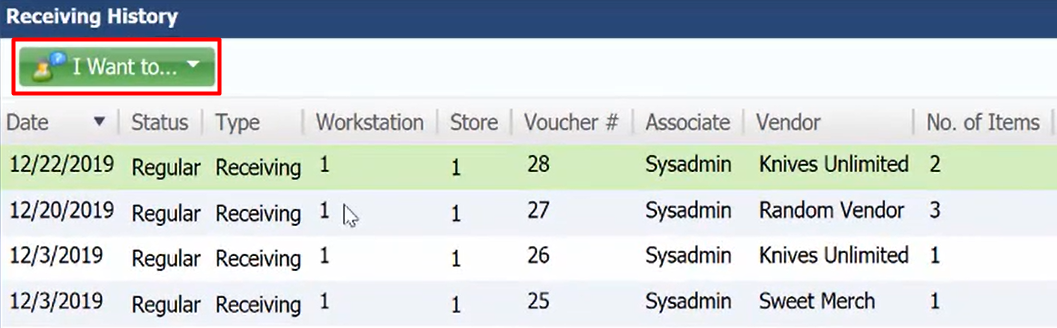
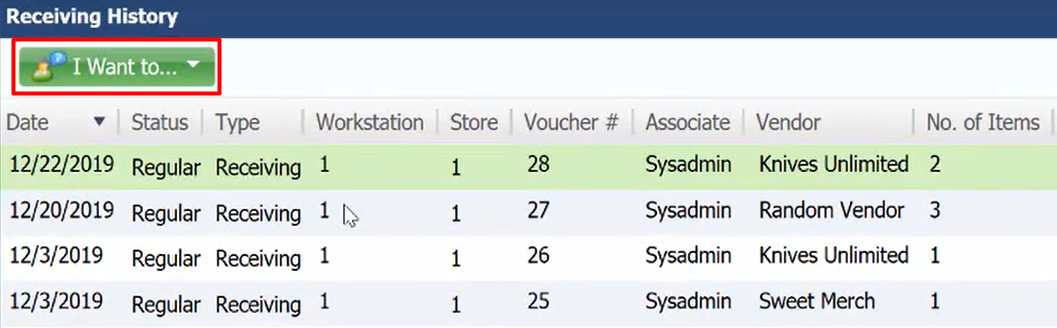
- On your Receiving History screen choose the vendor that you want to edit. (For example, you want to edit Knives Unlimited)
First, we will show you how to edit a Discount/Fee/Freight on your receiving voucher.
- On your Receiving History screen, go to “I want to” menu then select “Enter Discount/Fee/Freight”.
- You can now edit you Discount/Fee/Freight. Then select “Ok.

Note: you can edit a Discount/Fee/Freight as long as the receiving voucher has not gone over to QuickBooks Accounting.
Second, we will show you how to edit a Billing info on your receiving voucher.
- On you Receiving History screen, go to “I want to” menu then select “Enter Billing info”.
- You can now edit your Billing info. After your done editing select “Ok”.

Note: you can edit a Billing Info as long as the receiving voucher has not gone over to QuickBooks Accounting. Or if you haven’t done any financial exchange yet.
Third, we will show you how to edit a receiving voucher if the problem is the quantity of the item.
- On the blue buttons select “Copy”.
- Edit the Quantity of the items. (for example, your Big Dumb Boots is 2 quantity)

- After you edit the Quantity select “Save”. Now your done editing the receiving voucher but you have to complete the process.
- Go back to your Homepage then select “Receiving History”.
- You will see on the history that you have 2 Knives Unlimited one is the original or the wrong one and the other one is the copy.

- Select the original receipt of Knives Unlimited then select “Reverse”.
- A confirmation screen will appear, select “No” because you already did a copy.

- Information screen will appear, select “Ok”.
- You have now a return copy for Knives Unlimited.

- Now you have successfully Copy, Edit, and Save the bad one and then Reverse it.