Today we are going to talk about how you can edit an automatic discount that you already created.
Let’s begin:
- On your “Inventory” menu select “Price Manager”.
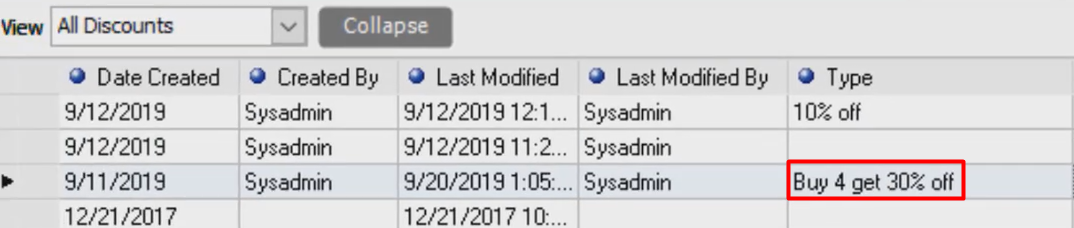
- Select “View all Discounts and Coupons”, to see the list of all the discounts that you’ve created already.

- On the Drop-down menu you can choose on what type of discount you want to show on the field. (For example, you choose All Discounts)

- Choose the type of discount you want to edit (For example, you choose “Buy 4 get 25% off”). Double click on it.

- Edit discount will appear, you can edit everything about your discount here (So for example, you just want to change the 25% to 30%). Enter 30% in Percentage box, then select “Next”, select “Next”, then select “Next”.
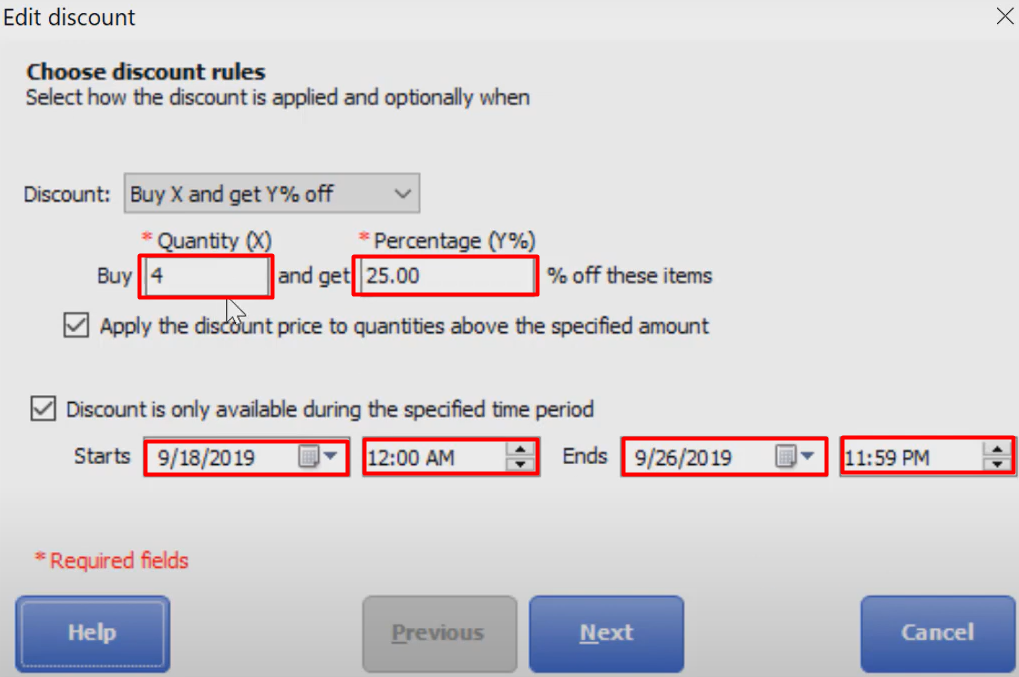
- Change the 25% to 30%. Then select “Finish”.

- There you have it, you successfully edit your discount.