We’re going to cover on how to export your reports to excel to further manipulate your data using formulas and filters to obtain better results.
Let’s get started:
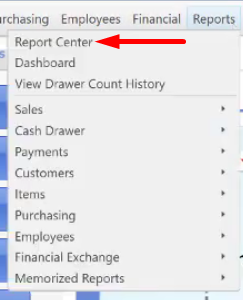
- Go to “Report Center” by clicking on “Reports” on the home screen of QuickBooks Point of Sale or Go to “Reports” menu and then click on “Report Center”.

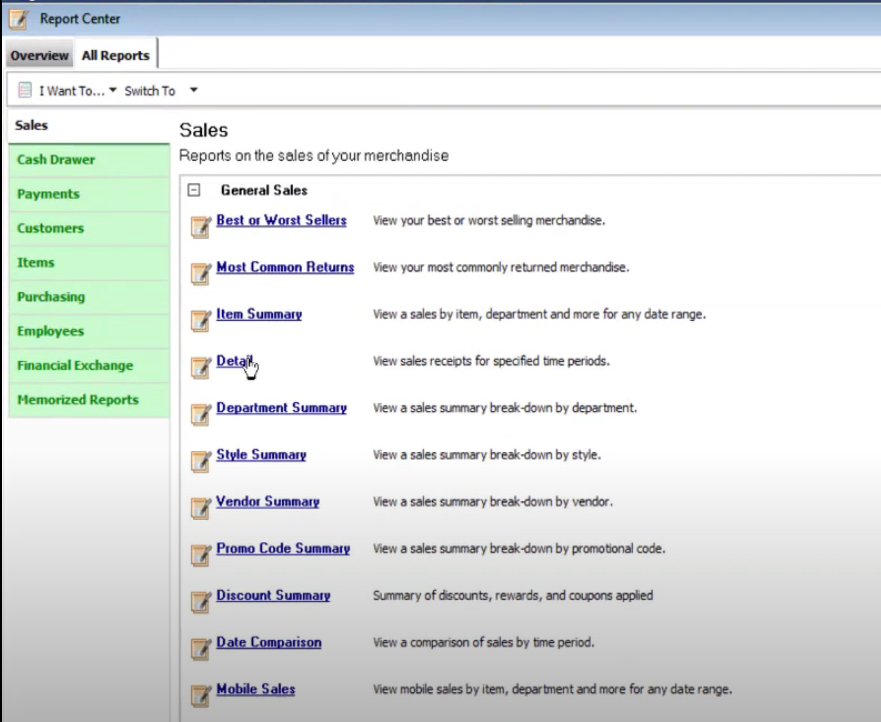
- Select the report that you want to Export.
- Click on the “Excel” button to begin exporting the report.

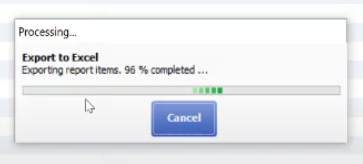
- As you click on the button, wait until it creates the exported file. It will automatically pop-up once it is finish.