
Today we will show you the quickest and easy way on how to setup your simple sales tax. Simple Sales tax is use if you are a store that has a single simple tax code and tax percentage.
Let’s begin:
- On your “Item List” create a new item.
- From your Add Inventory Item screen choose whether your item is “Taxable” or “Non-taxable” on your tax in the Basic Info section.

- Let’s go quickly at Company Preferences to show you that we haven’t set up a tax yet.
- Go to “File” then “Preferences” click “Company”.

- On the left side of the screen find “Work Orders” click “Sales Tax”.

- You can see here that there are no taxes set up yet.
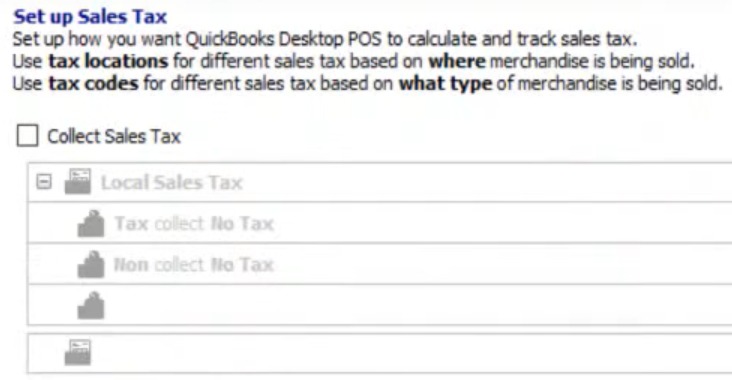
- Go to “File” then “Preferences” click “Company”.
- Let’s go quickly at Company Preferences to show you that we haven’t set up a tax yet.
- On your “File” menu click “Setup Interview”.
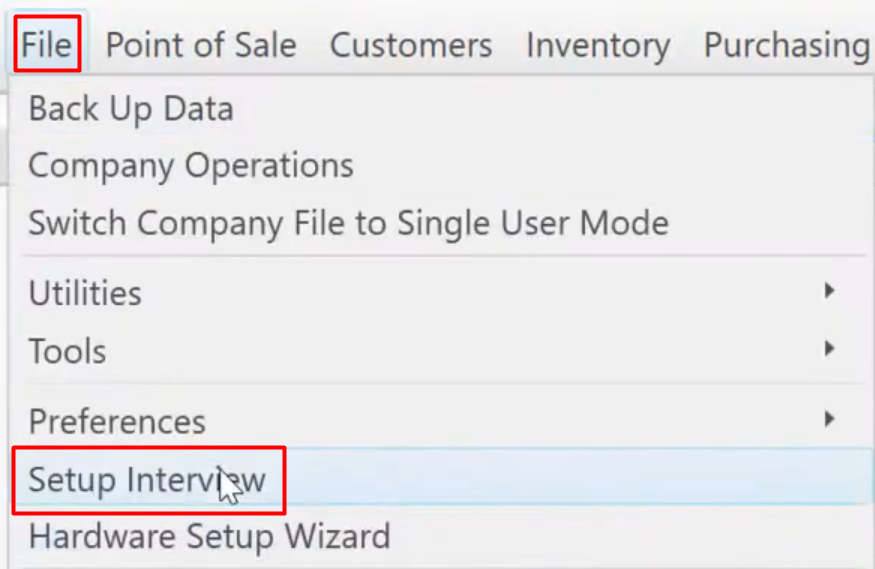
- Click “Sales Tax”.

- Mark “Yes” then, fill in the “Sales tax rate as a percentage” and “the name of your tax agency” base on your location.

- After you fill in everything on the “Sales Tax” click “Next”.

- Then click “Done”.

- Let’s go back to “Company Preferences”.
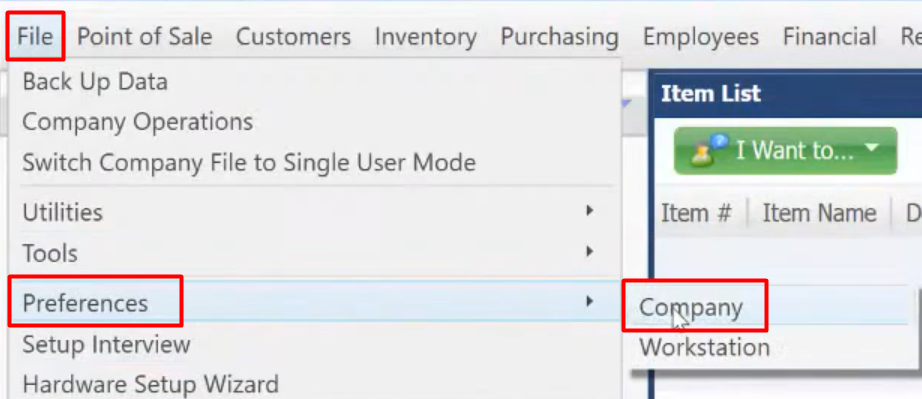
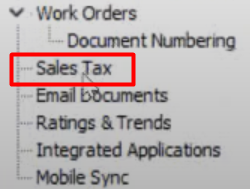
- You have now set up Simple Sales Tax.
