We’re going to talk about having two shifts in your store. Where you want your employee to count drawer at the end of the first shift and make their cash drop and then at the end of the second shift you also want to count the drawer. So you want each employee or each shift to be responsible for their drawer.
*Recommended: Add a “Time” Column to your Sales History.*
Here’s how:
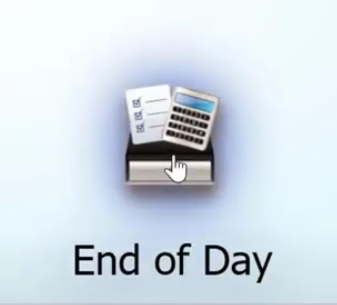
- Click on “End of Day” on the Home screen of QuickBooks Point of Sale.
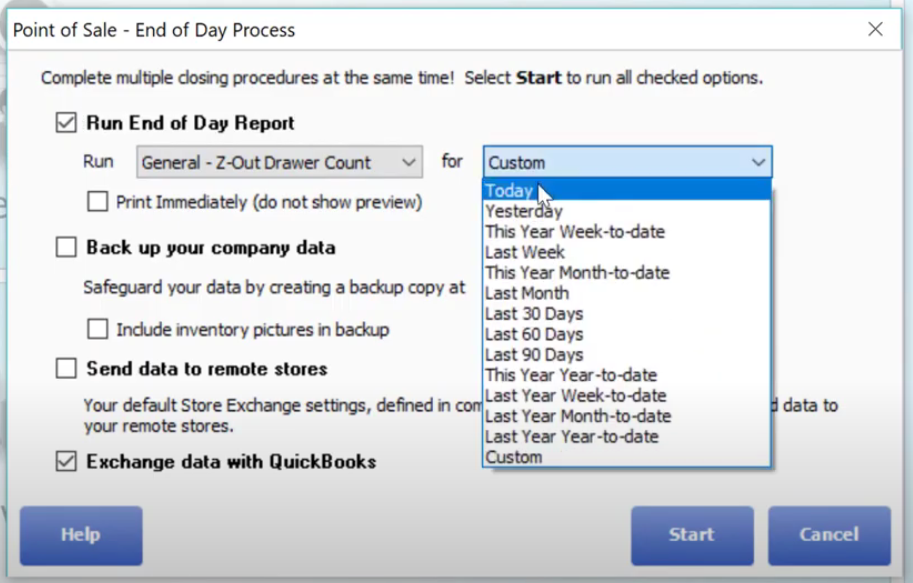
- On the End of Day window, select “Custom” in the drop-down box. The default setting is Today, so we want to count the drawer by shift and not per day. Then click “Start”.
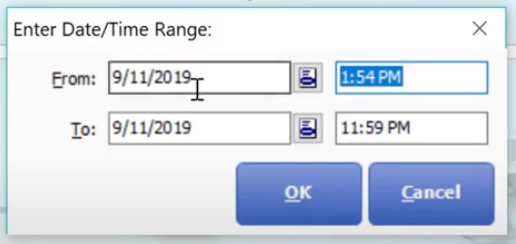
- Enter the Date/Time Range of each shift.
- Let’s say for example the first shift counted drawer and came up with 277.12. Since we started with 200, we’re going to leave 200 for the next shift. That would leave us with 77.12 and a non-currency of 112.46 coming from a credit card purchase. Once all is counted correctly, click on “OK” to receive a summary for the first shift.

- You can print out the summary and include it in the cash bag for back up purposes and making reports.

- Repeat steps 1 to 4 for the next shift.
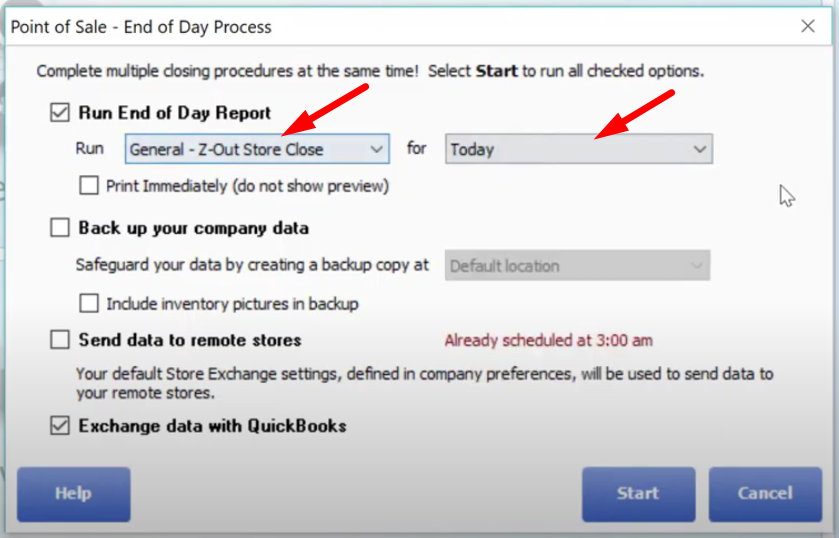
- At the end of the day, you will have the closer make an End of Day report for the whole day. Now we’re going to select “General – Z out Store Close” instead of the “General – Z out Drawer Count”. Also select on “Today” to run all the transactions for that day.