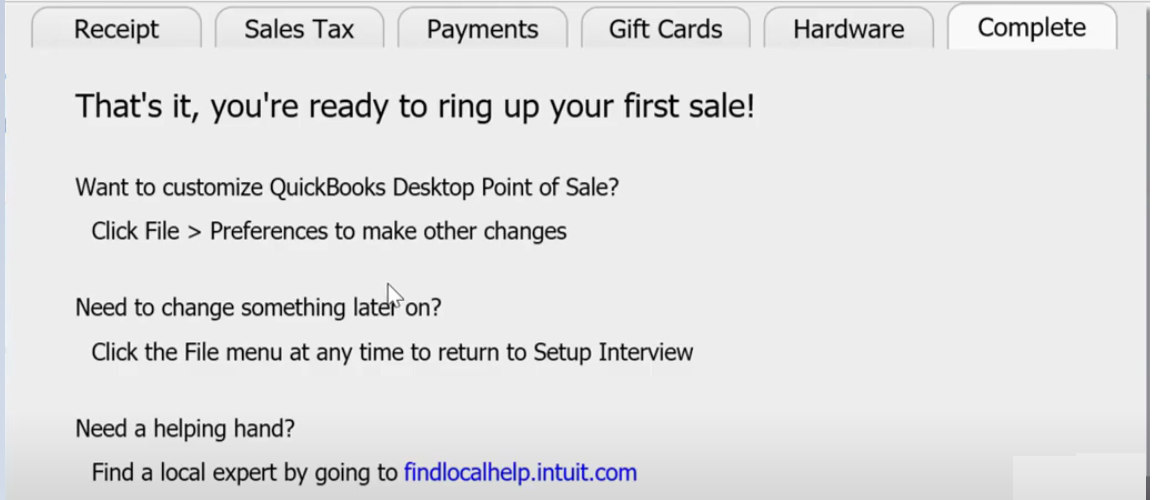
So we’re going to talk about the Setup Interview on QuickBooks Point of Sale. The setup interview will automatically pop-up if you’re creating a new company. If you want to change some settings on the Setup Interview, just go back to the Setup Interview.
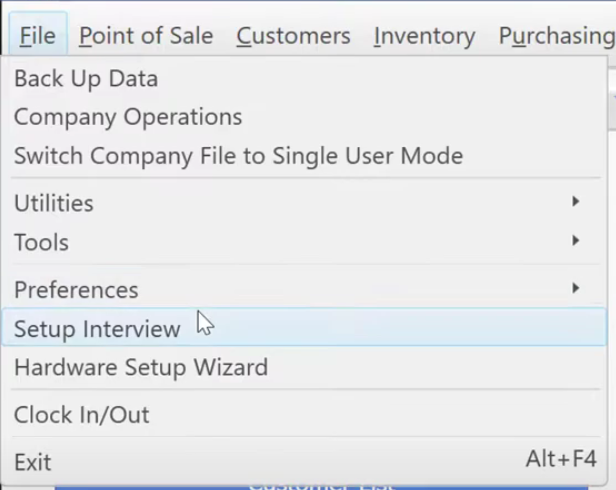
- So let’s start with going to “File” menu and then click on “Setup Interview”.
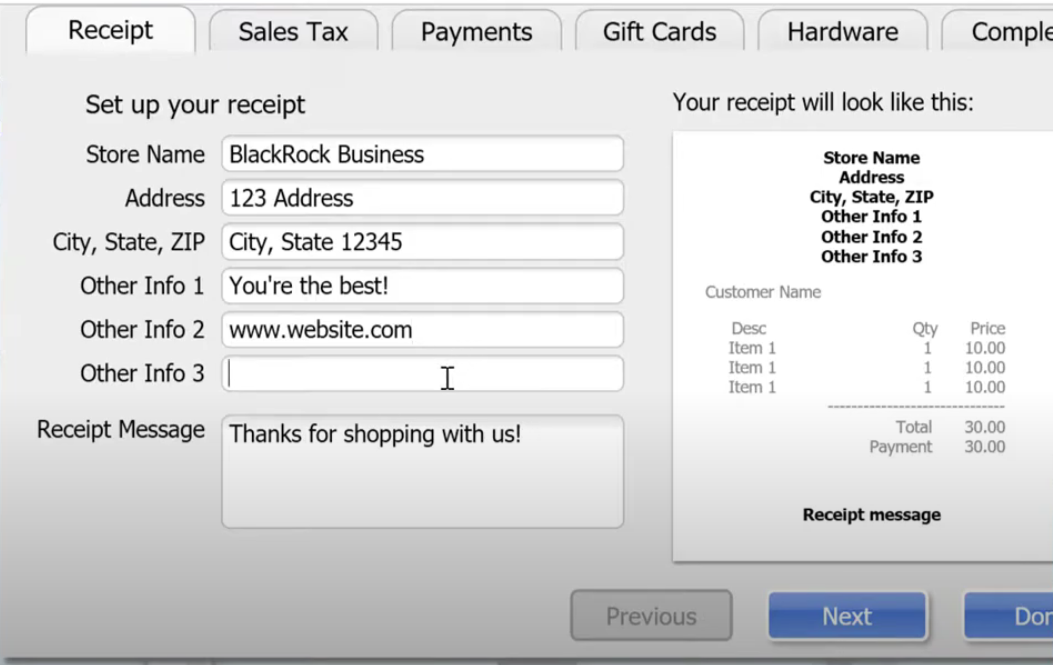
- As the Setup Interview window pops up, the first tab that we’re going to fill is the “Receipt” tab. In this tab, what you’re going to do is to fill in your company information in order to make your receipt. Then click “Next”.
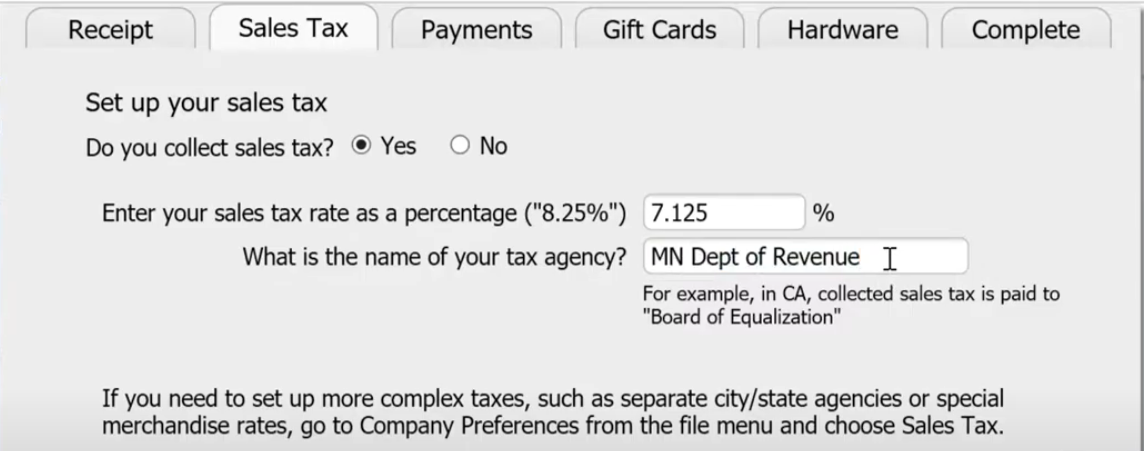
- On the” Sales Tax” Tab, it’s going to ask you if you’re going to collect sales tax or not. Also input your regular sales tax depending on where you are. One important thing is also to attach or sync your QuickBooks Point of Sale to your QuickBooks Accounting. The reason is you need your tax vendors from QuickBooks Accounting to have the exact same name that you’re going to put in QuickBooks Point of Sale because that’s who you are going to write a check to pay your taxes.
- For the “Payments” Tab, would you like to accept credit and debit card as payment. If you have a QuickBooks Payments Account, you can sign in your account and proceed. But if you don’t, you can contact us at 952-777-4309 to give you a slightly better rate.
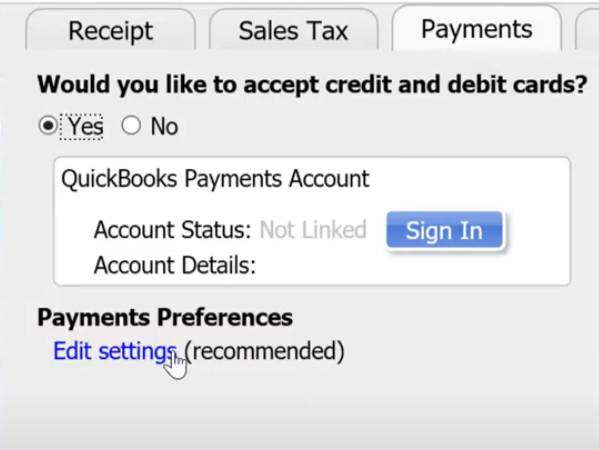
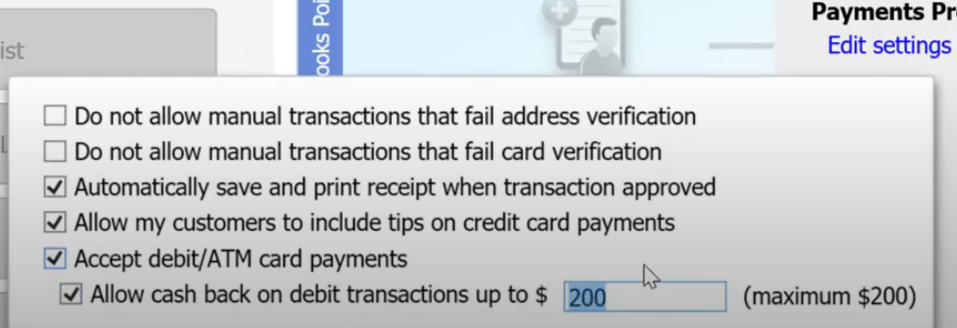
- For the Payments Preferences settings check on the settings that you prefer for your store.
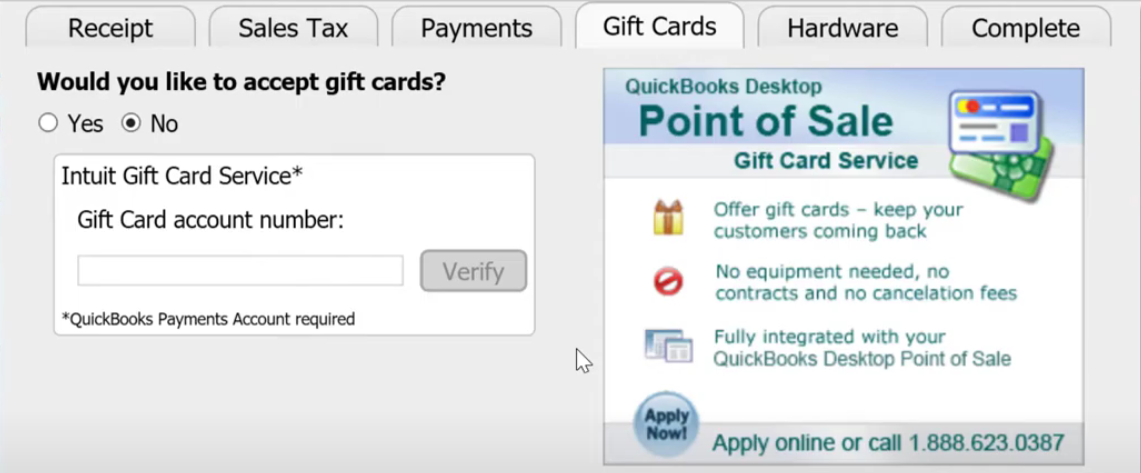
- Let’s head next to the “Gift Cards” tab. You’re going to get more customers when people have the ability to give the gift of money specifically at your store. So they’re going to come to your store and use their gift card. Again, give us a call at 952-777-4309 to apply for a Gift Card account number.
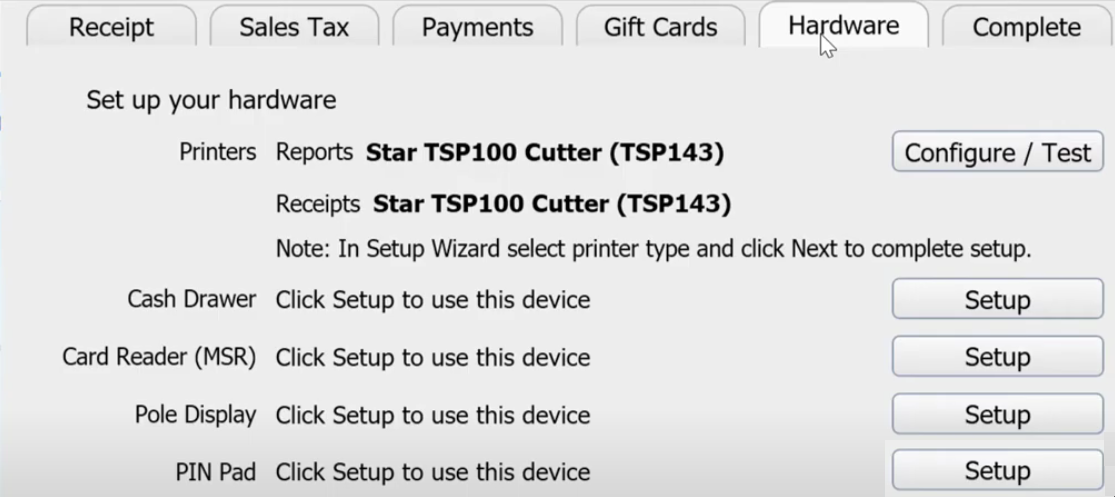
- Next is the “Hardware” Tab. For this tab it is strongly recommended to install your hardware through the Hardware Setup Wizard. There are more pieces of hardware listed through the hardware setup wizard.
- Then the last tab is going to tell you that you’re ready to ring up your first sale. So congratulations on setting up your store in QuickBooks Point of Sale!