
Today we will talk about adding an employee to QuickBooks Point of Sale in situations where you have hired a new employee.
Let’s begin:
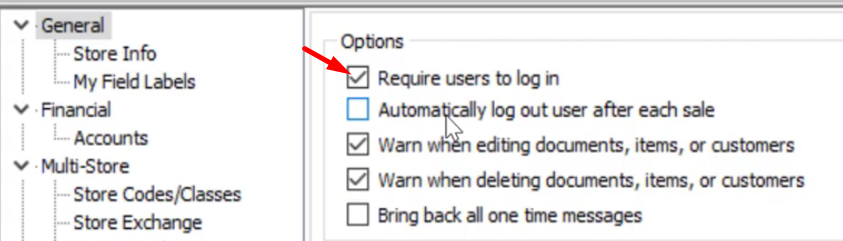
Recommendation: Go to “File” menu click on “Preferences” and select “Company”. On the General settings, tick on “Require users to log in”.
- Go to the “Employees” menu and click on the “Employees List”.

- Click on the “New Employee” tab that is on the top part of the screen.

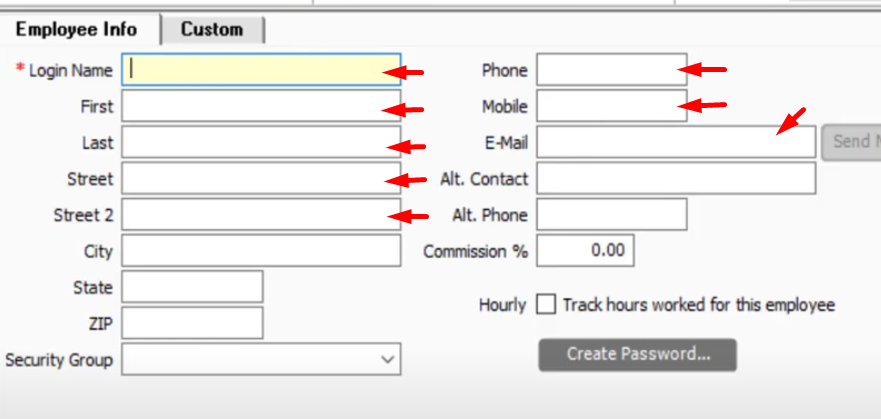
- A new window will pop out, enter the details of the new employee. Type in his/her full name, address and contact details.
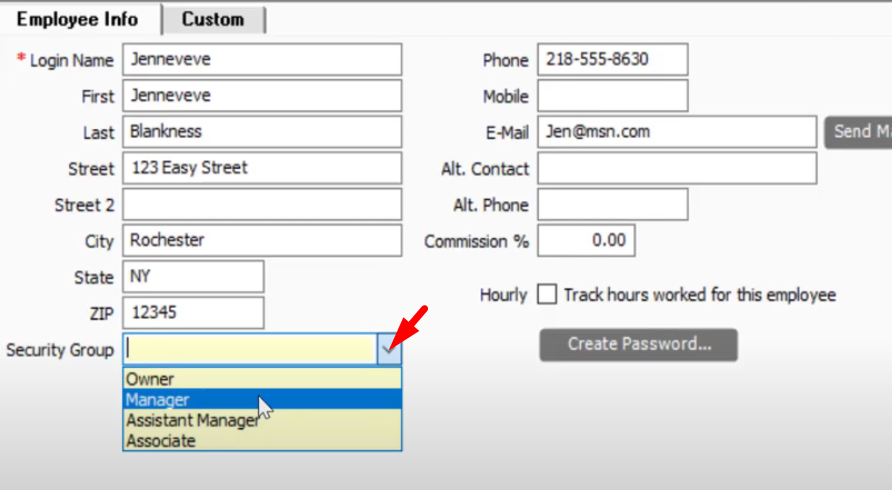
- Select which Security Group the new employee belongs to by clicking on the drop down button.
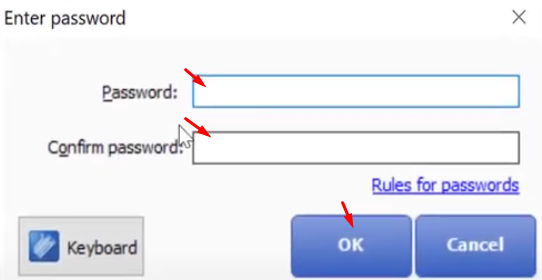
- Click on “Create Password…” and enter the password of the new employee.
- Click on the “Custom” tab, and you can leave a note about the employee. You can also add the date of the employee was hired and the birthday of the employee on the custom field area.
