
Today we are going to talk about changing the currency in your point of sale.
Let’s begin:
- Go to “Start” menu, select “Control Panel”.

- On your Control Panel, select “Clock and Region”.

- On your Region window, select “Additional Settings”.

- Select “Currency” tab.

- On your Currency tab, choose the currency you want to use in “Currency Symbol”.

- Select “Apply” then select “Ok” and click “Ok” again.
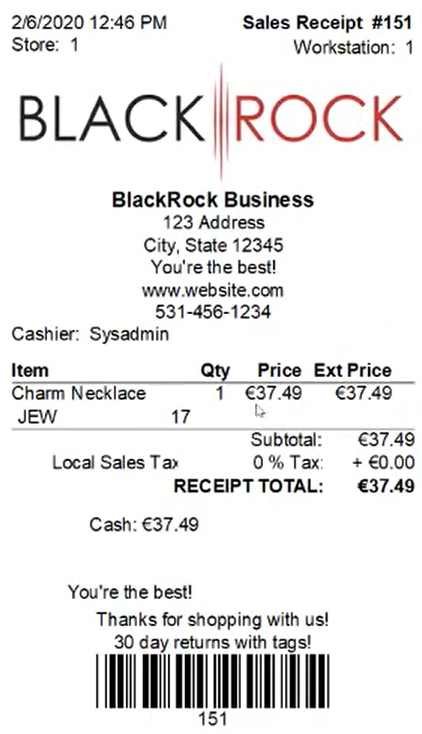
Now if you want to check your currency in your Receipt.
- Go to “Make a Sale”.
- Choose an item you want to use as an example.
- Select “Cash” then select “Save”.
- Select “Print”.
- Now this is your Receipt with your new Currency.
After changing the currency symbol on the control panel, I get a question mark as currency on quickbooks