
Today we are going to talk about how to create an Assembly Item.
Let’s begin:
- On your Home screen, go to “Item List”.
- On your Item list screen, this are the example item that we will use to build an assembly item.
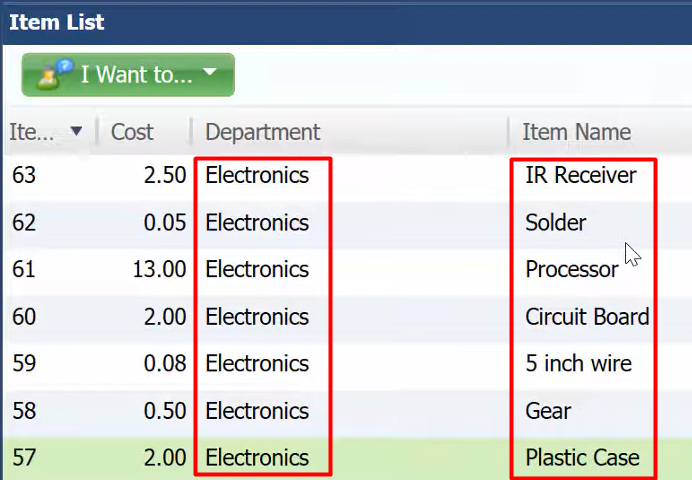
- If all the ingredients in making an assembly item are already ready on your inventory, now select “Add”.

- Add Inventory Item screen will appear.
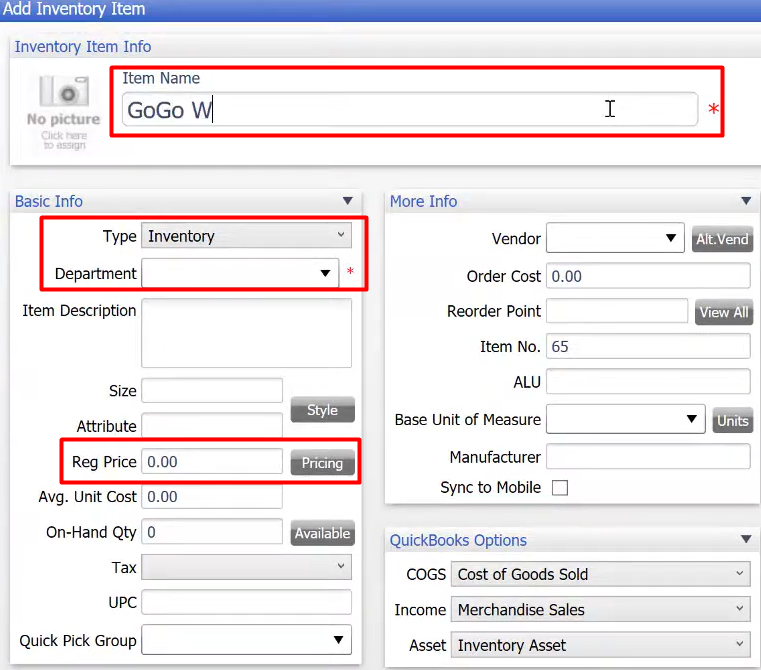
- Inventory Item Info – Enter the name of the item.
- Type – choose “Assembly”.
- Department – choose “Electronics”, because all the ingredient items are under electronics department.
- Regular Price – enter the price you want to give to the assembly item.
- Select “Save”.
- Add Inventory Item screen will appear.
- On the Inventory Item Detail, select “Assembly” button.
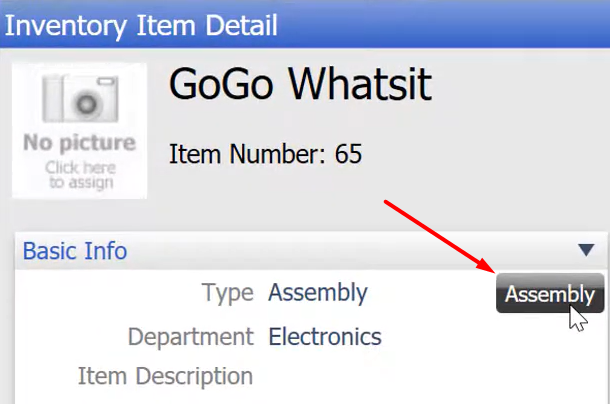
- Assembly Detail screen will appear, select “Edit Assembly”.
- On the Edit Assembly screen, search the item you will use in assembling an item.
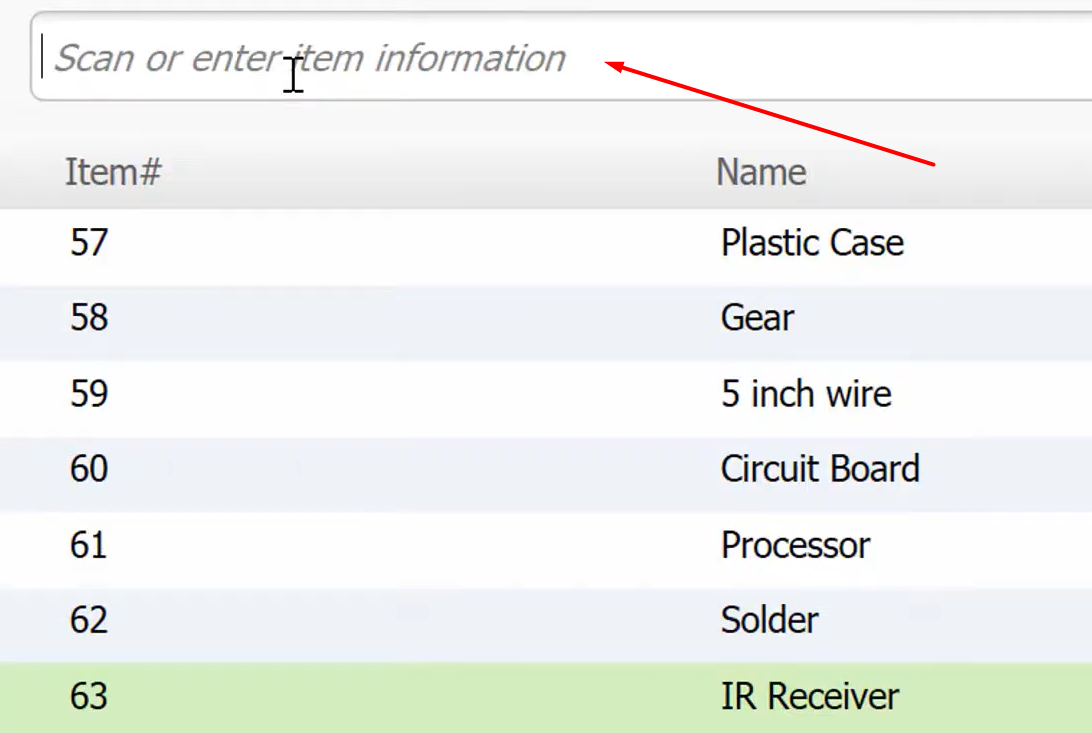
- This are the items under electronics department that we will use in assembling an item.
- Enter the quantity on each item that you need to use in making an assembly item.

- On the Item Settings section, enter the “Reorder Point” and the “Manufacturer”.
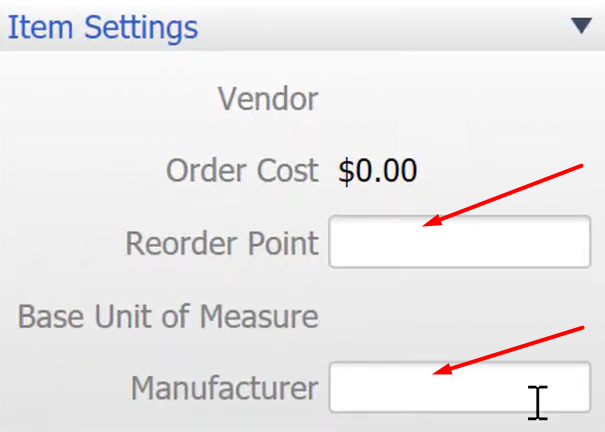
- Manufacturer – you can put your name on it since you’re the one manufacturing it.
- Reorder Point – this will be your signal if you need to make again your assembly item. So, for example, you enter 5 reorder point, now if your item goes under 5 quantity it will inform you that you need already to make some of your assembly item because it goes under 5 pieces already.
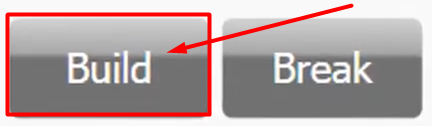
- On the right-hand side of Edit Assembly screen, select “Build”.
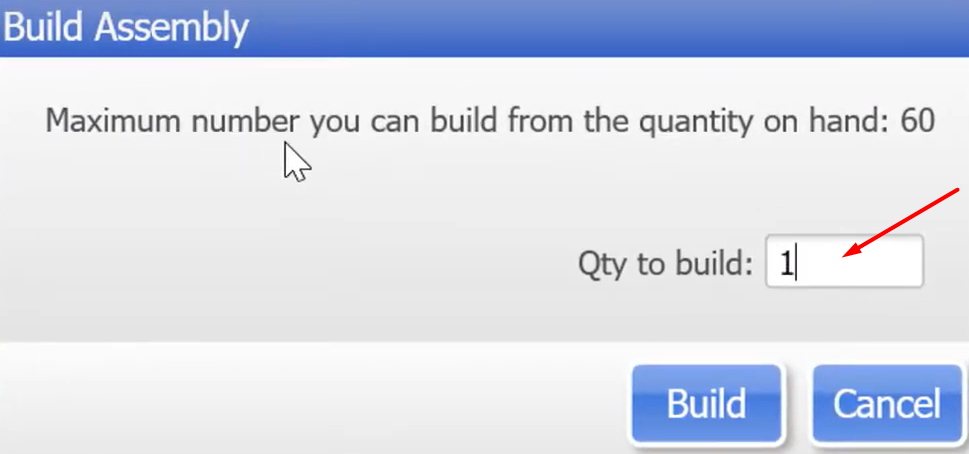
- Enter the quantity you want to build (for example, you want to build 10 pieces of GoGo Whatsit), then select “Build”.
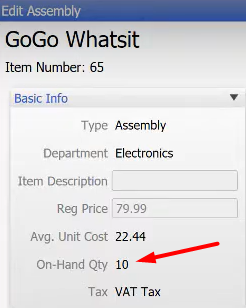
- On the Basic Information section, you will see that you already have 10 on-hand quantity for GoGo Whatsit.
- Select “Save”.
- You have now successfully built an assembly item.