
In QuickBooks Point of Sale, we’re going to learn how to create and send purchase orders to your vendors.
Here’s how:
- Go to “Purchase Orders” by clicking on it on the home screen of QuickBooks Point of Sale.
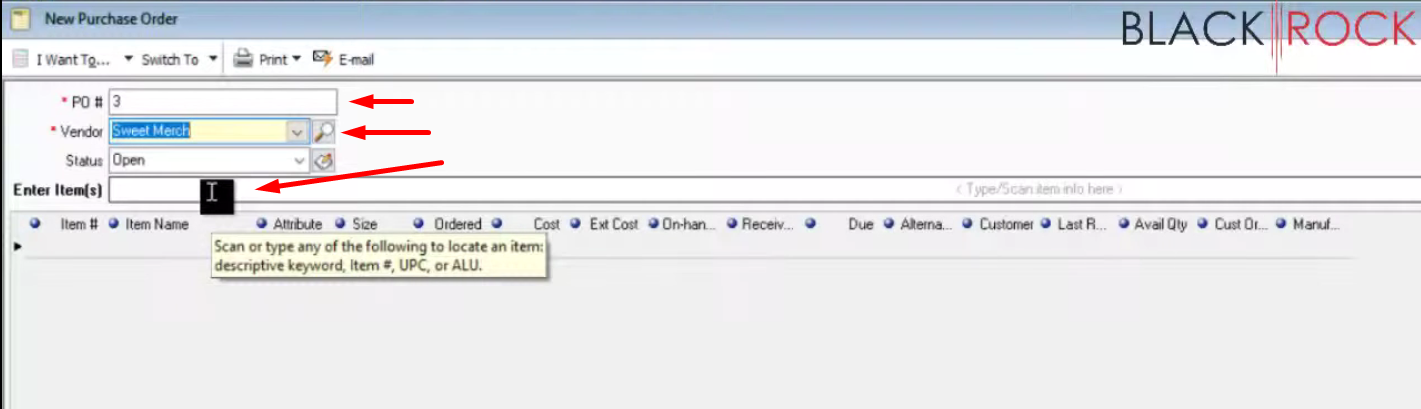
- As soon as you click on the “Purchase Orders”, QuickBooks Point of Sale automatically generates a purchase order number. Select the vendor that you want to order an item and add the items that are going to be ordered.
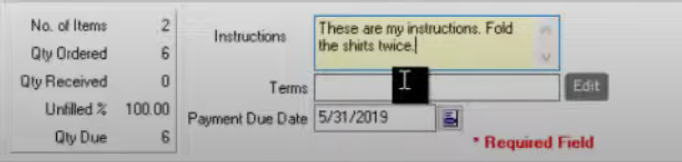
- On the lower left side of the screen of creating a new purchase order. You can add a little instruction and keep check of how many items that you’ve added. It also shows the due date for the payment of this order.
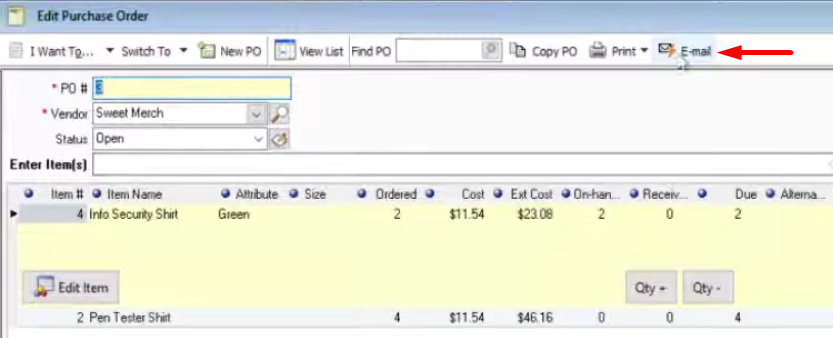
- Once done creating a purchase order, click on “Email” to send this over to the vendor for them to process your order. QuickBooks Point of Sale will automatically generate an email in your outlook software and all you have to do is send it over to the vendor.
My needs are to create a PO, and then certain info off of it, send to three emails. 1, to Vendor with his details of PO, only, then email to Trucking, his only info taken from that PO. Then finally an email to customer with only his certain info off that PO.
Please get back to me for more info