
Today we will learn about the different customer orders which are sales order, layaway and work order.
Let’s begin with Layaway:
- To go to the list of Layaway orders, click on the drop down button beside the “Customer Orders” icon. Take note that Layaway is for products that you have in stock.


- To make a Layaway order, enter the name of the customer. You can find that option at the bottom part of the page.

- Enter the items that are already in stock for your Layaway.

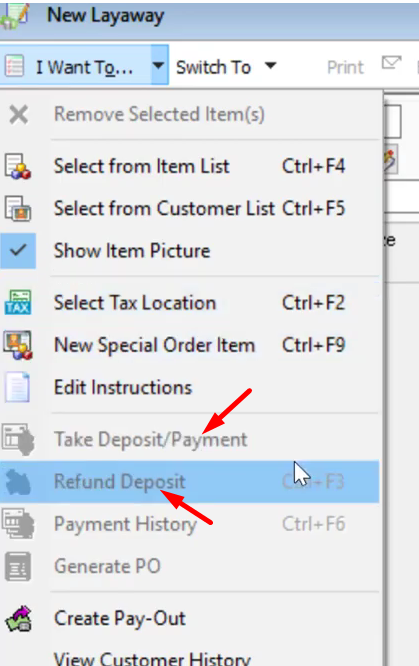
- Once you have your items placed, now you can make and take deposits for the products by simply clicking on the “I want to…” menu and select on “Take Deposit”/”Refund Deposit”.
Next customer order that we have is Sales Order:
- To go to the list of Sales orders, click on the drop down button beside the “Customer Orders” icon and select on “Sales Order”. A Sales order is similar to Layaway, you can have a deposit for the item but the key factor here is that the item is not in stock.


- A Sales order can be also used as a facility for pre-order. You can also flip a Sales right order into a purchase order and order it from your vendor that of course now flows into the receiving voucher.
Lastly we have the Work order:
- Work order mostly is for items that you already haven’t stocked again. It is something that needs to be done before the customer would actually pick up the item or purchase it for final pickup. This may include customizations on the item that is being purchased.
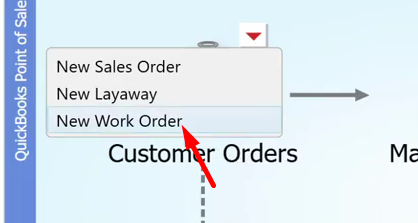
- To make a Work order proceed to the Work order list by clicking the drop down button on the “Customer Order” icon and select “New Work Order”.
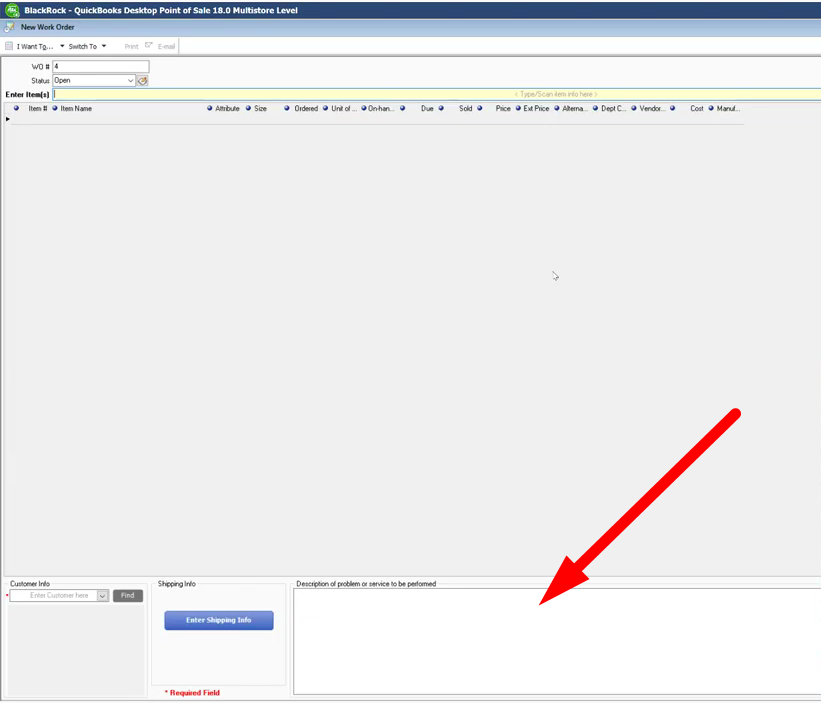
- You can describe exactly what work needs to be done for the item here on the “Description of problem or service to be performed” box that is found at the bottom of the page.
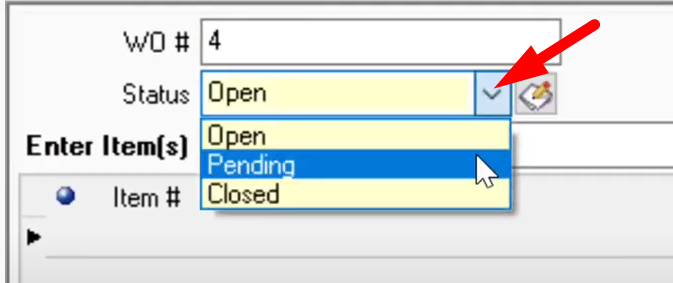
- For Work order, you can also add and set up your own individual statuses. There you will find three default statuses.
- You can also assign work or task to people by clicking on the drop down button near the “Assigned” button that is place on the upper right part of the page.
