
Today we are going to talk about how to delete a purchase order.
Let’s begin:
- On your Homepage, go to “PO List” then select “View” in Open Purchase Orders.
- Purchase Order List will appear.
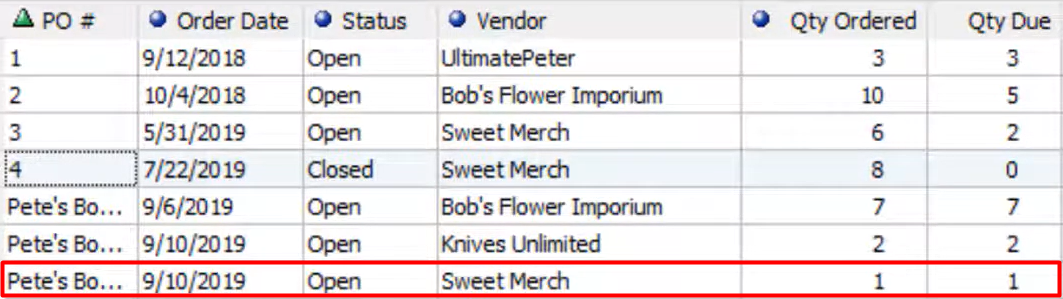
For instance, you might want to delete the item you ordered to sweet merch because maybe you no longer need it anymore.
- Double click on “Sweet Merch” to double check if you’re deleting the right item.
- Edit Purchase Order will appear. If this is the correct item you want to delete from the vendor sweet merch you can go back now to Purchase Order List.

- On your Purchase Order List single click sweet merch, go to “I Want To” menu then select “Delete PO(s)”.
- Select “Delete”.

- You have now successfully deleted a purchase order.
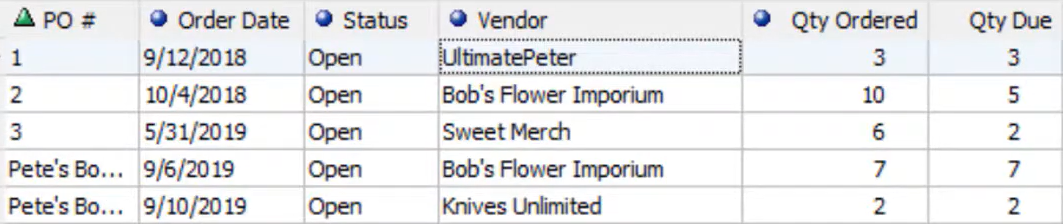
- Note: deleting an item on your purchase order will not notify your vendor that you’re no longer ordering the item. So, you might want to email them so that the vendor will be notified that you are not anymore ordering the item.