
Today we are going to talk about deleting a receipt out of your QuickBooks point of sale.
Let’s begin:
- Go to “Sales History”.
- Let’s take John Doe as an example. For example, we made a mistake in making a discount so I need to undo the receipt.

- Highlight “John Doe”, on the blue button select “Reverse”.

- Choose the name of the employee who is reversing. Then select “Ok”.

- On the Sales History search “John Doe”. You will notice that you have two documents of John Doe. One is the original sales and the other one is the return sales.
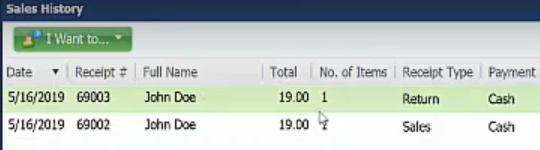
- The original sales is our original receipt where we make a mistake and it is now stamped with “Reverse”.
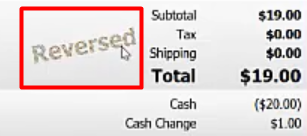
- If you ever see a receipt and it says Reversed on it even though its still a sales receipt that means there’s another document in your system that is coupled with it.
- In this Original sale this is where you take the cash of John Doe or still have his money in your hand. You don’t have to worry about handing him his cash back you’re just going to redo or reverse the receipt.
- The Return sales is the copied document of the original sales.
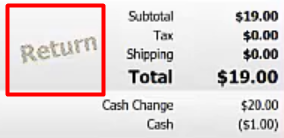
- This Return sales receipt is going to put your quantity of your product back into your inventory and it is going to give the cash back to John Doe.
- The original sales is our original receipt where we make a mistake and it is now stamped with “Reverse”.
Note: there is no straight up deleting your receipt you just have to reverse the receipt.