
QuickBooks POS will not log in, stating “There is no default printer currently selected”
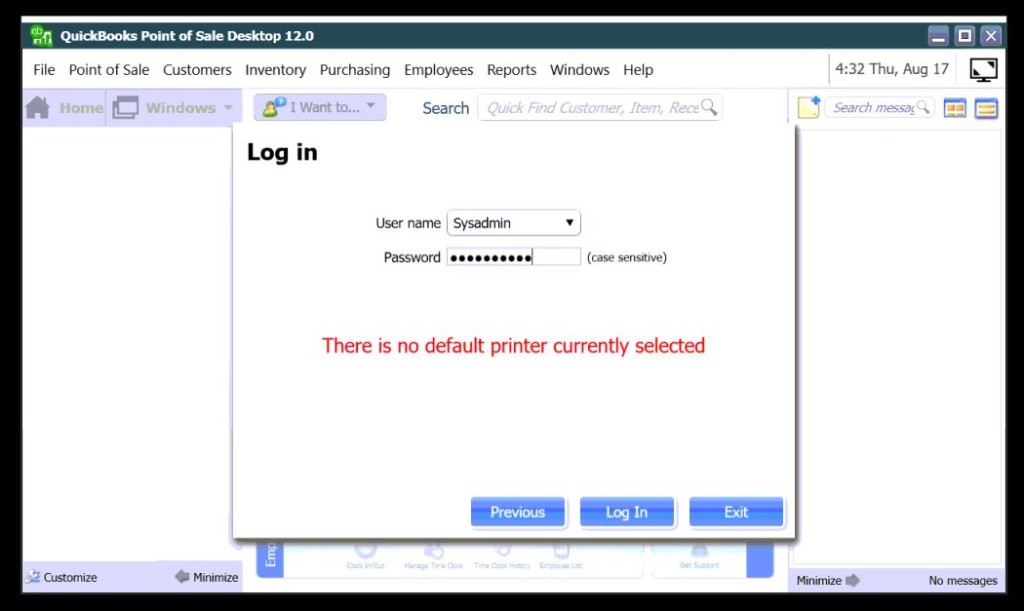
This QuickBooks POS Error message can be a little misleading, as it would appear that you should go in and mess with your QuickBooks POS Workstation Settings. This would be the settings page where you normally set QuickBooks POS printer settings and templates. However, this message is actually speaking about your Windows System. That’s right, when you see this message, it means that your computer as a whole does not have a default printer selected. Apparently when QuickBooks Point of Sale starts up, it wishes to see what printer is the default for your system, before proceeding with loading up.
Fixing this on Windows 10:
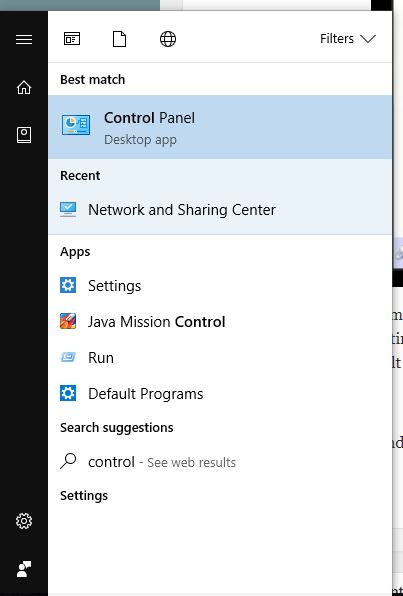
- Click on Start Menu and type in Control Panel. Then Click Control Panel.
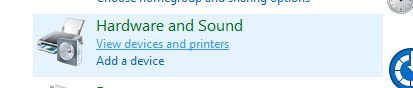
- In the Control Panel, click on View devices and printers.
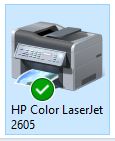
- Take a look at your printers and you will probably notice that none of them have a Green Check on them, signifying that they are Windows’ Default.
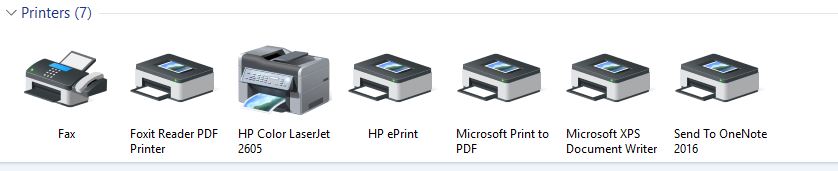
- Right-Click on your most used Windows Printer and choose Set as default printer.
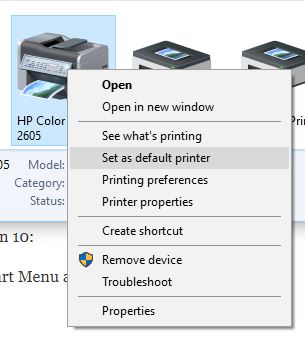
- You will then see a green check-mark indicating that your printer is set as default.
- Now, relaunch QuickBooks Point of Sale and it should be able to log in normally. You should no longer see the QuickBooks POS Error.