
Today we are going to talk about inventory problem with short barcode.
Let’s begin:
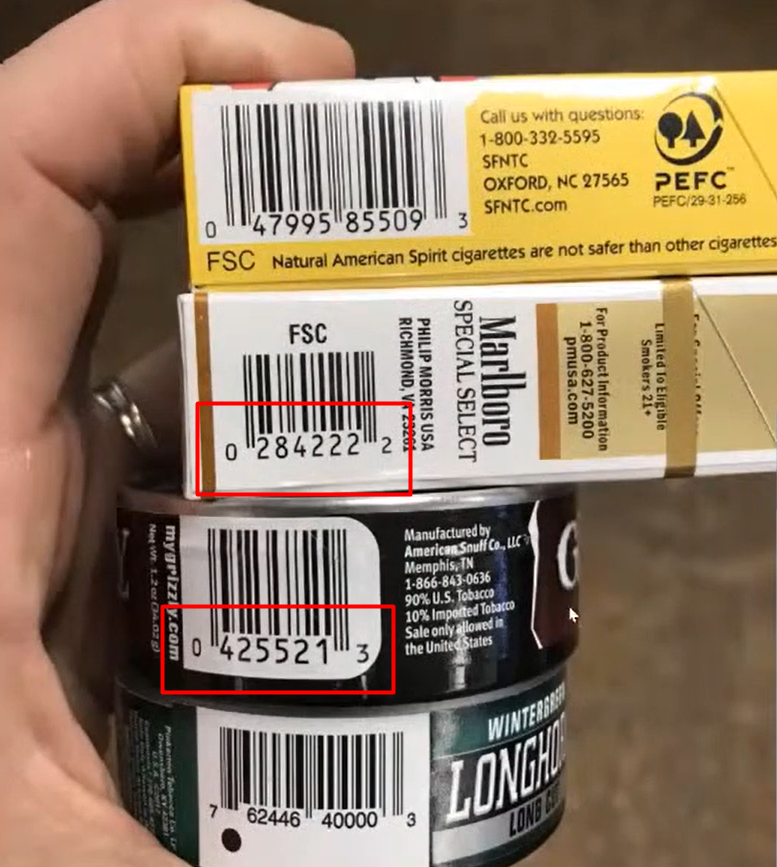
- Here’s an example image of short barcode. This is usually called EAN-8 Barcode.
 –
–
- QuickBooks point of sale is not generally programmed to handle UPC’s that are EAN-8 barcode.
- One way in order to fix short barcode is you need to buy a new updated Barcode Scanner because maybe the old barcode you are using is not reading properly the short barcode.
- Now, if you already have your new barcode scanner, go to “Item List”. Let’s change the UPC of the item so that QuickBooks point of sale can easily read the barcode.
- On your Item list screen, select the item that has short barcode (for example, the image at the top “Marlboro Special Select”) then select “Item Detail”.
- Check the UPC.
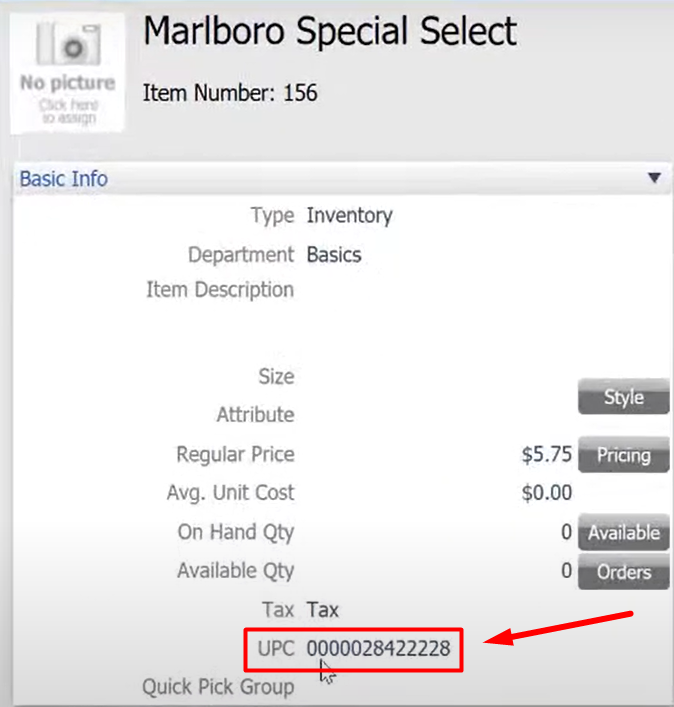
- “0000028422228” this is the correct barcode that QuickBooks point of sale can read. (The image is already updated)
- If the zeroes are in the middle like for example, “2840000022228” this is incorrect. QuickBooks point of sale can’t read this kind of barcode.
- Highlight the UPC barcode, then using your new scanner scan the barcode of “Marlboro Special Select” item. Then select “Save”.
- Second way to in order to fix short barcode.
- On your Home screen, go to “Inventory” menu then select “Start Physical Inventory”.
- Scan and upload the item with the short barcode using your physical inventory scanner or your new barcode scanner.
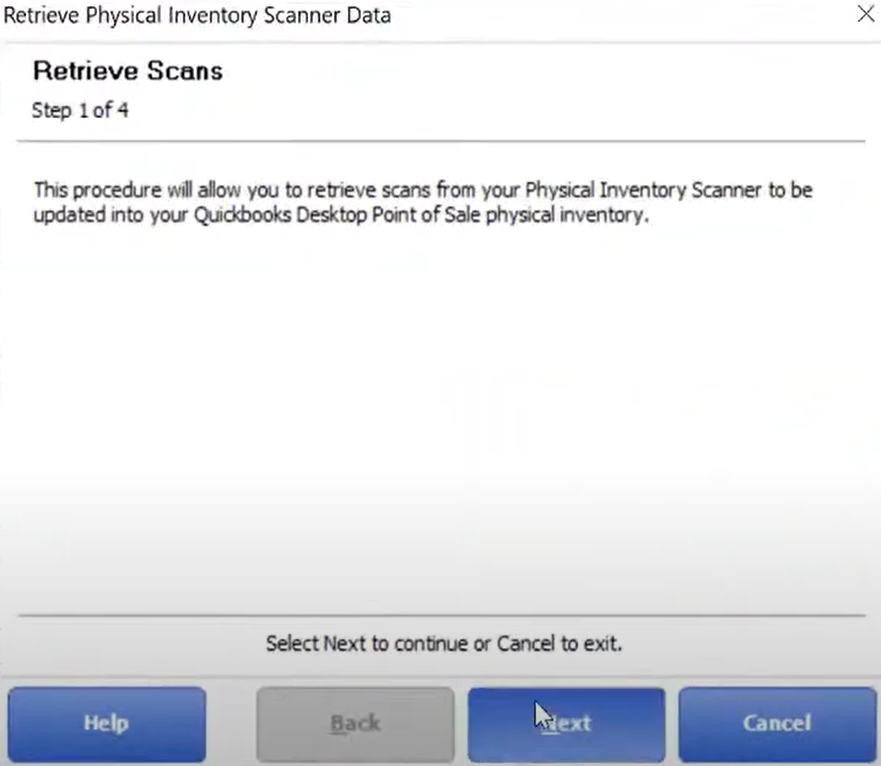
- After you scan and upload the barcode, go to “I Want To” menu then select “Add Counts from Scanner”.
- Select “Next”.
- Select “Next”.
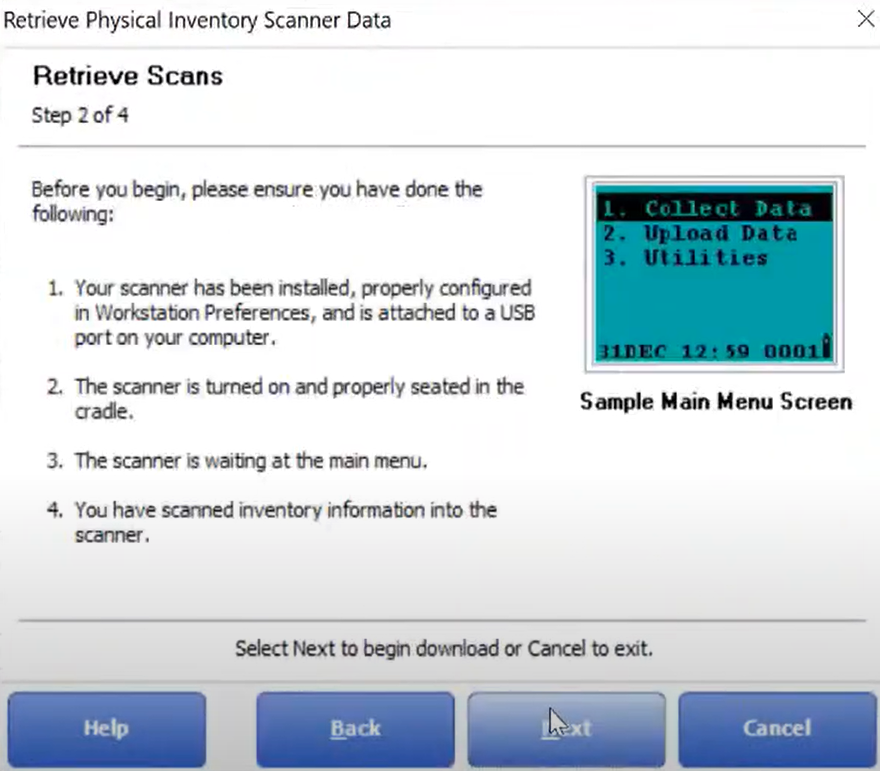
- Wait for the scan to be uploaded.
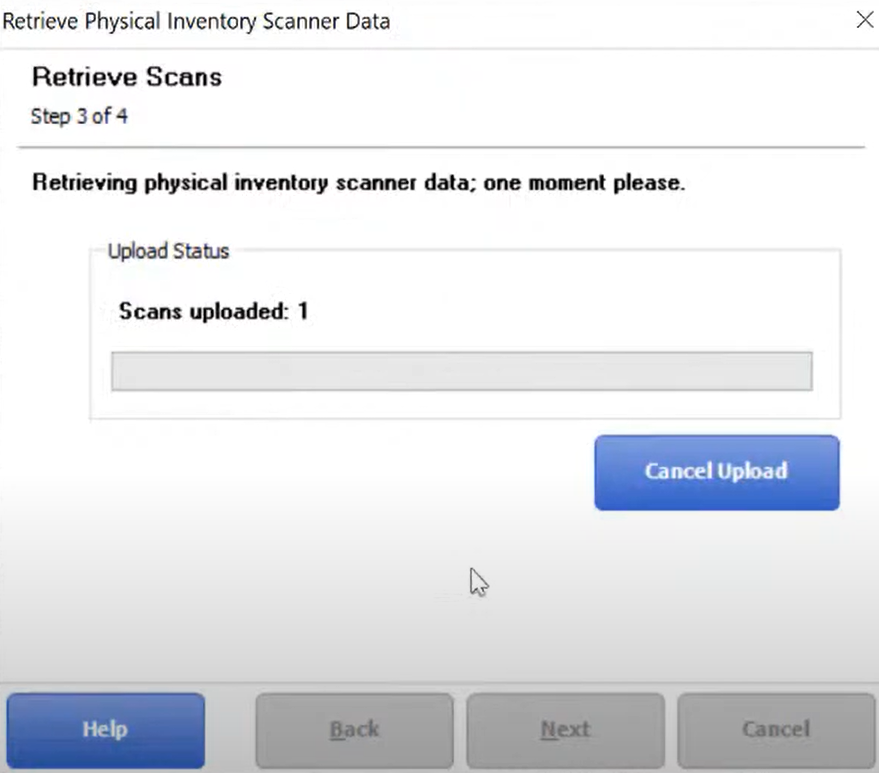
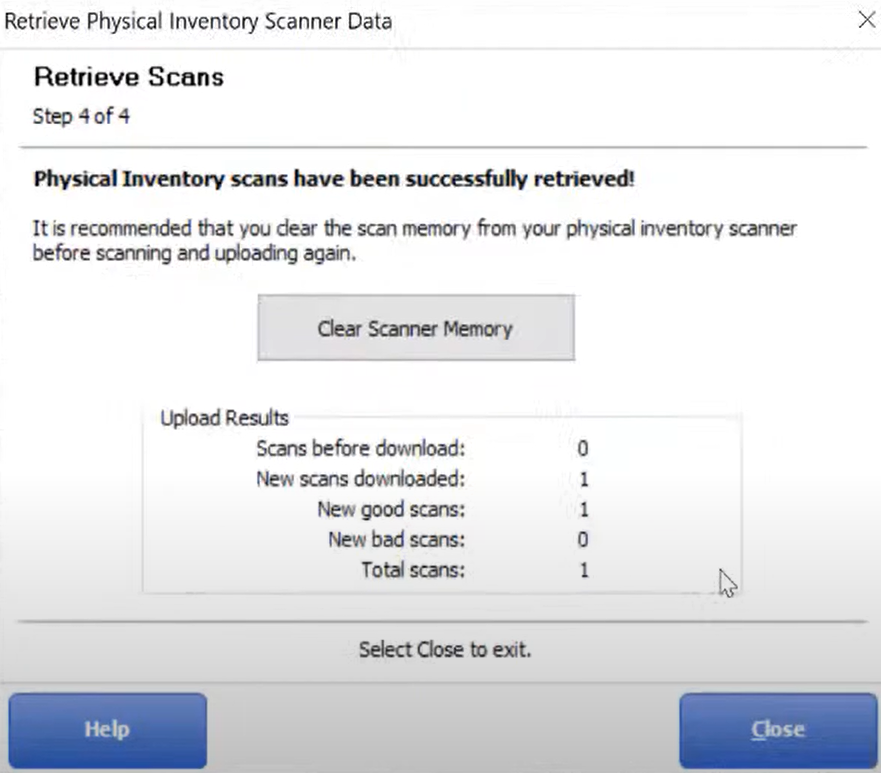
- Your scan has been successfully retrieved. Select “Close”.
- Marked the box then select “Save”.

- You have now successfully uploaded a short barcode into your point of sale.