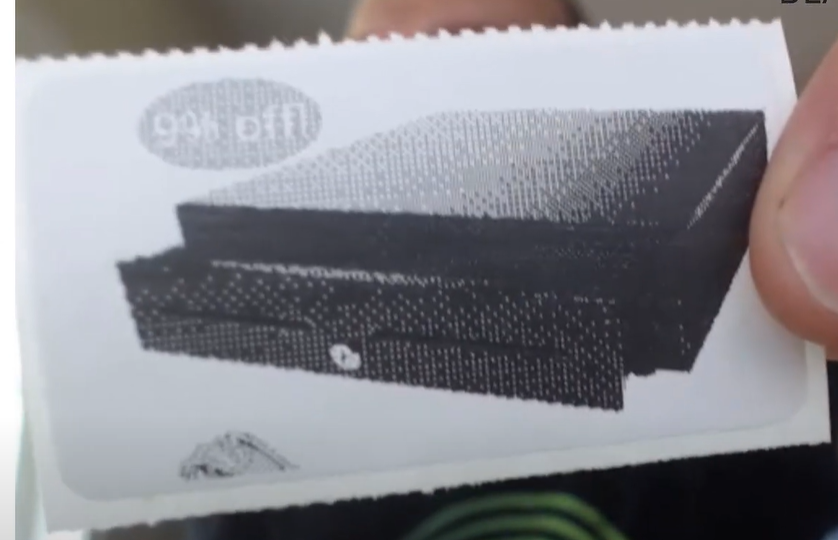
Today we are going to talk about how to print anything you want on a label besides the price tag.
Let’s begin:
First, we need to download LightShot in order for us to put the image on our tag to print.
- On your Google app search “Download LightShot”.
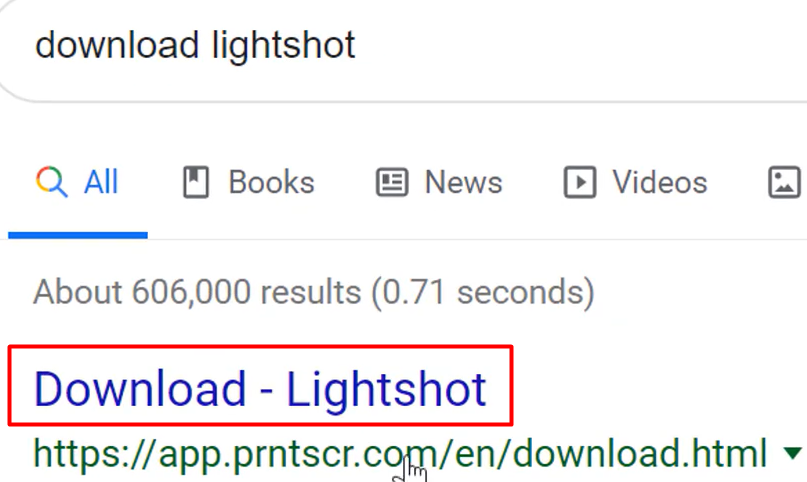
- Select “Download for Windows”.
- LightShot is use to snip on your screen.
- If you select the “Print Screen” button on your keyboard everything goes dark and you can select the area of the screen you want to print.
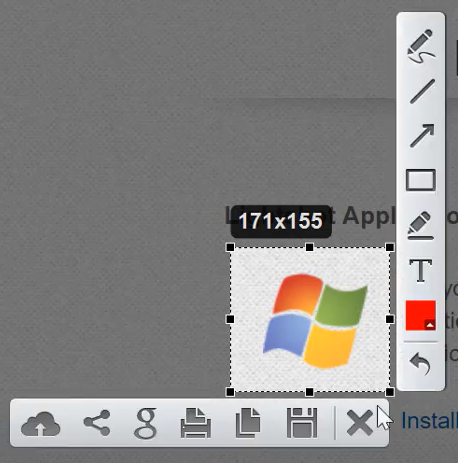
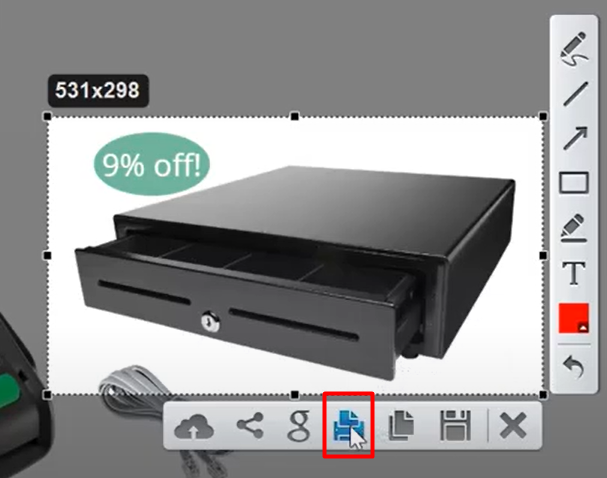
- Down below are some of the Options you want to do for your image. These are Save, Copy, Print, Share, and you can upload it to their website.

- On the right side are some of the tools you can use in LightShot. These are Line, Arrow, Box, Text, Marker, and you can add color on the image you Print Screen.

Now we’re done downloading LighShot, let’s now print anything on a tag.
- Choose a picture you want to print. (for example, you want to print QuickBooks POS Cash Drawer)
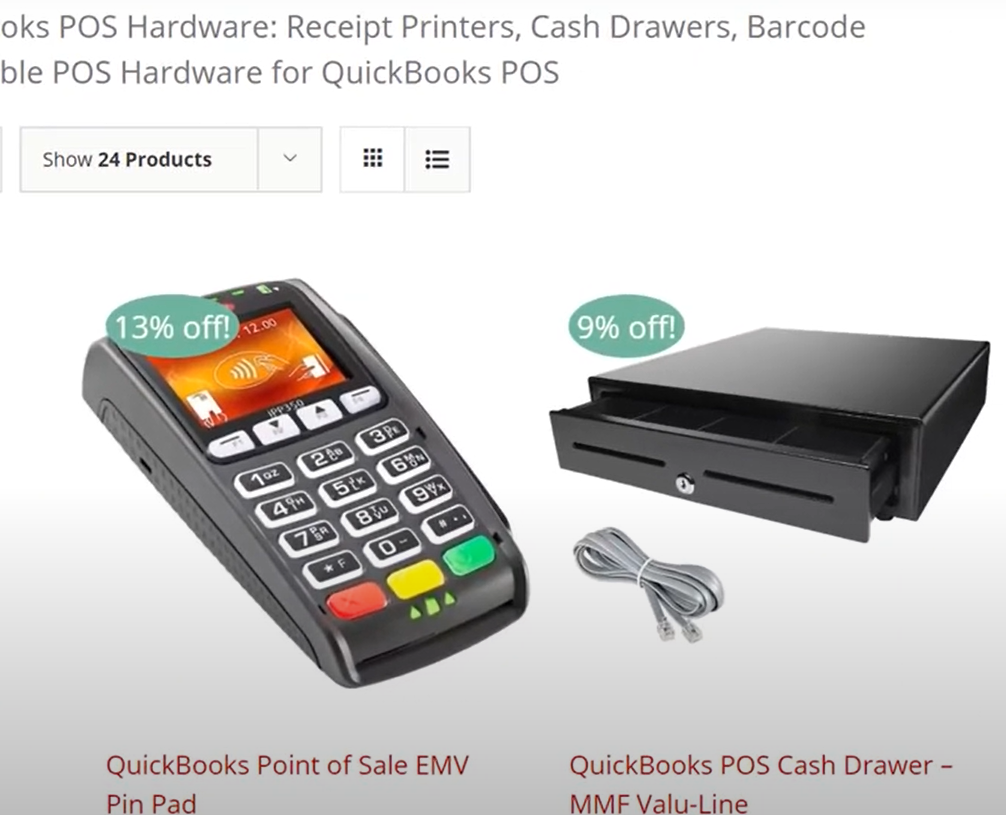
- Select “Print Screen” on your keyboard.
- Highlight the Picture of the Cash Drawer.
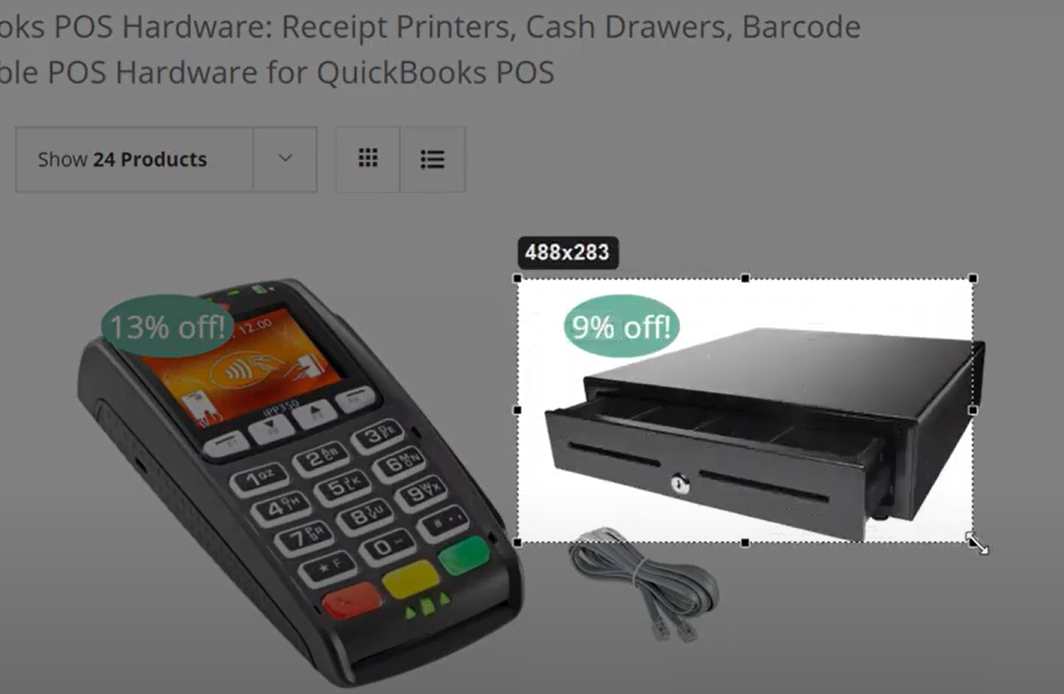
- Select “Print” button.
- Choose the Printer you are currently using (ZD410), then select “Preferences”.
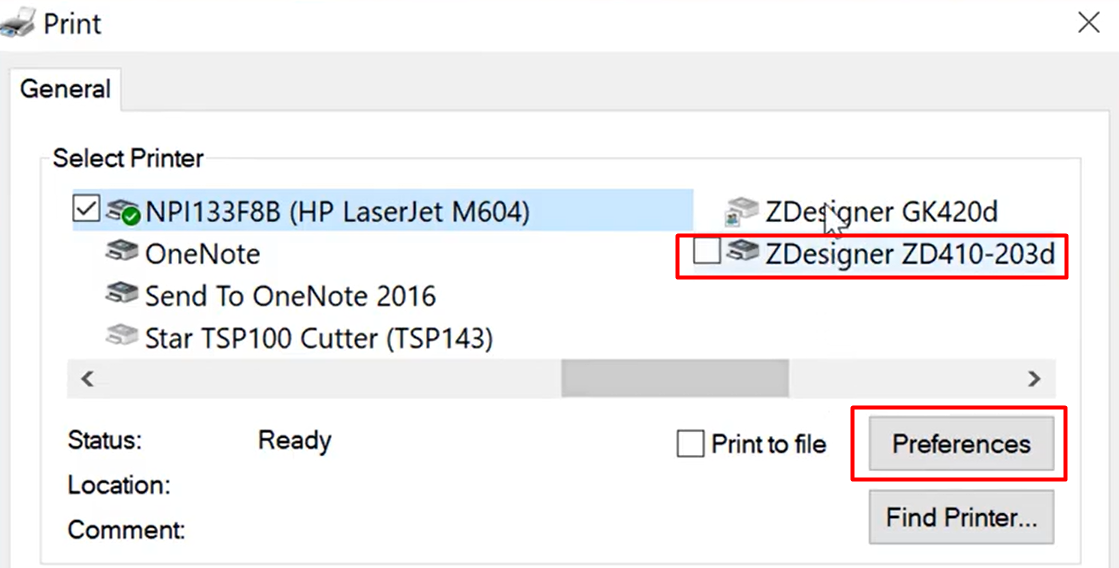
- On your Printing Preferences (always check your printers Height and Width so that the image will print correctly), edit Width and Height to the Width and Height of your printer ZD410. (ZD410 Width: 2.25 and Height: 2.50)
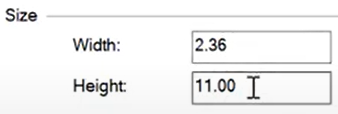
- After you edit the size, select “Ok”.
- Select “Print”.
- You have now printed a Cash Drawer on your tag.