Today we will talk on how to make returns with a credit card and the different rules that apply to it.
Here’s how:
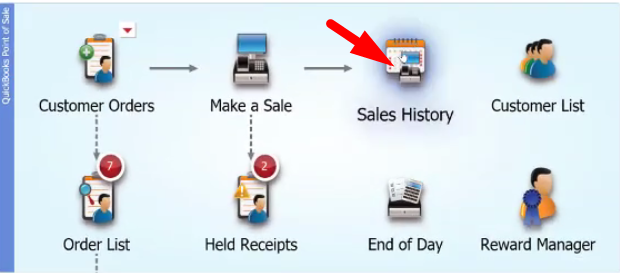
- On the main screen, click on the “Sales History” icon.
- On the list, highlight the receipt and click on the “Accept Return” button on the left column.

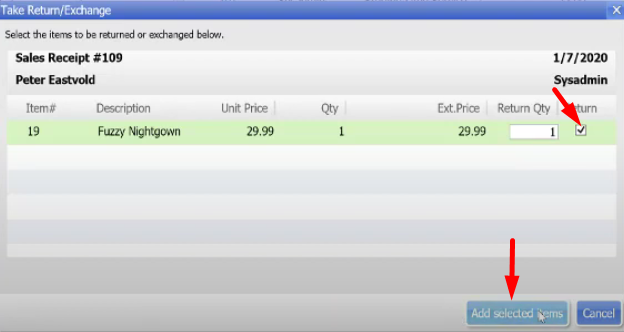
- A new widow will pop up, tick on the “Return” option and click on the “Add selected Items”.
Reminders: If the customer wants to return the item on the same day but they do not have their card with them you can just cancel out their receipt by simply going back to the Sales History and click on “Reverse” on left column. - At the bottom of the page click on the “Credit” button.

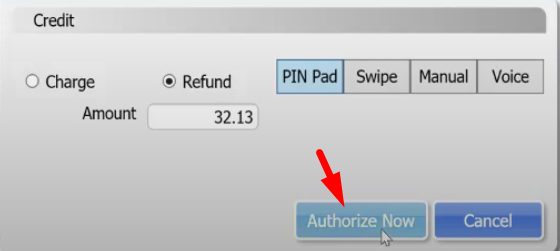
- A window will pop up, so you may select if you want to use a PIN Pad or you can enter the details manually.
Select which ever option you want to choose.

- When you are using a PIN Pad, click on “Authorize Now” and insert the card on the PIN Pad.
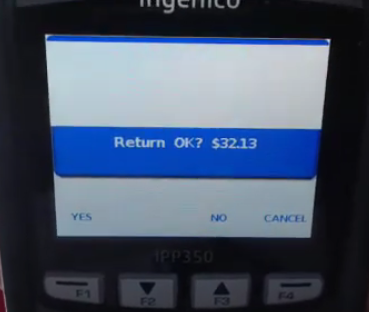
- Right away, you will see on the PIN Pad screen asking for a confirmation for the return on item. Press on “F1” for yes.
- Enter the last 4 digits of the card number and click on “OK”.

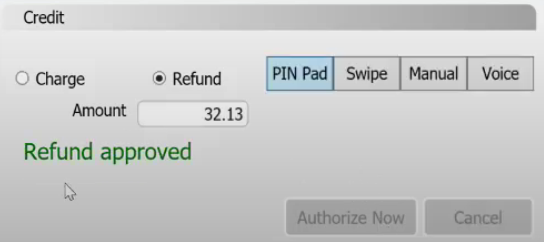
- Once you’ve enter the last 4 digits of the card number, a window will pop up informing you that the refund has been approved.