
Today we will show you how a customer can make a return and you would count it as In-store credit. This depends on your return policy this might be what you’re extending to your customers maybe you don’t want to hand them cash back maybe you want to keep the money in your store and so maybe possible your return policy says In-store policy only.
Let’s begin:
- On your QuickBooks POS screen go to “Sales History”.

- Click on the receipt where the customer is returning the item. For example, you choose “super pants” as the item to be returned.
- Note: If the customer has the receipt you can easily scan it.
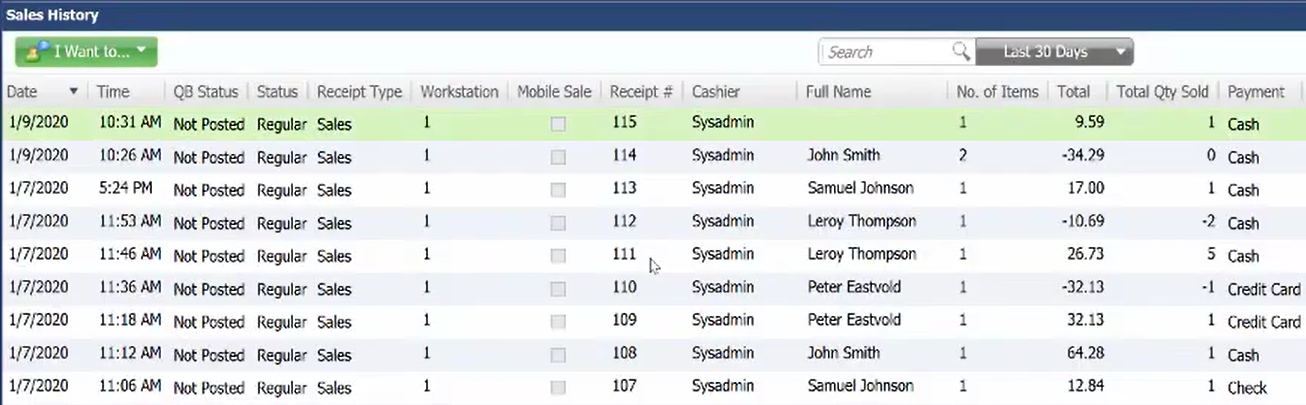
- Note: If the customer has the receipt you can easily scan it.
- Click “Accept Return”.

- Type in “Return Quantity” on how many quanties the customer will return. Then click “Add selected items”.
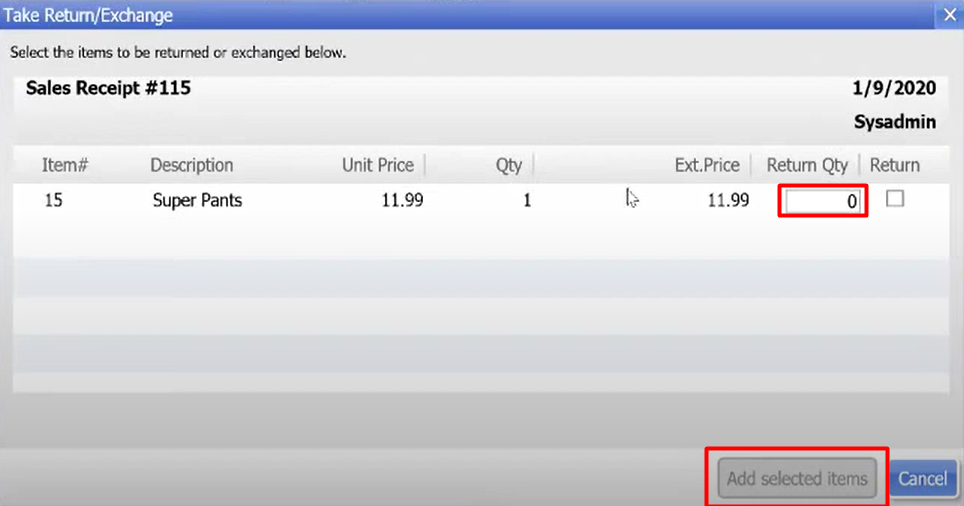
- You can now see that the super pants are on the negative specifically the Quantity and Exit Price.

- On the lower right corner, you’ll see this on the screen. The subtotal is “11.99” minus the discount of “2.40” so the customer has “9.59” back in in store credit.

- Click “Account”.

- Mark “Payment on account” click “Save” then click “Yes”.


- There you have it. Now click “Save” then “Print”.

- Go back to “Home”. Go to “Customer List”.

- On the Customer List screen click the name of the customer. Then click the “Customer Details”. Look at QuickBooks Options section.
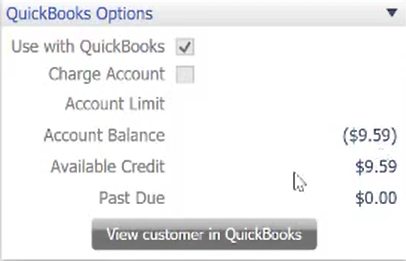
- On the Account Balance you’ll see that the customer has $9.59 available balance.
- You can’t refund this base on the stores In-store credit policy but you can spend that amount to their story or maybe if you choose an item you want to buy again and the price is higher than your account balance you can just add some cash to complete the price of that item.