
Today we will show you where to setup your hardware.
Let’s begin:
First way to setup your hardware
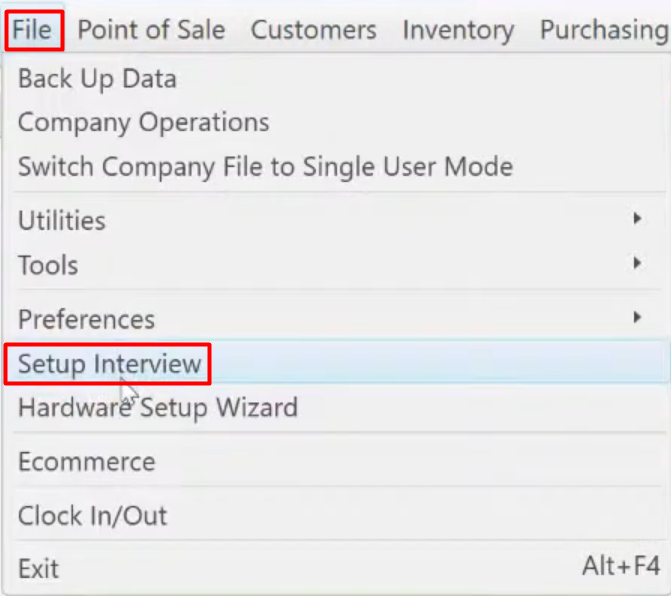
- Go to “File” then select “Setup Interview”.
- Select “Hardware” tab.
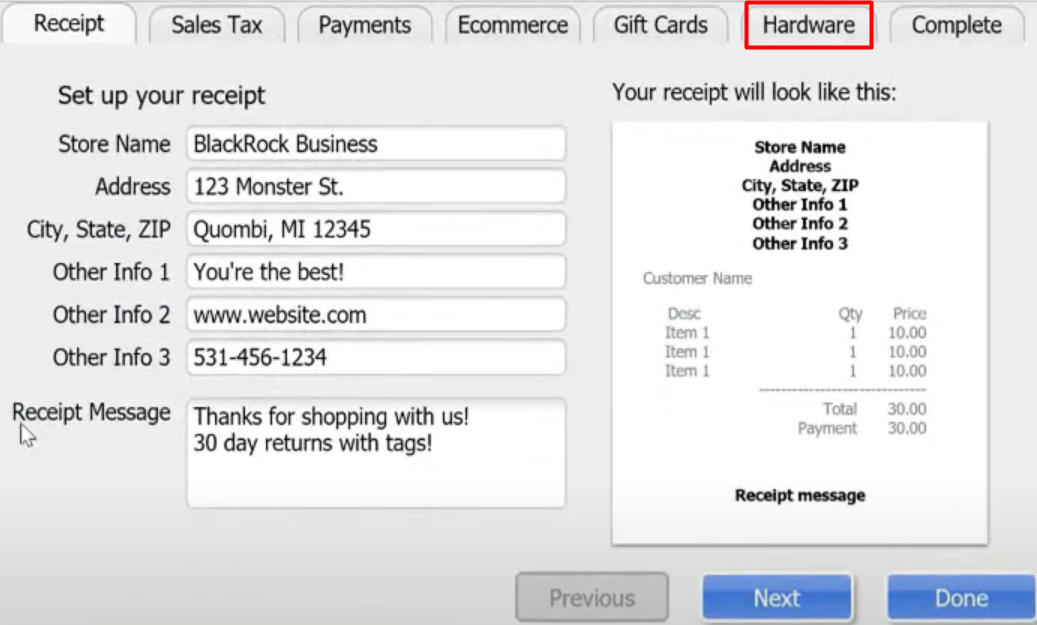
- Hardware tab field will appear.

- You can Configure/Test your Printers.
- You can Setup your Cash Drawer and Pole Display.
- You can Configure/Test your Pin Pad.
- Then after you set up your Hardware, select “Done”.
Second way to setup your Hardware:
- Go to “File” select “Hardware Setup Wizard”.

- Hardware Setup Wizard screen will appear.

- Unlike on the Setup Interview where you can only setup limited hardware, here in Hardware Setup Wizard you can setup a lot of hardware.
- This is the most recommended place to setup your hardware in QuickBooks POS.
- This is also recommended because it detects if you haven’t setup your hardware properly, and helps you out with some troubleshooting.
Third and last way to setup your Hardware:
- Go to “File” and “Preferences”, then click “Workstation”.

- On your left side of the screen, you will see the Hardware setup section.
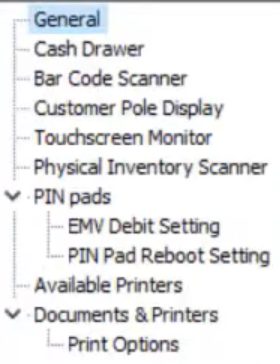
- There are some settings in the workstations preferences that are not present anywhere else.