We’re going to talk about having multiple vendors for the same item. There will be instances where the item that you’re ordering to your vendor is not available, so it is best to have an alternate vendor to always have a backup or to maintain stock for your items.
This is how to add an alternate vendor:
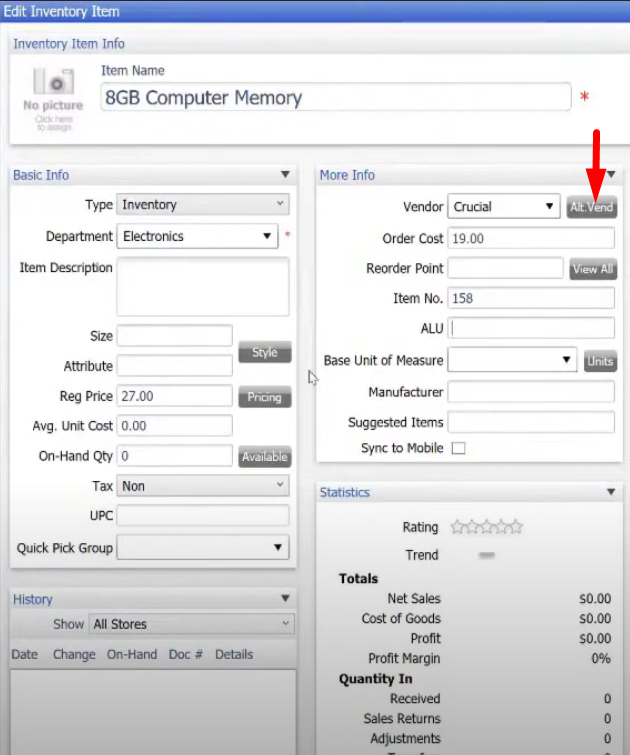
- On the item list, select an item that you want to add an alternate vendor. Then click on “Edit” on the upper right side of the item list screen.


- In the Edit Inventory Item window, click on the “Alt. Vend” button.
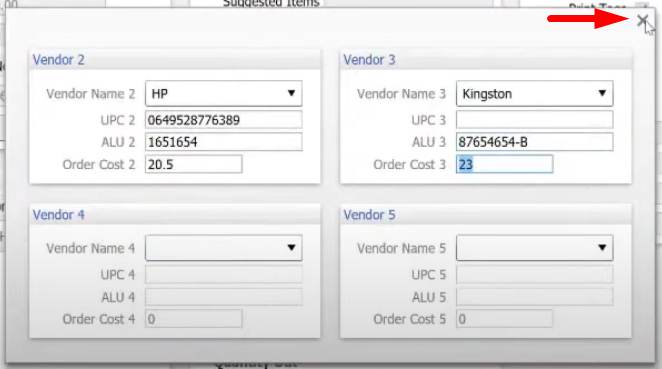
- Fill in the information needed for the alternate vendor to be added. Remember to add the vendor first to the vendor list for the vendor to appear on the drop down list.

- Click on the “x” button or the close button when you’re done filling the necessary information. This will automatically save the information.