
Today we are going to talk about purchasing order using alternate vendor instead of our regular vendor.
Let’s begin:
Let’s take “8GB Computer Memory” as the item to be purchased.
- First, lets take a look at the item details.
- On the Inventory Item Information screen, you will see that “Crucial” is our main vendor for this item.
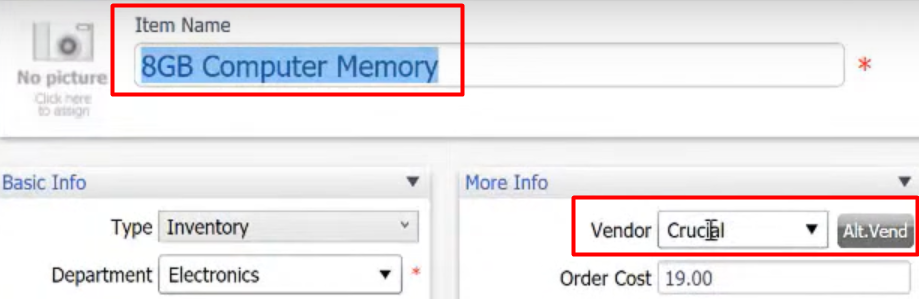
- Now, select “Alternate Vendor” to see other vendors who can supply us with this item if our main vendor is out or don’t have stock with this item.
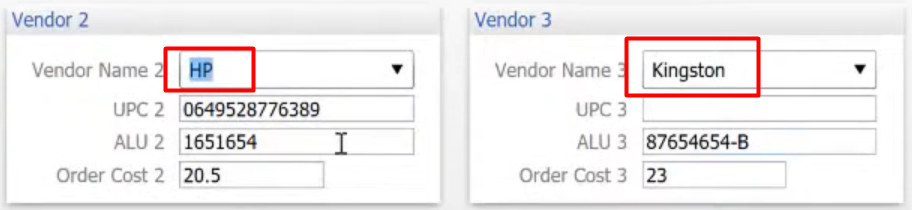
- We have 2 alternate vendors namely “HP” and “Kingston”.
- Let’s purchase order with our alternate vendor.
- On your Home screen, select “Purchase Orders”.
- On the “Vendor” search the name of your alternate vendor (for example, “HP”), then on the “Enter Items” search the name of your item (8Gb Computer Memory).
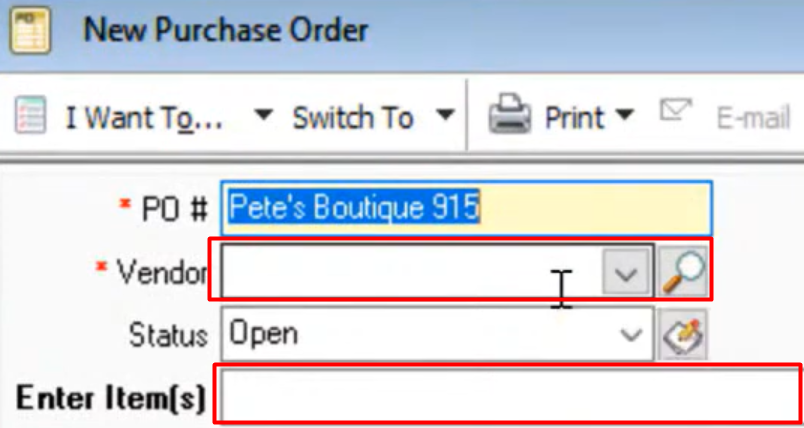
- This is now your purchase order for your alternate vendor.

- Note: your main vendor and alternate vendor do not mostly have the same price for the item.