
Today we are going to talk about assigning a customer discount level to certain customers of your choice.
Let’s begin:
- On your Home screen, go to “Customer List”.
- Select a customer you want to give special discount. (For example, you choose “Silvia Smith”)
- Select “Edit”.

- Edit customer screen will appear. Go to “Customer Settings” section, then select “Edit Discount”.

- Choose “Apply fixed percentage discount to all items”, enter the number of percent you want to give to Silvia (For example, 3%). Then select “Close”.

- On your “Customer Settings” section, you will see that a 3% discount is assigned to Silvia.

- Now, let’s try to use the 3% discount of Silvia in making a sale. Go back to your Home screen then select “Make a Sale”.
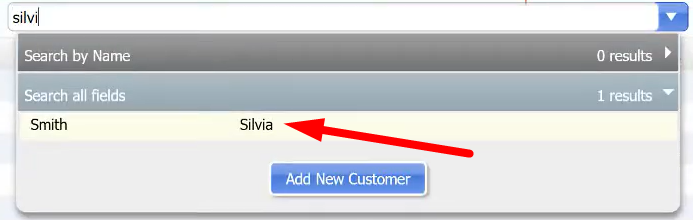
- On your Sales receipt screen choose “Silvia” as your customer.
- Apply Discount screen will appear. Select “Yes”.
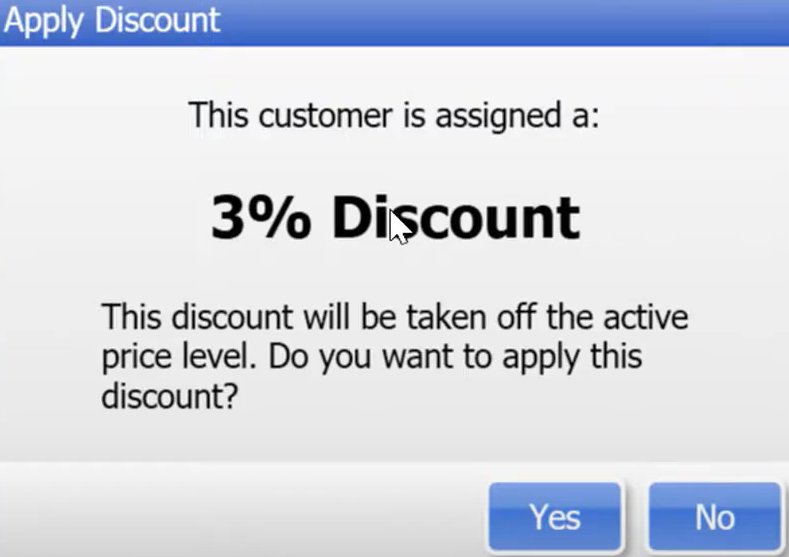
- Choose an item Silvia wants to purchase. You will notice that every item that Silvia purchased has a discount of 3% automatically.

- You have successfully assigned a customer discount level.